

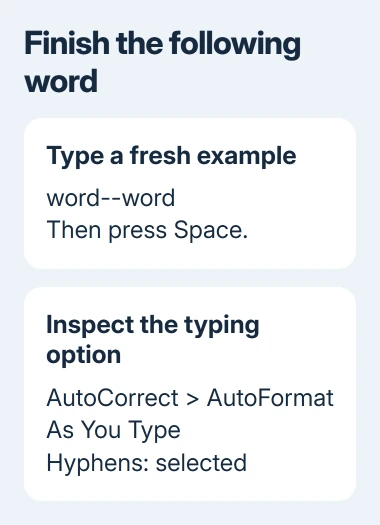
Two hyphens don't become a dash until Word finishes the word that follows them. Type word--word, then press Space; if the pair stays unchanged, inspect AutoFormat As You Type for the dash checkbox.
That typing setting is separate from AutoFormat, which works on existing document text. When both are already enabled, insert the character directly while comparing the affected document with a fresh one.
In this guide
1. Finish the following word before judging the result
In a blank line, type word--word with no spaces around the two hyphens. Press Space after the second word. The conversion happens after that trigger, rather than immediately after the second hyphen.
Use the ordinary hyphen key for this check. Pasted text and special hyphen characters aren't the same test as typing two hyphens yourself.
The spacing matters. The old Word discussion describes word--word and word-- word producing an em dash, the longer punctuation dash. A space before the hyphens can instead produce an en dash, the shorter one.
Both are different from a hyphen inside a compound word. Decide which dash you need before changing an automatic setting, particularly when the document follows an editor's punctuation rules.
If the conversion works in that fresh line, try the same sequence in the affected document. Don't repair Office just because a pair at the end of an unfinished word hasn't changed yet.
If pressing Space still leaves two hyphens, move to the typing option. The asker's original example used the correct sequence but still failed, so this timing check isn't the answer for every case.
2. Enable the option on the typing tab
In current desktop Word for Windows, open File > Options > Proofing > AutoCorrect Options. Select AutoFormat As You Type and find the option that replaces hyphens with a dash under Replace as you type.
Select the Hyphens option, then confirm the AutoCorrect and Options dialogs. Type a fresh example and finish it with Space. Test with a new pair because this setting acts as you type.
Word 2010 uses the same File route. In Word 2007, open the Office button > Word Options > Proofing > AutoCorrect Options. The tab to inspect is still AutoFormat As You Type.
The separate AutoFormat tab controls formatting applied to existing content. Having its hyphen option selected doesn't replace the typing-time setting. Inspect the actual checkbox on each tab rather than assuming one changes the other.
One owner found the typing-tab setting had become cleared even though another AutoFormat setting existed. That gives a specific control to check before trying a reinstall.
On Word for Mac, open Word > Preferences > AutoCorrect > AutoFormat As You Type and inspect the dash replacement option there. The Windows File > Options route doesn't exist on the Mac.
These steps concern desktop Word. For Word in a browser, use direct symbol entry or use the desktop application for this document; the desktop AutoCorrect dialog isn't a browser-wide setting.
3. Insert the dash directly when work can't wait
I'd use a direct insertion while checking a stubborn installation. It produces the character you need without depending on the automatic conversion rule or the next word's spacing.
On Windows with a numeric keypad, press Ctrl+Alt+Minus using the keypad's minus key to insert an em dash. Ctrl+Minus on that keypad inserts an en dash instead.
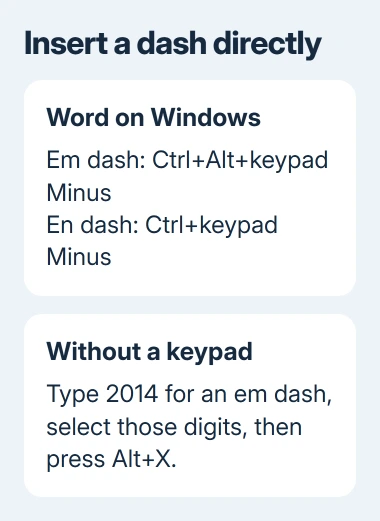
The minus key beside the main keyboard's number row isn't the keypad key. Without a numeric keypad, try Word's Unicode entry: type 2014, select those four digits, then press Alt+X for an em dash.
For an en dash, use 2013 instead. Selecting just the code keeps adjacent letters or digits out of the conversion, which matters when a sentence ends with characters Word could read as part of the code.
Microsoft lists these insertion methods in its Word keyboard shortcuts. These shortcuts insert the dash without automatic replacement or changes to your document's formatting.
On a Mac with the usual US keyboard layout, press Option+Shift+Hyphen for an em dash, or Option+Hyphen for an en dash. The Mac dash guide covers layouts and Character Viewer alternatives.
In desktop Word, Insert > Symbol > More Symbols > Special Characters is another route when a shortcut conflicts. Choose the named dash and select Insert so you can continue writing without a keyboard workaround.
4. Compare a new document before repairing Office
Create a blank document and repeat the fully typed example with a normal text font. If it converts there but not in the original document, keep the failing file for comparison and avoid reinstalling the entire application first.
If a directly inserted dash appears as a box, try a common text font such as Arial. That box means the font isn't displaying the character's shape, also called its glyph. That's a different problem from two hyphens never being replaced.
If direct insertion works but its keyboard shortcut doesn't, check for a conflicting assignment. The Word shortcut repair guide separates broken key combinations from commands that work through the ribbon.
For Microsoft 365 on Windows, open File > Account > Update Options > Update Now if available. A work or school installation may leave updating to your Office administrator.
When automatic conversion fails in every new document despite the correct option, use the Office repair tool. On Windows 11, open Settings > Apps > Installed apps, find Microsoft 365 or Office, open its menu and choose Modify.
On Windows 10, use Settings > Apps > Apps & features, choose the Office product, then Modify. Start with Quick Repair where offered; Online Repair checks more thoroughly and requires internet access.
Save open Office documents before starting, since the repair covers the installed suite. These tools repair the Office installation, though the reports don't tell us exactly why the dash rule stopped working.
The original asker reported that reinstalling Office restored conversion, but later owners still had failures after checking the settings. For a persistent case, ask your Office administrator to review AutoCorrect and the Word installation.
Send the Word version, the exact typed sequence and whether a blank document behaves differently. Keep using direct insertion until the automatic rule works reliably; the reported symptoms don't point to a hardware problem.
The Short Version
Finish the word after two hyphens, then check AutoFormat As You Type. Use direct insertion when the rule fails. Compare a blank document before repairing Office, and keep the typing setting separate from AutoFormat for existing text.
Checked November 16, 2026.
 If you have any business, I can build it online






