

A grayed-out Merge to E-Mail command on Mac often means Word needs a default email app. Set Outlook as the default first. If it sends one message or stops with an error, check both apps' versions and the recipient list.
A fault in Word and Outlook 16.39 also broke email merges. That history matters when you're following an old discussion: its temporary rollback isn't a suitable first step on a Mac running current Office.
In this guide
1. Make Outlook the default email app
Open Outlook and send yourself an ordinary message using the account chosen for this mailing. Wait for it to arrive. If that message fails, fix the account or sending problem before trying to send a batch through Word.
For trouble sending ordinary messages, work through the Outlook sending checks first. Rebuilding the merge won't repair an account that's already unable to send.
In Apple's Mail app, open Mail > Settings > General and set Default email reader to Microsoft Outlook. Older macOS releases call Settings Preferences. Use Select if Outlook isn't listed, then choose the app in Applications.
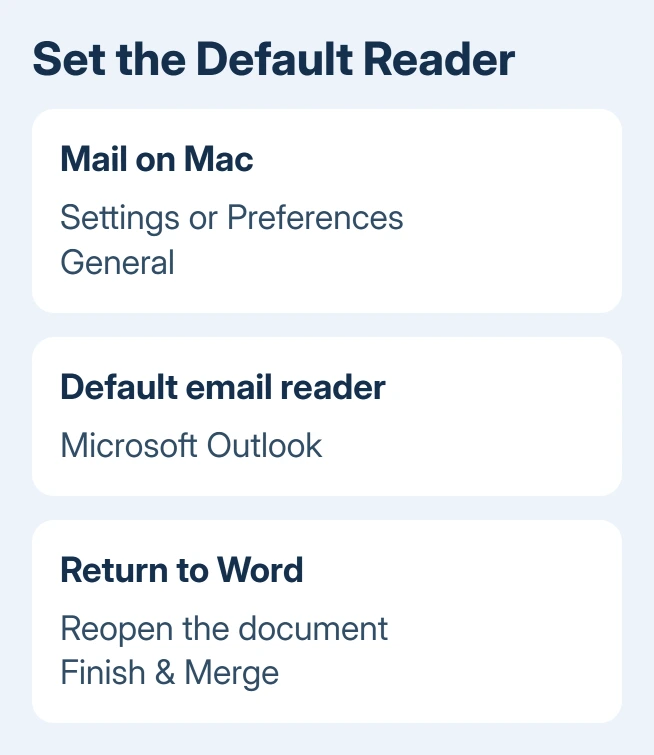
Mail may ask you to add an email account before its settings become available. If you'd rather not add one temporarily, check Outlook's own settings for an option to make it the default email app.
Quit Word and reopen the merge document after changing the default. Return to Mailings > Finish & Merge. If Merge to E-Mail becomes available, Word can now find the email program. Continue with a small test rather than the full list.
Microsoft's email mail-merge instructions identify the missing default email program as a reason this command is unavailable on Mac.
2. Update Word and Outlook together
Choose Word > About Microsoft Word and record its version. Check Outlook > About Outlook too. The old report involved both apps at 16.39 (200713), rather than an Excel address-list problem.
Several owners got that particular failure working by returning both apps to 16.38. Returning Word alone didn't fix one owner's merge. The thread later reported a fix in 16.40, which was an upcoming update in August 2020.
Those reports concern an old fault. Don't install a 2020 Office package to follow that workaround. Update the installed apps instead, especially when Word and Outlook have different update histories.
For apps installed from Microsoft, save your work and choose Help > Check for Updates in Word. Install the offered Word and Outlook updates through Microsoft AutoUpdate, closing the apps when asked. Reopen them after installation finishes.
For Mac App Store installations, open App Store > Updates and update the affected Office apps there. A work Mac may have updates managed by IT; ask them to check both apps rather than reinstalling only Word.
Try the merge again with two addresses you control. If it still stops, keep the exact error message and move to the source-list checks. An updated app can still be connected to the wrong worksheet or email column.
3. Check the email column and preview each test recipient
Open the Excel source and confirm that each intended recipient has an email address in one column. Its header might be Email or EmailAddress. A name column isn't a substitute for the address column, even when the name previews correctly.
Save the workbook before reconnecting it. In Word, select Mailings > Select Recipients and choose the intended data source. For an Excel workbook, select the sheet holding the mailing list, rather than a summary or totals sheet.
Use Preview Results and move through several records. The greeting should change to the next person's details. A repeated first name can mean the selected source or fields need attention before you reach Outlook.
If the list connection itself is confusing, the Excel-to-Word merge setup explains worksheet selection and field insertion. Its letter output is separate from this email-sending step.
For your first attempt, use a separate list containing only your test addresses. I'd rather catch a wrong field in two messages than discover it after a customer mailing. Keep the real list unchanged during this connection test.
If the preview changes correctly but sending still fails, Word can read the list and personalize each record. Next, check the choices in the final email dialog instead of repeatedly rebuilding the spreadsheet.
4. Finish the email merge with the correct address field
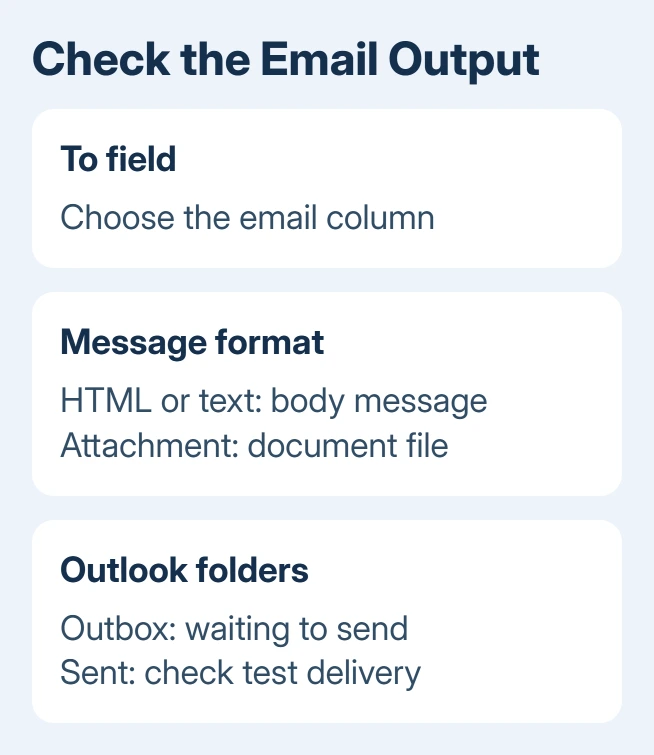
Return to Mailings > Finish & Merge > Merge to E-Mail. In To, select the column containing email addresses. Enter the subject, then choose the message format you need before selecting Mail Merge To Outbox.
For an ordinary email with the message in its body, choose HTML or text. Sending as an attachment creates an email without body text and attaches the document instead. That empty body is different from a merge that never sends.
Check any recipient filtering you've applied. One selected recipient or a one-row test source will produce one message even when the sending process works. Confirm the selected records before using the complete source list.
Open Outlook's Outbox and Sent folders. Messages waiting in Outbox reached Outlook but haven't finished sending. An empty Outbox doesn't tell you whether the messages arrived. Check Sent and confirm arrival in your test inboxes.
Avoid clicking the final merge command again while the first batch is still waiting. That can create duplicate mail. Resolve the queued messages first, then rerun only the recipients who still need a message.
When the merge still stops
Collect the Word and Outlook versions, macOS version, exact error and whether a normal Outlook message sends. Note whether Merge to E-Mail is disabled, no messages reach Outbox, or messages remain queued there.
On a work account, give IT this information and request a Microsoft 365 case for Word-to-Outlook email merge on Mac. Include a small sample list with invented names and test addresses, rather than your customer database.
Support can then review a small example showing which part fails: Word's command, recipient selection or Outlook delivery. If the small test still fails, ask support to review those details rather than reinstalling all of Office again.
The Short Version
Set Outlook as the default email reader, update both apps, then test a small recipient list. Choose the email address field in Merge to E-Mail and check Outlook's Outbox and Sent folders before repeating a batch.
Checked November 17, 2026.
 If you have any business, I can build it online






