

Command+Z can remove a large block of writing and leave Redo unavailable in this Word for Mac fault. Preserve the remaining text in another file, then update macOS and Word. One owner confirmed that updating fixed it.
Other owners still saw it on updated installations, so don't keep trying Undo on your only copy. If it keeps happening, compare Word in a separate Mac account and check older saved versions of the document.
In this guide
1. Protect the remaining work before another Undo
Stop pressing Command+Z as soon as Undo removes more than you expected. If Redo is available, use it once and inspect the result. Don't type into the document while you're checking whether Redo can bring the text back.
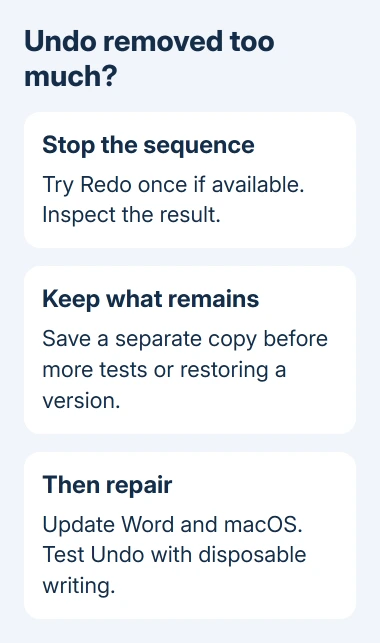
Use File > Save As to save the current document under a separate name. If your cloud document offers Save a Copy, use that command instead. Keep a copy of the useful text that remains before comparing files or restoring an earlier version.
For the ordinary command controls, the Word Undo guide explains Undo and Redo separately. This fault involves Undo removing too much and Redo becoming unavailable.
The original asker described Word reverting to a previous property update instead of reversing only the last edit. Another owner said frequent saving hadn't protected them because the unwanted state was being saved too.
That's why keeping a separate copy gives you protection that saving the same file doesn't. Don't assume that repeatedly pressing Save preserves an earlier paragraph after it disappears.
If the lost text is already gone and Redo is unavailable, move to the recovery section before spending time reproducing the fault. A fresh test won't restore missing work from the current document.
2. Update the Mac, then update Word
Finish saving, then close your documents before updating. On current macOS, open System Settings > General > Software Update. On the older systems in the original thread, operating-system updates were offered through App Store > Updates.
For a Microsoft-installed Word copy, choose Help > Check for Updates. Install the offered supported Office updates and restart the Mac. For an App Store installation, check Updates in the store.
Microsoft's Office for Mac update instructions explain that installation split. Checking the wrong updater can leave the app unchanged even when the check itself finishes normally.
The clearest successful update report is a direct owner reply saying that updating solved the problem. A different owner reported no recurrence after moving to 16.8, but said they'd seen temporary improvements before.
Those reports don't identify one build that fixes every case. Another owner reported the fault even with all updates available at the time installed. Record your Word build number rather than assuming an old version will prevent this fault.
Check Word > About Microsoft Word after the update. Record the complete version and compare it with the number you started with. A change from 15.4 to 15.40, for example, is easy to misreport if a digit is omitted.
Mac Office 2016 is unsupported and receives no current fixes. Arrange a supported edition compatible with the Mac. Don't join an old preview channel to chase the historical repair.
3. Test Undo on disposable text, not the original chapter
Start a fresh document with several disposable sample paragraphs. Change one word, then use Command+Z once. Check whether it reverses that edit and whether Redo can put it back.
Next, try a duplicate of a document that has shown the fault. If the sample works but Undo removes large amounts of writing from the duplicate, tell support which document content triggers it.
One owner associated the problem with pasted material and differing formatting, including material copied from another Word document. They didn't confirm that a particular paste option repaired it.
If pasting appears to trigger your case, record the source app, the paste command, and what Undo removes. Keep a small example that shows the problem with private details removed, so you don't have to send your manuscript.
I'd use the Undo button as one comparison with the shortcut. If both remove too much, tell support that Word's record of edits is affected, even without the shortcut.
If the blank sample fails too, note that before trying another Mac account. Repeated formatting changes to the original file won't help when newly typed sample text fails too.
4. Compare a separate standard Mac account
A later adviser reply says a new account solved that case. The reply doesn't include the owner's details about changing accounts. Use the account check to compare behavior, without counting on it as a repair.
On a current Mac, open System Settings > Users & Groups > Add User and approve it with an administrator login. Choose Standard for the new account. Older versions use System Preferences > Users & Groups, the lock, and the add button.
Log out and sign into the new account. Open Word, complete any required sign-in, and repeat the blank-document test. Use the same installed app and harmless sample so you can compare behavior fairly.
If Undo works there, tell support that the issue follows the original user account. They can then check your account's settings and tools before deciding whether Word needs another reinstall.
Don't delete your original account or move your entire document collection during this check. Keep the new account for testing until support helps you decide which settings or files need attention.
5. Recover an earlier copy and send a useful report
For OneDrive or SharePoint documents, look for Version History. Inspect the older copy before choosing Restore, keeping useful newer text in your separate saved file.
For a crash or an unsaved document, the Mac Word recovery guide covers AutoRecovery. A normally saved document with an unwanted edit may need version history or a backup instead of a crash-recovery file.
If neither an older saved version nor a backup contains the lost text, repeating Undo can't create that missing copy. Ask IT to check managed backups before replacing or cleaning up the affected file.
Give Microsoft Support your Word build, macOS version, sample with private details removed, and account-check result. Explain that Undo removes multiple edits and disables Redo so the failure is clear.
The Short Version
Preserve remaining text, update Word and macOS, then try disposable writing. Compare a separate Mac account if needed. Recover lost text from older saved versions or backups, keeping useful newer work before restoring.
Checked November 16, 2026.






