

Empty picture frames in Word often mean Show picture placeholders is enabled. Turn that setting off first; a picture that vanishes only in Draft view needs Print Layout instead, while a red X needs its own file or link check.
Those symptoms can look similar, but they don't mean the same thing. Check what's in the missing picture's space first, rather than replacing every image in your document.
In this guide
1. Turn off picture placeholders for empty frames
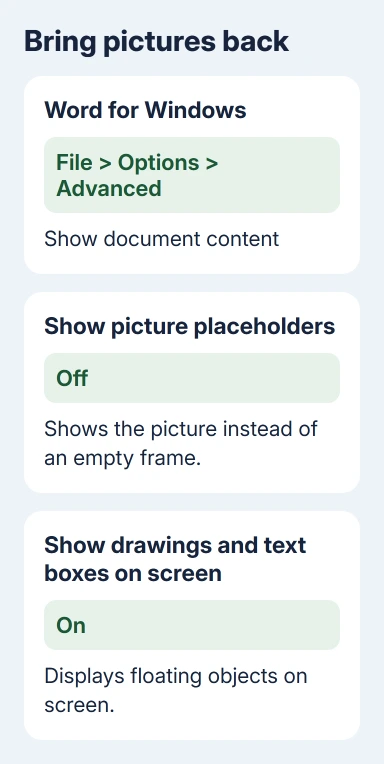
With the affected document open in Windows Word, select File > Options > Advanced. Scroll to Show document content, clear Show picture placeholders, and select OK.
Check the same page again. The picture should appear in place of the empty frame without you having to insert it again. This setting changes how Word displays content; it doesn't recover an image that was deleted from the file.
One owner restored pictures by clearing placeholders in Word 2007. They reported that the blank square disappeared and the image returned in Print Layout and Web Layout.
In Word 2007, choose the round Office button > Word Options > Advanced. Find the placeholder control under Show document content. Keep a document open while looking for it.
The original accepted answer used Tools > Options, which belongs to much older Word releases. In Word 2003, look on that dialog's View tab for Picture placeholders. Don't hunt for a Tools menu in today's Windows ribbon.
The Advanced options page covers Windows desktop Word. Mac and browser Word don't use File > Options. Follow the view and image checks that fit your screen.
2. Use Print Layout for pictures that float beside text
Select View > Print Layout. Look at the page containing the missing object. A picture placed beside text can disappear from Draft view even though it remains part of the document.
This can explain why only some pictures vanish. In Line with Text puts a picture inside a paragraph, like a character. Square wrapping places it separately, so the simpler Draft view handles it differently.
If switching views brings the picture back, you can keep editing in Print Layout. Keep the image and its wrapping settings instead of rearranging the page for Draft view.
In Windows Word, also return to File > Options > Advanced > Show document content and select Show drawings and text boxes on screen. That option matters for floating objects and text boxes, rather than ordinary text alone.
For Word 2007, use Office button > Word Options to reach the same section. For a Mac, choose View > Print Layout first. Those checkboxes are Windows settings; you won't find the same controls on a Mac.
Check one missing picture and one that already worked after changing the view or drawing setting. Save if both appear. For a remaining frame, check whether the paragraph clips the image.
3. Give an inline picture enough line height
A picture that appears as a thin slice can be trapped inside a paragraph whose line spacing is Exactly a small number of points. The image is present, but the paragraph isn't giving it enough vertical room.
Click in the paragraph containing that picture. In Windows Word, open the Home > Paragraph dialog and inspect Indents and Spacing > Line spacing. On Mac, choose Format > Paragraph to inspect the equivalent setting.
Set that paragraph's spacing to Single instead of Exactly. If the full image returns, the fixed line height caused the clipping. Adjust that paragraph's spacing to suit your document, leaving the rest of the text as it is.
The Word line-spacing controls separate line height from space before and after paragraphs. Adding space after a paragraph won't expand a line that clips the picture.
Keep this change local at first. Selecting the whole document can alter tables, headings and ordinary paragraphs that were already laid out correctly. If the image returns in that paragraph, you'll know what was clipping it.
For a completely empty frame, red X or image error, move to the source-file check. Spacing changes won't replace missing image data.
4. Check the original image when Word shows an error
For a red X, check the original picture file rather than the placeholder setting. Find the original image file and try opening it outside Word. If it won't open there either, request another copy from its sender or original device.
A linked picture points to a separate file. Moving the Word file without that picture, or renaming the picture's folder, can break the link to its target.
Request the image file from its sender when necessary. Use Insert > Pictures and the ordinary insert option to store it in the document. Check the replacement before removing the damaged version.
If only a pasted web image fails, save a permitted copy of the actual picture, then insert that file. A page address doesn't identify a downloadable picture file, and the source site can stop supplying linked content.
I'd replace one affected image first. That shows whether a fresh file solves the problem without disturbing every caption and page break. Check its size and surrounding text before replacing the rest.
If pictures appear while editing but disappear only on paper, use the Word picture-printing checks. Printing options and printer output need a different comparison from a blank editing frame.
5. Send a small failing document for repair
When an ordinary image still won't display in Print Layout, insert that same file into a new blank Word document. If it works there, keep the original document and give your document administrator a shortened copy showing the fault.
For a failure in every document, use File > Account > About Word in current Windows Word, or Word > About Microsoft Word on Mac, to record the version. Give Microsoft Support the sample and version to check why pictures won't display.
Include whether the symptom is an empty frame, a clipped strip, a red X, or missing printed output. Those details help support focus on the problem you're seeing, so you don't get another set of steps for a different symptom.
The Short Version
Clear Show picture placeholders for blank frames. Use Print Layout and enable on-screen drawings for floating objects. Check fixed line height for clipped images, and restore the source file for a broken linked picture.
Checked November 17, 2026.
 If you have any business, I can build it online






