

Word relative hyperlinks can fail because their stored address or Hyperlink Base still names the old folder. If your documents need to move together, remove that fixed path, update the link you've edited and test a copy of the folder.
An absolute address names a particular location. A relative address describes where the target is in relation to the starting folder. That difference matters more than the words displayed as the link.
In this guide
1. Decide whether the link should move with the document
Decide what you need the link to do. A report linked to an appendix in the same project folder needs a different setup from a report that must always open a file on one shared drive.
For a portable project, keep the report and its target files in one parent folder, with any subfolders kept in the same arrangement. Copy that whole folder when sharing it. Moving only the report leaves its target files behind.
For a fixed shared location, an absolute address can be the right choice. Each reader opening the link still needs access to that location. Changing the hyperlink format can't grant access to a network share or recreate a missing document.
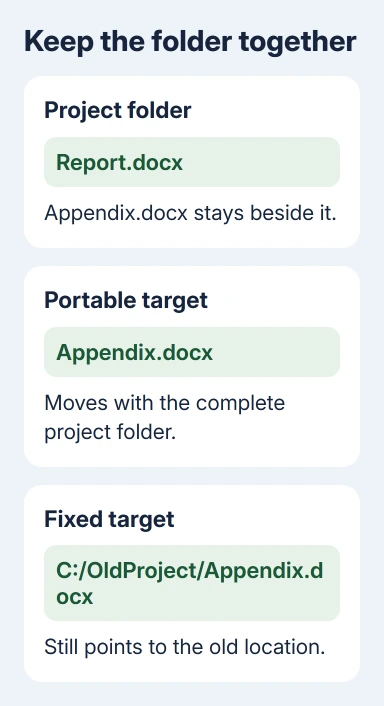
Before changing many links, duplicate the complete project folder. Try changing one link in that copy first. That lets you check the result without rewriting every reference in your working report.
If the target itself won't open from File Explorer, fix that access or filename problem first. A relative link won't make an unavailable file open. Once the target opens normally, check the address Word has saved.
2. Inspect the address rather than the link's label
In Windows desktop Word, right-click the link and choose Edit Hyperlink. Inspect Address. A full drive or server path points to a particular location; a filename or subfolder path can describe a nearby target.
For example, Appendix.docx describes a file in the starting folder. Attachments/Appendix.docx describes a target inside the Attachments subfolder. The names are examples; use the actual folder and file names in your project.
Press Alt+F9 for the underlying HYPERLINK field. This switches between the link's visible text and the instructions behind it. Check the saved address, leaving its bookmark and display settings as they are.
If field instructions are unfamiliar, use the Word field-code display guide before editing them. Braces and HYPERLINK text on screen don't themselves mean the destination is broken.
The hyperlink controls separate the label from its address. Renaming the visible words doesn't change the file Word tries to open.
Stay in Windows desktop Word for the legacy repair described here. Word for the web and Word for Mac have different link controls; neither uses the Windows Office button or File > Options path in the following steps.
3. Remove a fixed Hyperlink Base for the portable-folder case
In current Windows desktop Word, choose File > Info > Properties > Advanced Properties. Open the Summary tab and inspect Hyperlink base. A fixed folder there can keep relative links tied to that location.
To test a folder you can move, note the existing value, clear that field, and choose OK. This is a document property, so make the change in the report you're testing rather than an unrelated blank document.
Word 2007 puts it under Office button > Prepare > Properties. In the document-properties area, open Document Properties > Advanced Properties > Summary. That older route is why advice to use File > Info doesn't fit Word 2007.
Setting a base can be useful when the chosen starting location is meant to stay fixed. It isn't a command that rewrites every absolute link into a movable reference. Check an existing link's address after changing the base.
Return to the link you're testing. Replace its old fixed path with the filename or relative subfolder path that matches your folders. Keep the rest of the target name, including its file extension, correct.
For a jump inside the same document, choose Place in This Document. The Word hyperlink steps cover headings and bookmarks without an external file path.
4. Update the edited field and check saving behavior
After editing the trial link, select its field and press F9 to update it. If field instructions remain visible, press Alt+F9 to return to the normal link label. Then follow the link with Ctrl+Click.
One owner found that the repaired relative address needed a field update before it worked. They then found that the document and its targets could move together while the link kept working.
In their next reply, they found another problem: saving under another filename changed links back to absolute when Update links on save was enabled. They reported that disabling it stopped that behavior in their Word 2007 setup.
In Word 2007, open Office button > Word Options > Advanced. Under General, select Web Options > Files and inspect Update links on save. Newer Windows versions start at File > Options > Advanced.
For that save-related symptom, clear the option and save the trial copy. Reopen it to inspect the address. Check what your installed version actually saves; releases can handle links differently.
Don't disable document security warnings to make a broken path work. A security warning is different from a file-not-found error: allowing a link to open won't bring back a missing file.
5. Test a second location before handing over the folder
Copy the complete project folder to a different location. Open the report in that copy and follow the repaired link. Confirm that it opens the appendix from the copied folder, rather than quietly using the original file.
I'd check the opened target's location, not just whether a window appears. A link that still opens the old appendix can look successful until the original folder is removed or the project reaches another computer.
Repeat after saving and reopening the copied report. If that link still works, make the same repair to the other broken links and test the files your recipient actually needs.
If saving still rewrites the address, ask Microsoft Support to inspect two sample files without private content. Include your Word version, how both folders are arranged, and the address before and after saving.
Ask them to check relative HYPERLINK fields and save-time rewriting. If the recipient needs a cloud document instead, use its actual sharing link and access controls rather than a path that exists only on your PC.
The Short Version
For portable folders, inspect the stored address, remove an unwanted fixed Hyperlink Base, edit one relative target and update its field. Check Update links on save if saving rewrites it, then test the entire copied folder.
Checked November 17, 2026.
 If you have any business, I can build it online






