

Braces around HYPERLINK and a web address mean Word is showing the link's instructions instead of its readable text. Press Alt+F9 to switch back to the results.
This explains why a document can look wrong while editing but look normal in Print Preview or on someone else's computer. The link text can still be there. Change the display before deleting the link or typing its words again.
In this guide
1. Switch the document back to link text
With the cursor in the document, press Alt+F9 once. The HYPERLINK instruction should change back to the link's text. Other fields, such as page references, can switch back to their readable results at the same time.
On a laptop where the function keys control sound or brightness, the combination may need Alt+Fn+F9. If the first press changes a laptop feature instead of Word's display, use the menu method in the next section.
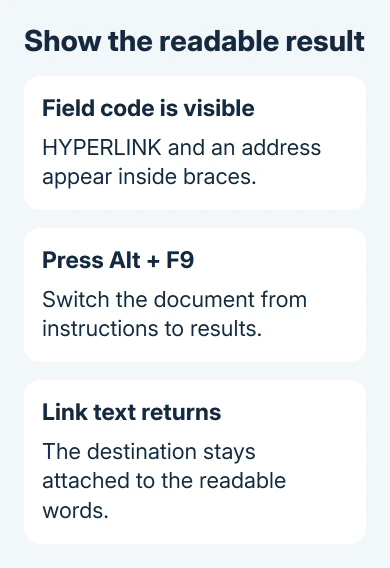
A field is an instruction Word stores inside a document. Its result is the text Word shows after reading that instruction. Microsoft lists Alt+F9 as the toggle between the two in its field-result guidance.
Check another hyperlink after pressing the shortcut. If the whole document returns to ordinary text, the display was the problem. Save the document and continue editing with the results visible.
If just one link remains in code form, click inside that field and press Shift+F9. That shortcut changes just the selected field, rather than the whole document's view. Use the options setting next if several links are still affected.
Don't use a field-removal shortcut to change how links look. Removing a field changes the document's behavior; showing its result keeps the link intact. That's the difference that matters when the document still needs working references.
2. Clear the field-code option in Word's settings
In Word 2007 for Windows, click the round Office button at the upper left. Choose Word Options, then Advanced. Scroll to Show document content, where Word keeps several editing-display choices.
Clear Show field codes instead of their values and choose OK. Inspect the affected link again. The readable text should replace the HYPERLINK instruction without having to create the link again.
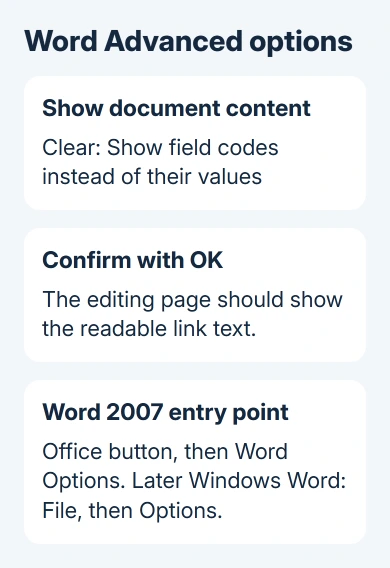
In Word 2010 and later desktop Word for Windows, start with File > Options > Advanced instead. The setting has the same name under Show document content. The Office button belongs to Word 2007, not these later editions.
One owner, the original asker, confirmed that clearing this box restored their links. Switching the page view hadn't fixed it. That makes the field-code option a better first choice than changing Print Layout to Web Layout.
The nearby Field shading list is different. It controls the shading used to identify fields while editing. Changing that list won't choose between a HYPERLINK instruction and its readable result.
Try an older document that showed the same symptom. If its links now appear normally too, don't rebuild them one by one. One display setting can explain why several files suddenly look wrong on the same computer.
3. Separate a display problem from an actual bad link
Look at what remains after field codes are hidden. If normal link text leads to the wrong destination, edit the hyperlink itself. Braces and the HYPERLINK instruction tell you how Word displays the link, not whether its address works.
A link that returns to an old folder needs the relative-path checks, including Hyperlink Base and saving behavior.
Right-click the link and choose Edit Hyperlink to inspect its address and Text to display. The Word hyperlink setup guide covers the dialog when those two entries need correcting.
If you see an ordinary web address without braces, check Text to display before changing more Advanced settings. A link can intentionally display its destination. Hiding field codes doesn't invent a different label for it.
For text that no longer needs to open anything, the individual hyperlink removal method keeps the words while removing the destination. Use that only when removal is the actual goal.
I'd check one link completely before making a document-wide edit. Confirm its displayed words, then its address. That short check prevents replacing a correct set of links just because Word briefly showed their stored instructions.
4. Check the separate setting if codes also print
A normal Print Preview is useful here: it means the editing display and print output already differ. Turning off the on-screen field-code setting can fix the editing view without changing any printer setting.
If the printout itself contains field instructions, open Word Options > Advanced in Word 2007, or File > Options > Advanced in later Windows versions. Scroll to the separate Print section.
Clear Print field codes instead of their values. This is not the similarly named checkbox in Show document content. One controls what you edit on screen; the other controls what Word sends to print.
Open Print Preview again before sending the job. Confirm that a link appears as its intended label rather than its HYPERLINK instruction. Only print a sample once that view is right.
A later reply explained this separate print option. It matters for handouts that intentionally show field instructions, but a correct preview doesn't need that change.
5. Get help if the display keeps returning
Close Word normally, reopen it, and check whether the field-code checkbox remains cleared. If the problem returns only after a particular action, note that action and whether all fields or one link changes.
On a work computer, give IT the Word edition, a harmless sample document, and whether each checkbox is selected. Have them check what keeps resetting the display preference, rather than asking them to repair every hyperlink.
If only one document remains wrong, send a copy containing an affected link and the normal Print Preview comparison. That gives the document's author a way to inspect its fields without guessing whether the words were deleted.
The Short Version
Alt+F9 hides document-wide field instructions. In Word 2007, clear Show field codes instead of their values through Office button, Word Options, Advanced. Check the separate Print option only if instructions appear on paper too.
Checked November 16, 2026.
 If you have any business, I can build it online






