

Word can stay full screen after Restore Down because its restored window was saved at desktop size. Click Restore Down once and drag an edge inward. If the document disappears, recover its position or size through the window menu.
A Windows 10 tablet-mode problem can also keep apps maximized. Match the behavior first: a visible window that won't shrink, a window that vanishes, or several apps stuck full screen.
In this guide
1. Resize the restored window from its edge
Point to the button next to Word's close button. Its tooltip tells you whether the next click will Restore Down or Maximize. Restore Down takes Word out of its maximized state, but its saved window size can still be large.
Click Restore Down, then position the pointer on Word's outer frame. When the resize pointer appears, drag inward. Try a corner if an edge is difficult to catch against the screen boundary.
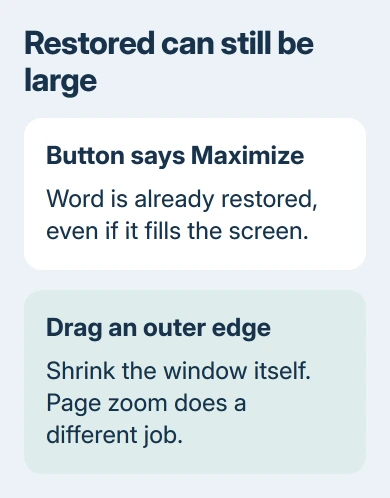
If the button now offers Maximize, Word has restored to its saved dimensions. Those can still fill the desktop. Page zoom changes the document's appearance inside Word, not the size of this outer window.
Once the window is smaller, move it to a useful position using the title bar. Close Word normally after saving your work, reopen it, and check that Restore Down returns to a usable window.
The original Word discussion describes both oversized restored windows and nearly invisible ones. Don't assume a failed mouse drag means the document itself is damaged.
If Word disappears when you click Restore Down, leave the file alone and use the keyboard steps in section 2. If all applications refuse smaller windows, jump to the tablet-mode check.
2. Recover an invisible or extremely thin window
Select Word with Alt+Tab so keyboard commands reach the affected window. Press Alt+Spacebar to open its window menu. This Windows keyboard shortcut works even when you can't reach the title bar.
Choose Restore first if it's available. Open the menu again and choose Size. On an English Windows interface, pressing S selects Size; otherwise use the menu's displayed command or navigate with the keyboard.
Press a direction key to select an edge, then use the direction keys to expand the window. For example, choose the right edge and press Right repeatedly to widen it. Press Enter to accept when the window becomes visible.
An owner restored a window that had become almost zero width or height with the Size command and keyboard. Later replies confirmed that approach, including a case where the Move command hadn't helped.
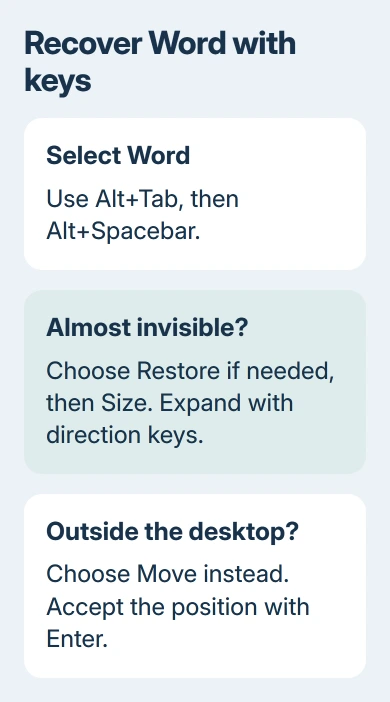
If the window is an ordinary size but outside the visible desktop, select Move from the same menu instead. Press a direction key, then continue using the keys to bring it into view. Press Enter to keep its position.
For a window left on another display, Windows+Shift+Left Arrow or Windows+Shift+Right Arrow moves the active window between monitors. This helps after disconnecting a screen, provided Windows still has another display to move between.
These operations change Word's window, not the document's margins. If the outer window is now usable but the text won't highlight, follow the separate Word mouse-selection checks.
3. Check tablet mode on a Windows 10 device
On Windows 10, open Action Center from the taskbar or press Windows+A. Expand the quick-action tiles if necessary, then turn Tablet mode off. Check whether Word can now restore to a smaller window.
Several owners in the discussion confirmed that leaving tablet mode solved their problem. Another had tablet mode off already, so this check belongs to devices using that mode rather than every Word window fault.
Windows 11 handles tablet behavior automatically. On a convertible device, return it to its laptop position and reconnect its keyboard if detached. Its position and keyboard connection control this behavior instead of the old manual toggle.
The tablet-mode instructions explain this version difference. Searching Windows 11 Settings for the old Windows 10 tile won't produce the same control.
If only Word still fails while other apps resize normally, continue with Word's startup check. Don't change display resolution just to force every application into a smaller-looking layout.
4. Try Word with add-ins and settings bypassed
Save and close all Word files. Press Windows+R, enter winword /a with a space before /a, and press Enter. Word starts without automatically loading add-ins, shared templates or its usual settings files.
Create a blank file in this session. Try Restore Down, resize its edge and maximize it again. Then open the affected document through File > Open and repeat the same window check.
A Windows 10 and Word 2013 owner confirmed that this startup command helped. The original Word 2007 asker initially got a working second window while the first remained affected; Arrange All could bring the problem back.
That's why the comparison needs both a blank document and the original file. A second window working correctly doesn't automatically change a first window that's still open in another session.
Close this test session and start Word normally afterward. If a normal launch brings the failure back, follow the Word startup repair steps with your administrator.
I'd recover the window with Size or Move before resetting Word's preferences. Size and Move let you fix the window's saved size or position, while resetting preferences changes other choices too.
The Word for Mac window-size article covers a different opening-size fault. The Windows Run command and taskbar controls here don't apply to macOS.
When resizing still fails
Arrange All arranges the open document windows; it isn't an on/off checkbox you need to clear afterward. Resize the affected window directly and note whether using Arrange All triggers the fault again.
Older advice suggests right-clicking the taskbar and choosing Cascade windows. That can help older Windows layouts, but Windows 11 doesn't offer the same taskbar command. Use the window menu on a current Windows 11 PC.
Ask Microsoft Support to check Word's window state. Give your Word build, Windows version, monitor setup and /a test results. Explain whether Restore Down changes the button, leaves Word large or makes it disappear.
The Short Version
Restore Down can reveal a window that's still desktop-sized. Resize its edge, or use Alt+Spacebar and Size or Move when it's invisible. Check Windows 10 tablet mode, then compare Word with winword /a if Word alone still fails.
Checked November 17, 2026.
 If you have any business, I can build it online






