

WSUS synchronization can fail because it connects to an old update-server address, can't make an encrypted connection or has a stopped web service. Read the failed run's error, then follow the matching address, connection or service repair.
These steps are for the administrator of the Windows Server Update Services server. A Windows laptop failing to download an update isn't enough reason to change the organization's WSUS configuration.
In this guide
1. Read the failed run and its server log
In the WSUS console, select Synchronizations and open the failed attempt's details. Note its time and error. Compare that time with SoftwareDistribution.log in the server's Update Services\LogFiles folder under Program Files.
Look for the update-server address, SoapException, an HTTP status or a transport-connection error. Keep the full error with its surrounding lines; the final line alone can hide the server or protocol involved.
A failed manual import and a failed scheduled synchronization can have different causes. Record which operation fails and whether the other still succeeds before applying a repair for both.
A client reporting 0x800f0954 has a separate managed optional-feature installation problem. Check the server only when its own synchronization is failing, rather than treating every client error as a broken catalog.
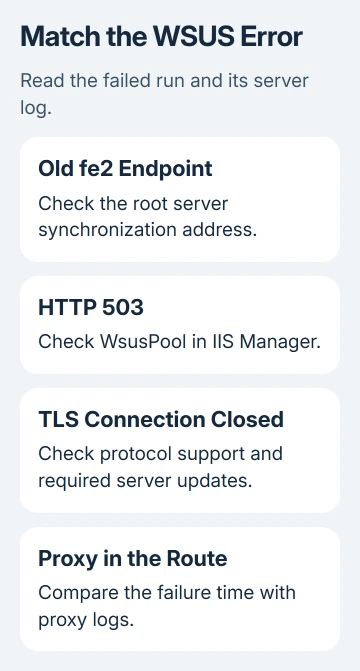
For HTTP 503, use section 3. For an old fe2.update.microsoft.com address in the server-sync error, continue with the endpoint check. A connection closed during TLS negotiation needs section 4.
2. Replace a retired upstream endpoint on the root server
For Windows Server 2012 and later, the Microsoft Update synchronization address should be https://sws.update.microsoft.com. The old fe2.update.microsoft.com/v6 server-sync endpoint has been retired.
Check the topmost WSUS server that connects to Microsoft Update, not a downstream server receiving updates from another WSUS server. Close WSUS consoles and open PowerShell as administrator on that root server.
Read the current configuration first:
$server = Get-WsusServer
$config = $server.GetConfiguration()
$config.MUUrl
$config.RedirectorChangeNumber
If MUUrl shows the retired https://fe2.update.microsoft.com/v6 address, correct it with these commands:
$config.MUUrl = "https://sws.update.microsoft.com"
$config.RedirectorChangeNumber = 4002
$config.Save()
iisreset
Restart-Service *Wsus* -v
Record the original values before saving the correction, and schedule time for the restarts because they interrupt WSUS and IIS activity on the server.
Microsoft says this endpoint correction applies to the root server using the retired address. Don't run it across downstream servers just because their consoles also report a failure.
Reopen WSUS and start another synchronization. A completed run without the old endpoint error confirms this repair worked. If the address was already correct, move to the actual HTTP or TLS error rather than saving the same value again.
3. Restore WsusPool when the error is HTTP 503
If the console and WSUS Administration site both return 503 Service Unavailable, open Internet Information Services (IIS) Manager on the server. Select Application Pools and inspect WsusPool.
A stopped WsusPool prevents its web services from answering. Select the pool and start it if stopped, then reconnect the console. Check whether it stays running through the next synchronization instead of only confirming a momentary start.
For the memory-limit case described in the WSUS troubleshooting steps, open WsusPool > Advanced Settings. Set Private Memory Limit (KB) to 4000000, apply it and restart the pool.
This raises the default 1843200 KB limit for that failure. It changes the pool's limit without assigning all server memory to WSUS. Check how much memory the server has available before making the change.
Some environments may need 8000000 KB or more. If the pool stops again, review its events and capacity before choosing another limit. A larger number won't repair a TLS failure or a retired upstream address.
I'd verify that the pool remains started during a full sync before moving on. A console that reconnects and immediately fails again hasn't passed that check.
4. Check TLS support when the remote connection closes
TLS is the encryption used for the server's connection to Microsoft Update. The current sws.update.microsoft.com synchronization address accepts TLS 1.2; a server offering an older protocol can have its connection rejected.
In SoftwareDistribution.log, look for the failed connection and its SCHANNEL Protocol startup entries. Those entries let you compare the enabled TLS versions with the update server's requirement.
On Windows Server 2012 or 2012 R2, installing only security updates can leave out the change that enabled WSUS synchronization over TLS 1.2. The relevant change arrived in these Monthly Rollups:
- Server 2012: June 27, 2017, KB4022721, or a later Monthly Rollup.
- Server 2012 R2: June 27, 2017, KB4022720, or a later Monthly Rollup.
Check installed updates for that requirement; security-only packages didn't include it. Use the server's supported servicing route. Don't replace a current rollup with the old preview that first carried the fix.
For a manual-import failure while synchronization still works, use the separate .NET and TLS import repair. It covers strong-cryptography settings and the IIS worker configuration for affected versions.
The IIS worker configuration can affect applications beyond WSUS. Have the administrator apply the repair for the installed version and verify both synchronization and manual import afterward, keeping those results separate.
5. Follow the proxy route actually used by WSUS
A proxy changes the connection path. The server talks to the proxy first, which then connects upstream. The connection can fail at the proxy even when the log names a Microsoft Update address.
Review WSUS proxy settings with the network administrator. Give them the destination and failure time to check in proxy logs. Include the proxy's internal address in recorded network traffic, since WSUS may connect through it.
That matters because WSUS may reach the update server through the proxy rather than connecting directly.
An administrator can use the endpoint troubleshooting page's successful TLS exchange as a comparison. Avoid disabling encryption checks or broadly opening the firewall instead of checking which connection was blocked.
For an individual package that fails deployment after server sync succeeds, the Windows 10 package installation checks address that separate stage.
Escalate with one failed synchronization's evidence
If the matching repair fails, send Microsoft Support the server version, root/downstream role, endpoint, proxy route, error details and matching log segment. Include whether WsusPool stayed running and whether manual imports also fail.
With those details, support can distinguish trouble reaching the update catalog from a stopped local web service.
Keep existing approvals and update content intact while support reviews the problem. Rebuilding WSUS isn't the first response to every failed sync.
The Short Version
Choose the repair from the WSUS error. Correct a retired endpoint only on the appropriate root server, restore WsusPool for HTTP 503, and check TLS support for rejected connections. Retest the operation that originally failed.
Checked November 15, 2026.






