
StandBy on iOS 26 swaps your widgets overnight, dropping in Podcasts or the Cupertino clock you never picked, so by morning your own layout is gone.
Turning off Smart Rotate should stop it, yet it keeps changing.
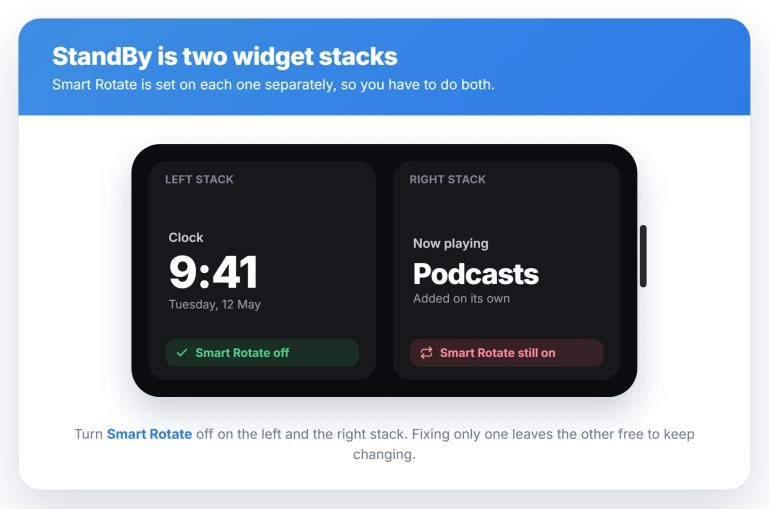
StandBy is really two separate widget stacks, and Smart Rotate has to be switched off on each one, alongside a second switch, Widget Suggestions, that quietly adds widgets back.
Let me show you what is swapping them, because it is deliberate and there is a way to stop it.
Turn off Smart Rotate on both stacks
Smart Rotate is the setting that cycles your widgets on its own, and it is on by default. Switching it off is the main fix, but there are two stacks to do, not one, and most people only fix one.
Stand the iPhone on its side on a charger and lock it so StandBy appears. Touch and hold the widget stack, let Face ID unlock it, and the stack lifts into edit mode. Tap Smart Rotate so it goes off, then tap Done.
Now swipe to the other stack and do it again. StandBy shows two stacks side by side, a left and a right, and each keeps its own Smart Rotate setting.
Fixing only the one you were looking at is why it seems to ignore you and carry on swapping.
There is a steadier way to kill it for good, in one place instead of two.
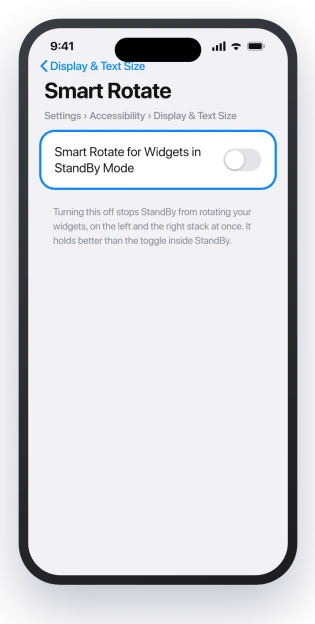
Open Settings, tap Accessibility, tap Display and Text Size, then Smart Rotate, and turn off Smart Rotate for Widgets in StandBy Mode.
That switch covers both stacks at once and tends to hold better than the in-StandBy toggle.
Apple describes the mode itself in Use StandBy while iPhone is charging, though it never mentions that there are two stacks to fix.
Turn off Widget Suggestions too
Smart Rotate only shuffles the widgets you already added. A separate switch, Widget Suggestions, is what drops in ones you never chose, like Podcasts or Wallet, when iOS thinks they are relevant.
In the same edit view, after the touch and hold and Face ID, you will see Widget Suggestions next to Smart Rotate. Turn it off as well, on both stacks.
With both off on both sides, StandBy stops rearranging itself and stops adding widgets on its own.
Why it switches back on after an update
Two things are going on here, and it helps to keep them apart.
The shuffling and the surprise widgets are Smart Rotate and Widget Suggestions working the way Apple built them. That part is not a fault, and the two switches stop it.
The reason your fix does not stick is a separate, genuine bug.
iOS 26 keeps forgetting your StandBy setup and flipping the switches back on, usually after a reboot or an update, and it drags the default widgets and the Cupertino clock back with them.
So treat the toggles as something to re-check after every iOS update, and lean on the Accessibility switch, which survives better. iOS 26 has form here.
It does the same thing with Live Photos that will not stay off and iCloud Keychain that will not stay on, where a setting you turned off is on again after the next restart.
Status: iOS 26 does not hold StandBy settings across reboots or updates, so Smart Rotate switches back on, and no release has fixed it. Turn it off on both stacks and re-check after updates.
Make one widget stay put
StandBy has no lock button, so pinning a single widget takes a bit of setup.
Turn Smart Rotate and Widget Suggestions off on both stacks first. Then touch and hold each stack and remove every widget you do not want with the minus button, until only the one you want is left.
If deleted widgets keep creeping back, delete them one at a time and restart the iPhone after each removal.
Users report that this delete-then-restart pass is what finally makes them stay gone, where deleting several at once does not hold.
What will not fix it
A few things feel like they should work and do not.
- Toggling StandBy off and on in Settings. The master switch does not touch Smart Rotate, so the swapping carries on.
- Fixing only one stack. The untouched stack keeps rotating, which reads as the fix failing.
- Reset All Settings. It does not durably stop the reset, and you lose your other preferences for nothing.
- Deleting a widget once. With Widget Suggestions on, iOS adds it back within hours.
- Waiting for an update to solve it. No iOS 26 release has fixed the reset, so re-applying the toggles is what keeps it in check.
How do I stop StandBy widgets from changing?
Put the iPhone on its side on a charger so StandBy shows, touch and hold a widget stack, unlock with Face ID, then turn Smart Rotate and Widget Suggestions off.
Repeat on the second stack, since each is set on its own. Re-check both after any iOS update.
How do I turn off Smart Rotate on iPhone?
Two ways. In StandBy, touch and hold the stack, let Face ID unlock it, and tap Smart Rotate off, on both stacks.
Or system-wide, open Settings, Accessibility, Display and Text Size, Smart Rotate, and turn off Smart Rotate for Widgets in StandBy Mode, which covers both at once.
Why does my StandBy screen change overnight?
By design, Smart Rotate cycles your widgets and Widget Suggestions adds new ones based on your activity.
On top of that, iOS 26 has a bug that resets StandBy to defaults after a reboot or update, bringing back the Cupertino clock and switching rotation back on. Turn both toggles off on both stacks.
Why do deleted StandBy widgets keep coming back?
Widget Suggestions re-adds widgets it judges relevant, and the reset bug restores the default set after a restart.
Turn off Widget Suggestions and Smart Rotate on both stacks, then delete the widgets one at a time, restarting the iPhone after each, until they stop returning.
The Short Version
- StandBy is two widget stacks, left and right, and each has its own Smart Rotate and Widget Suggestions switch. Turn both off on both stacks.
- The steadier kill-switch is Settings, Accessibility, Display and Text Size, Smart Rotate, which covers both stacks at once.
- Widget Suggestions is separate from Smart Rotate. It is what drops in Podcasts and Wallet, so switch it off too.
- iOS 26 forgets these settings after a reboot or update and switches them back on, so re-check after every update.
- To keep one widget only, turn the switches off, delete the rest with the minus button, and restart the phone if they creep back.
Where to Next
Weather widget on the wrong city: The same two switches decide whether a Home Screen stack slides in a Weather widget for a place you did not pick, which our guide to a Weather widget with the wrong location covers.
Wallpaper changing rather than widgets: If it is the Lock Screen picture that will not sit still, our guide to a Lock Screen wallpaper that keeps changing separates the causes.
Where StandBy never appears at all rather than changing on its own, six checks cover it.
- A setting that keeps switching back on: Live Photos will not stay off on iOS 26
- Another toggle that refuses to hold: iCloud Keychain will not stay on
- Your call screen showing the wrong thing: Contact Poster not showing on iOS 26
- Widgets that stay put but show old information: iOS 26 widgets not updating, where the cause is the app behind them rather than any rotation setting

Isaac Smith is the founder and editor of PC Glance, a website that covers computers, laptops, and technology. He is a tech enthusiast and a computer geek who loves to share his insights and help his readers make smart choices when buying tech gadgets or laptops. He is always curious and updated about the latest tech trends.