
You need a picture of what is on your screen, right now, and the thing you half-remember does not work. Print Screen seems to do nothing. Or it opens a tool you did not ask for.
Needing this in a hurry and getting the wrong result is a small, particular irritation, so let me sort it properly.
Or you press it, paste it, and get the whole desktop when you wanted one window.
There are five different ways to do this and they produce different results in different places. That is why nobody can remember which one they want.
So this page sorts by what you are trying to capture.
I want part of the screen, and I want to choose it
Windows + Shift + S. This is the one to learn if you learn only one.
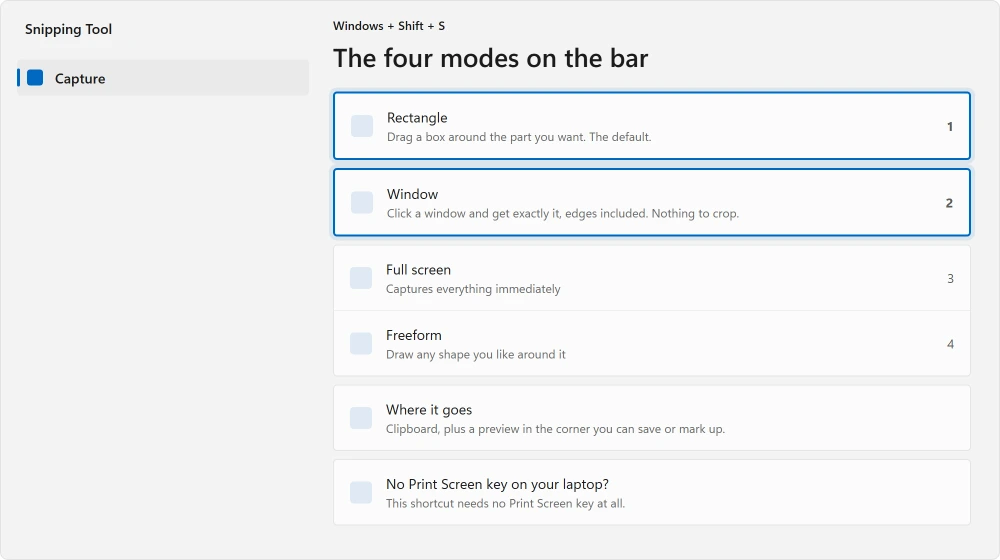
The screen dims, a small bar appears at the top, and you drag a box around whatever you want. It goes to your clipboard, ready to paste, and a small preview appears in the corner if you want to mark it up or save it.
If that corner preview never appears even though the snip pastes fine, Do not disturb or a notification setting is hiding it.
Documented by Microsoft on its Snipping Tool page, which lists what that bar offers:
Rectangle to select a rectangular area, Window to select a whole window, Full screen to capture everything immediately, and Freeform to draw any shape you like.
Window mode is the underused one. Instead of dragging a box roughly around a window and getting a bit of the desktop at the edges, you click the window and get exactly it, edges and shadow included.
On a Mac instead, these screenshot shortcuts cover whole windows, selected areas, and copying the picture to paste.
On a Chromebook, Shift, Ctrl and Show windows opens a similar capture bar for an area, one window or the full screen.
I want the whole screen, saved as a file, in one press
Windows + Print Screen.
The screen flashes. The file is already saved. No app opens, nothing to click, nothing to paste.
Documented by Microsoft: to find it, open File Explorer, go to the Pictures folder, and open Screenshots.
Ours, and marked as ours: people who say Print Screen used to just work usually want this one. It still does, with the Windows key held.
I want the whole screen on my clipboard, not as a file
Print Screen on its own, then paste wherever you are going. On current Windows 11 this may open the Snipping Tool instead, because Microsoft changed what that key does by default.
If yours does that and you want the old behavior back, go to Settings, then Accessibility, then Keyboard, and turn off the option about using the Print screen key to open Snipping Tool.
Ours, and marked as ours: think about which you actually want before changing it. The old behavior is quicker for pasting into a chat. The new behavior is better for everything else, because you get to choose the area.
I want one window and nothing else
Alt + Print Screen.
Click the window first so it is the active one, then press it. Only that window goes to your clipboard.
Ours, and marked as ours: that one saves you the cropping. If you routinely take a full screenshot and then trim it down in Paint, this is the key you were missing.
If your region snips paste into Paint smaller than they should, the older copy in clipboard history pastes at full size.
I want a game, or something that goes black when I try
Windows + Alt + Print Screen, which is the Game Bar's capture.
Games running full screen sometimes produce a black rectangle with the normal methods, because the picture never passes through the part of Windows that the normal capture reads. The Game Bar reads it a different way.
Those land in Videos, then Captures, rather than in Pictures.
The five, side by side
| What you press | What you get | Where it goes |
|---|---|---|
| Windows + Shift + S | An area you choose | Clipboard, plus a preview to save |
| Windows + Print Screen | The whole screen | Pictures, then Screenshots |
| Print Screen | The whole screen | Clipboard only |
| Alt + Print Screen | The active window | Clipboard only |
| Windows + Alt + Print Screen | The active window or game | Videos, then Captures |
If your keyboard has no Print Screen key
Common on smaller laptops, and there are two ways round it.
Use Windows + Shift + S, which needs no Print Screen key at all.
If keyboard shortcuts have stopped responding generally, a keyboard that is not typing right sorts that by symptom.
Or open the Snipping Tool directly. Select Start, type snipping tool, and open it. It has a New button and a delay timer, which the shortcuts do not.
The delay timer is genuinely useful and almost nobody knows it is there. Set it to a few seconds and you can open a menu that would normally close the moment you press a shortcut, then let the timer fire while the menu is open.
If nothing seems to happen at all
Work through these in order.
Check the Pictures, then Screenshots folder before assuming it failed. Windows + Print Screen saves silently apart from a brief flash you may have missed.
Check whether another app has taken the key. Many capture tools claim Print Screen when they install, and whichever loaded last usually wins.
Try the Snipping Tool from the Start menu. If it opens and works from there, your app is fine and only the shortcut is broken.
If the Snipping Tool itself refuses to open, that is a different fault and the Snipping Tool not working covers it, including an outage where seven owners confirmed the same fix in one afternoon.
Where your screenshots actually go, all of them
Because half the questions about this are really about finding the file afterwards.
Windows + Print Screen goes to Pictures, then Screenshots.
Windows + Alt + Print Screen goes to Videos, then Captures.
Everything else goes to the clipboard only, which means it is gone as soon as you copy something else. Paste it somewhere before you copy anything.
Ours, and marked as ours: that last point causes more lost screenshots than any bug. If you take one and then copy a link before pasting, the screenshot is gone and there is nothing to recover.
Status: written 22 August 2026. Microsoft documents the four capture modes and where files land. Windows 11 changed what the Print Screen key does, and a setting reverts it.
The Game Bar takes the screenshots the other methods cannot, so it is worth having it working. What to do when it opens and will not capture.
What is the shortcut for a screenshot on Windows?
Windows + Shift + S to choose an area, Windows + Print Screen to save the whole screen as a file, Print Screen alone to copy the whole screen, and Alt + Print Screen for just the active window. The first two are the ones worth remembering.
Where do my screenshots get saved?
Windows + Print Screen saves to Pictures, then Screenshots. The Game Bar capture saves to Videos, then Captures. Every other method copies to the clipboard only, so it disappears the moment you copy anything else.
Why does Print Screen open the Snipping Tool now?
Because Windows 11 changed what that key does by default. If you want the old behavior, go to Settings, Accessibility, Keyboard, and turn off the option about using the Print screen key to open Snipping Tool.
How do I screenshot just one window?
Click the window to make it active, then press Alt + Print Screen. Or use Windows + Shift + S and pick Window mode from the bar, which captures the window exactly, including its edges, with nothing to crop afterwards.
The Short Version
- Windows + Shift + S chooses an area. Learn this one if you learn nothing else.
- Windows + Print Screen saves the whole screen straight to Pictures, then Screenshots.
- Alt + Print Screen captures the active window only, so there is nothing to crop.
- Windows + Alt + Print Screen catches games that come out black any other way.
- Print Screen alone now opens the Snipping Tool, and a setting reverts that.
- Clipboard captures vanish the moment you copy anything else. Paste first.
Where to Next
A screenshot you took and then lost is usually sitting in a list you have never opened. That list holds twenty five things and clears on restart.
Try Windows + Shift + S and pick Window mode on something. It is the mode that saves the most time and the one almost nobody discovers by accident.
If the Snipping Tool will not open at all, the Snipping Tool not working has a fix seven owners confirmed on the same afternoon.
And if keyboard shortcuts have stopped responding generally, a keyboard that is not typing right sorts that by symptom.
And once you have the capture, Windows will cut the background out of it in one click without uploading anything.
Where a still image is not enough, the same tool records video and almost nobody has found it.
If a shortcut on your machine does something different to what I have listed, tell me below with your Windows build. These keep changing and I would rather the page stayed right.

Isaac Smith is the founder and editor of PC Glance, a website that covers computers, laptops, and technology. He is a tech enthusiast and a computer geek who loves to share his insights and help his readers make smart choices when buying tech gadgets or laptops. He is always curious and updated about the latest tech trends.