
You circled someone in the background of a photo. Clean Up did not remove them. It turned their face into a block of pixels, and a message said a safety filter had been applied.
It is annoying when all you wanted was a stranger out of your holiday shot. You are far from alone. The main thread on Apple's forum shows 2,062 people clicking Me too.
Apple gives you no off switch, and I will not pretend otherwise. What I can give you is six methods owners report, quickest first. One of them stopped working on iOS 27.
What the Safety Filter is
Clean Up is the Apple Intelligence tool in Photos that removes things from a picture. When your brush lands on a face, it can pixelate the face instead.
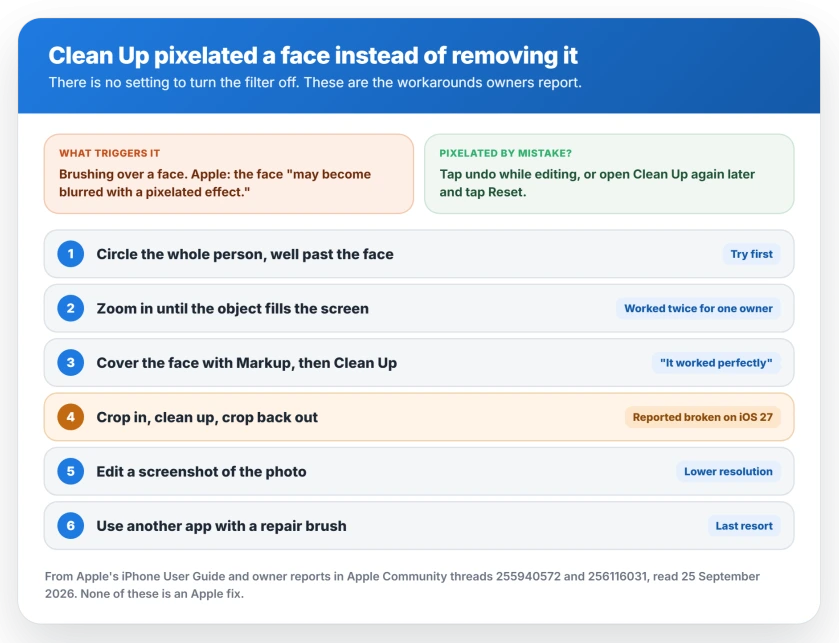
Apple says so in its iOS 26 user guide: "If you brush over a person's face, the face may become blurred with a pixelated effect."
Owners see it under two names. One reported in August 2025 that "instead of removing the person it applies identity protection". Others still call it the Safety Filter.
It is not only faces, either. One owner "tried to blur out a scab from a cut" and got the filter. Another wrote: "I don't want arbitrary filters applied to my own photos just because I'm in a swimsuit."
There is no setting to turn it off
Apple's iOS 27 guide to Clean Up covers the steps and a new choice of processing: Auto, Fast or High Quality. It lists no setting for the filter.
The main forum thread has run for twenty months. Nobody in it has found a switch. That reading is ours, from all four pages of it.
So everything that follows works around the filter rather than turning it off. Some of it works for some photos, and I will tell you where it has failed.
Undo a face it pixelated by mistake
This part is simple, and Apple documents it. While you are still in Clean Up, tap the undo arrow to restore what it changed.
Already saved it? Apple's steps: open the photo, go back into Tools and Clean Up, then "tap Reset". That undoes the Clean Up changes.
1. Circle the whole person, not just the face
Start here, because it takes seconds. How you brush seems to decide what Clean Up does.
One owner put it plainly: "go beyond the face if you want it removed", and "stay on the face if you want pixelated". So draw your circle around the whole person, well past their head.
That matches Apple's own note, which warns about brushing over a face. Keep your brush off the face itself.
2. Zoom in until it fills the screen
Apple's iOS 27 guide says you "can use two fingers to pinch, zoom, or pan the image" while in Clean Up. Owners use that zoom to change what the tool sees.
A Level 7 member of Apple's forum reported success twice with this. In their words: "I zoomed in so the subject, the girl or the mouth, took up a big part of the screen."
In another photo they wrote: "But with his face filling the screen I used Clean Up to remove the part in his hair." Zoom in hard. Clean up the small area, then zoom back out.
3. Cover the face with Markup first
This one is more work, but one owner called the result perfect. They opened Markup, "used the red marker and filled in the person's face then went back to the image".
With the face hidden under the marker, Clean Up had no face to protect. Then they removed the person as normal. In their words: "It worked perfectly."
Try it on a duplicate first. Markup changes the image. Keep your original untouched in case the removal leaves a mark.
4. Crop in, clean up, then crop back out
This is the workaround from the thread's top-ranking reply. It now comes with a warning. The idea was to crop so tightly that the filter's trigger "is no longer referenced within the frame".
Another owner described the same trick: "You now have to zoom in and crop out what the app is seeing." After the clean up, you went back to Crop and zoomed out to the full image.
On 12 September 2026, an owner replied to it: "That no longer works with iOS 27". Even the owner who first described it wrote in July 2026: "My work around doesn't work anymore."
Other owners had it work, so it is not dead everywhere. On iOS 27, do not count on it.
5. Work on a screenshot of the photo
One owner found a blunt workaround: "You can just take a screenshot of the picture and it would automatically bypass the security filter".
This part is ours, as a caution. A screenshot is only your screen's resolution, so it is usually smaller than the original photo. It also loses the original's date and location details.
So use it for a picture you only want to share, not one you want to print or keep at full quality. And if the screenshot never shows up in Photos, one setting usually explains it.
6. Use a different editing app
Some owners gave up on Clean Up for these edits. In September 2026 one wrote: "I finally gave up and started over using the Repair tool in Photomator instead, which worked perfectly".
That is a third-party app, not an Apple one. I have not tested it. Any editor with a healing or repair brush does the same basic job without Apple's filter.
If Clean Up fails with an error instead
A different iOS 27 fault stops Clean Up working at all. Its thread has 74 Me too, and the starter wrote: "Whenever I try to use Clean Up, I get an error and it fails to process the photo".
A forced restart did not help them. Afterwards, Clean Up "threw the same error again".
One owner found a way around it on an iPad Air: "Fast cleanup works along with reframe and extend." You can switch to it yourself. Apple's guide says: "Tap Auto during the Clean Up process, then choose an option." Pick Fast.
Fast may not match High Quality on a hard edit, so zoom in on the result before you save it. That caution is ours.
Tell Apple it gets in your way
Forum posts do not reach Apple's engineers. A Level 10 adviser was direct about it: "Apple doesn't read here for feedback or suggestions."
Apple's own Photos feedback page is where a request for an off switch counts. Mention the kind of photo it blocked, like a scar, a swimsuit or a stranger.
If Clean Up is missing from your photo tools entirely, the cause lies elsewhere. Apple Intelligence may still be downloading, and Clean Up waits for it.
Status: iOS 27.0, checked 25 September 2026. Apple's iOS 27 Clean Up guide adds Auto, Fast and High Quality processing but no setting for the filter, and its iOS 26 guide says a brushed face may be pixelated. The crop workaround is reported broken on iOS 27. The other methods are owner reports from 2025 and 2026, not Apple fixes.
Can you turn off the Safety Filter in Clean Up?
You cannot. Apple offers no setting for it in iOS 27. The methods owners report are circling the whole person rather than the face, zooming in until the object fills the screen, and covering the face with Markup before you use Clean Up.
Why does Clean Up pixelate instead of remove?
Apple says that if you brush over a person's face, the face may become blurred with a pixelated effect. Owners also report the filter on skin, such as a scab or a mole, and on swimsuit photos.
What does "identity protection applied" mean?
It is the same filter under another name. Owners describe Clean Up applying identity protection instead of removing a person, which is the pixelation Apple's guide describes.
Can I undo the pixelation?
Yes. Tap the undo arrow while you are still in Clean Up. If you already saved the photo, Apple's steps are to open it, go back into Clean Up and tap Reset.
Does the crop trick still work on iOS 27?
One owner replied on 12 September 2026 that it no longer works with iOS 27. Try circling the whole person or zooming in first instead.
The Short Version
- Clean Up can pixelate a face instead of removing it. Apple documents this.
- There is no setting to turn the filter off, including in iOS 27.
- Tap undo, or Reset later, to reverse a face it pixelated.
- Circle the whole person, well past the face, before anything else.
- Zoom in with two fingers until the object fills the screen.
- Covering the face with Markup first worked for one owner.
- The crop workaround is reported broken on iOS 27.
- A screenshot copy or another editing app are the last resorts.
Where to Next
Try the wide circle around the whole person first. It is the quickest test. It also follows the way Apple says the filter is triggered.
If a photo still refuses after all six, use feedback rather than the forum. That is the channel Apple reads.
Did one of these work on iOS 27 for you, or did you find another? Post the method and your iPhone model in the comments. I will add the ones that work.
And if Photos search stopped finding things after the update, the library is being indexed again.

Isaac Smith is the founder and editor of PC Glance, a website that covers computers, laptops, and technology. He is a tech enthusiast and a computer geek who loves to share his insights and help his readers make smart choices when buying tech gadgets or laptops. He is always curious and updated about the latest tech trends.