

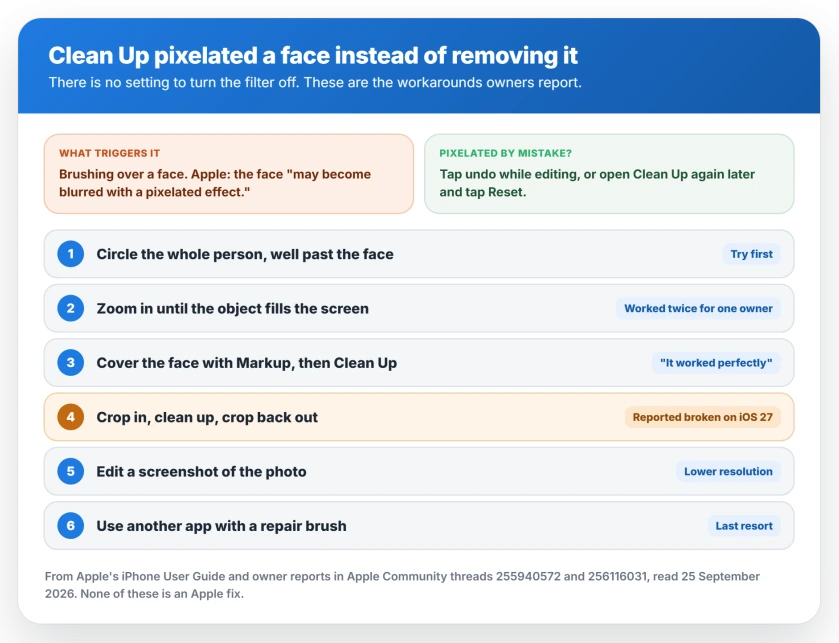
Clean Up pixelates a face instead of removing it, and shows Safety Filter Applied, when your brush lands on a person's face or on skin it treats as sensitive. iOS 27, including 27.2, still has no switch to turn that filter off.
What works is changing how you use the tool. Circling the whole person instead of the face, or zooming in until the spot fills the screen, often gets a clean removal, and a few slower tricks cover more.
In this guide
What the Safety Filter is
Clean Up is the Apple Intelligence tool in Photos that removes things from a picture. When your brush covers a face, it can blur that face into blocks of pixels instead, and Apple's iOS 26 guide warns that this can happen.
"Identity protection applied" is the same filter under its older name. Owners saw that wording on iOS 18 when Clean Up pixelated a person instead of erasing them, and newer versions call it the Safety Filter.
Faces aren't the only trigger. Owners have hit it removing a scab or a skin blemish, and in photos of themselves in a swimsuit, so anything that looks like bare skin can set it off.
No switch in iOS 27.2 either
The iOS 27 Clean Up guide adds a choice of processing, Auto, Fast or High Quality, but no setting for the filter.
The thread asking Apple for an off switch had 2,231 Me too votes on November 8, and in almost two years no owner in it has found a hidden setting.
The only Clean Up change in iOS 27.2 is a hidden SynthID watermark that now goes into most pictures edited with Apple Intelligence. The filter itself works as before, so the methods that follow work around it rather than turn it off.
Undo a face it pixelated by mistake
While you're still in Clean Up, tap the undo arrow and the face comes back as it was. Then try again with one of the methods that follow.
Already saved it? Open the photo, tap the edit button, then Tools and Clean Up, and tap Reset. That takes away every Clean Up change on that photo, the pixelated face included.
1. Circle the whole person, not the face
This takes seconds, so try it first. How you brush seems to decide what Clean Up does: draw a loop around the whole person, well past their head and shoulders, rather than scrubbing over the face.
One owner put the rule simply: going beyond the face gets the person removed, while staying on the face gets it pixelated. It fits Apple's own warning, which is about brushing over a face.
2. Zoom in until the spot fills the screen
Pinch out with two fingers while you're in Clean Up, until the thing you're removing takes up much of the screen. Clean the small area, then pinch back out.
A long-time member of Apple's forum got clean results this way twice, once around a mouth and once in a man's hair, with his face filling the screen.
An adviser reported the same zoom trick working in Photos on a Mac with Tahoe, macOS 26, when removing freckles.
3. Cover the face with Markup first
This takes longer, but one owner called the result perfect. Open Markup on the photo, fill the person's face in with the red marker, then go back to Clean Up and remove the person as normal.
With the face hidden under the marker, Clean Up had no face to protect. Make a duplicate of the photo first, because Markup changes the picture and you'll want the original if the removal leaves a mark.
4. Crop in, clean up, then crop back out
This was the most-liked workaround in the thread: crop so tightly that the face is no longer in the frame, use Clean Up, then go back to Crop and zoom out to the full picture again.
On iOS 27 it often fails. One owner replied in September that it no longer works with iOS 27, another had no luck on a 16 Pro Max, and in late October a third cropped around a skin blemish and still got the filter.
Even the owner who first shared it said in July that it had stopped working for them. It still works now and then, so try it if the first three fail, without counting on it.
5. Work on a screenshot of the photo
One owner found that a screenshot of the picture slipped past the filter. Open the photo full screen, take a screenshot, and run Clean Up on the screenshot instead.
A screenshot only has your screen's resolution, so it's usually smaller than the original, and it loses the date and location details.
Use it for a picture you only want to share, and if the screenshot never appears in Photos, one setting usually explains it.
6. Use a different editing app
Some owners gave up on Clean Up for these edits. One switched to the Repair tool in Photomator and said it worked perfectly, and another said a third-party app works every time where Clean Up's tricks failed.
Any editor with a healing or repair brush does the same basic job without Apple's filter. Those are separate apps with their own prices, so check the cost before you buy.
If Clean Up fails with an error instead
A different iOS 27 fault stops Clean Up working at all: it shows an error and won't process the photo, and a restart doesn't help. So far, 248 owners have clicked Me too on that thread.
Apple's iOS 27 guides say tools that rely on server-side models have daily usage limits, and owners who hit the error after four or five High Quality clean ups think that's the cause.
Fast runs on the iPhone itself, and owners say it keeps working. To switch, tap Auto while you're in Clean Up, then pick Fast. Zoom in before you save, since Fast may not match High Quality on a hard edit.
If Extend or Reframe fails with an error as well, the same daily limit is often the reason, and the Extend error page explains how long to wait.
Tell Apple it gets in your way
Forum posts don't reach Apple's engineers; a long-time adviser on Apple's forum says so plainly. Apple's Photos feedback page is where a request for an off switch counts.
Mention the kind of photo it blocked, such as a scar, a swimsuit or a stranger. If Clean Up is missing from your photo tools entirely, Apple Intelligence may still be downloading, and Clean Up waits for it.
If Photos search stopped finding things after the update too, the library is being indexed again, and that can run for a few days.
Can you turn off the Safety Filter in Clean Up?
No. iOS 27 and 27.2 have no setting for it. Circle the whole person instead of the face, zoom in until the spot fills the screen, or cover the face with Markup before you use Clean Up.
What does "identity protection applied" mean?
It's the same filter under its older name. Clean Up pixelates a face to protect the person's identity instead of removing them, the way it does when you brush over a face.
Why does Clean Up pixelate instead of remove?
Brushing over a person's face can make Clean Up pixelate it instead. Owners also hit the filter on skin, such as a scab or a blemish, and on swimsuit photos.
Did iOS 27.2 change the Safety Filter?
No. The only Clean Up change in 27.2 is a hidden SynthID watermark on most pictures edited with Apple Intelligence. The filter has no switch, and the crop trick is still unreliable.
Can I undo the pixelation?
Yes. Tap the undo arrow while you're still in Clean Up. If you already saved the photo, open Clean Up on it again and tap Reset.
The Short Version
- Clean Up pixelates a face it's asked to remove, and iOS 27.2 still has no off switch.
- "Identity protection applied" is the older name for the same filter.
- Tap undo, or Reset later, to bring a pixelated face back.
- Circle the whole person, well past the face, before anything else.
- Zoom in until the spot fills the screen, or cover the face with Markup first.
- The crop trick often fails on iOS 27; a screenshot copy or another editing app are the last resorts.
- An error instead of a filter is often the daily limit on High Quality, so switch to Fast.
Checked November 8, 2026.
 If you have any business, I can build it online






