

You want an app on your Apple Watch to stop. Maybe it froze, or maybe it is a map app you think is still using GPS and eating your battery. The way you remember is gone, and one forum answer even says it cannot be done.
That is frustrating. Apple still documents a way to quit an app on watchOS 27, though. It takes two presses, and I will also show you when quitting is the wrong fix.
What owners are asking
The question in the forum thread was plain: "how can I close an app in watchOS 27? Need to ensure GPS is off in map type apps".
The owner remembered it working before: "watchOS 26 at least allowed forced close on these". A Level 8 volunteer's first answer was blunt: "You can't. What exactly are you trying to accomplish?"
That answer is wrong on the first part. Apple's watchOS 27 guide has a section on it. The second part is a fair question, though, and step 3 shows why it matters.
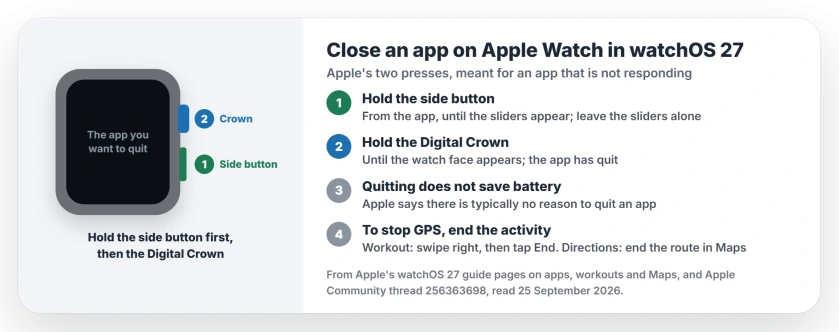
Status: watchOS 27, checked 25 September 2026. Apple documents how to quit an app, for when it is not responding. Apple also says quitting does not save battery.
1. Quit the app with two presses
Apple's steps are short. Open the app you want to quit. With it on screen, keep the side button down "until the sliders appear".
Next, hold the Digital Crown "until the watch face appears", then let go, and the app has quit. Open it again from the Home Screen whenever you need it back.
The sliders on the screen look like you are about to turn the watch off. You are not. Leave them alone and hold the Digital Crown.
2. Use it for a frozen app, not as a habit
Apple is clear about when this is for. "If an app isn't responding, you can quit and reopen it to try to resolve the issue".
So a stuck app that will not scroll or respond is the right time to use the two presses. Other times, there is nothing to gain.
3. Quitting does not save battery
This part may surprise you. Apple's guide says there is typically no reason to quit an app, then adds: "quitting it doesn't save battery power, for example".
My reading, and it is ours: the watch already manages the apps you are not using, so you have nothing to tidy up. A Level 8 volunteer made the same point: "You don't need to 'close apps' on the watch".
4. If GPS is the real worry, end the activity
The owner's real concern was battery life, and the drain "when GPS apps are still running". They listed the culprits: "Maps, all trails, workouts, are all apps that require GPS".
Our view: GPS stays on because the activity is still running, not because the app is open on your wrist. So end the activity itself.
For a workout in the Workout app, Apple's step is to "swipe right, then tap End". For directions, end the route in Maps. For a third-party trail app, stop the recording inside that app, the same way you would at the end of a hike.
5. Or switch off Location Services
A Level 6 volunteer suggested another route: "You can turn off GPS through Location Services".
Apple's Maps page for the watch gives the path: on Apple Watch, go to Settings, tap Privacy & Security, then tap Location Services.
Apple also says location services must be turned on to use Maps, so with the switch off, Maps cannot guide you. Turn it back on before your next walk.
Other Apple Watch battery problems
If your watch battery drains fast even with nothing running, the watchOS 26 battery fixes still apply. On an iPad, closing apps works differently again, and the iPadOS swipe-up page covers it.
Can you close apps on Apple Watch in watchOS 27?
Yes. Keep the side button held until the sliders show, then hold the Digital Crown until the watch face is back. That is the method in Apple's watchOS 27 guide.
Does closing apps on Apple Watch save battery?
No. Apple says there is typically no reason to quit an app, and that quitting does not save battery. End a workout or navigation instead.
How do I stop an app using GPS on my Apple Watch?
End the activity that uses it, such as a workout, a hike you are recording, or directions. Or turn off Location Services on the watch, in Settings, Privacy & Security, though Maps will not work while it is off.
What do I do if an app freezes on my Apple Watch?
Quit it with the side button and Digital Crown, then open it again, which is what Apple suggests when an app stops responding.
The Short Version
- You can still quit an app on watchOS 27.
- Hold the side button for the sliders.
- Then hold the Digital Crown until the watch face appears.
- Apple says quitting does not save battery.
- To stop GPS, end the workout or the directions.
- Location Services can go off, but Maps needs it.
Where to Next
Next time an app freezes, use the two presses and leave the rest of your apps alone.
If an app keeps draining your battery even after you end the activity, name it in the comments. I will check what that app is doing.

Isaac Smith is the founder and editor of PC Glance, a website that covers computers, laptops, and technology. He is a tech enthusiast and a computer geek who loves to share his insights and help his readers make smart choices when buying tech gadgets or laptops. He is always curious and updated about the latest tech trends.