
You open Edge's privacy settings to turn on secure DNS, and the switch is gray. The line next to it says the setting is turned off for managed browsers. The PC is yours, not a company's.
I would open edge://policy before anything else. On Super User, the asker found policies left behind by a privacy tweaking tool. They deleted them, and the switch came back.
The question has 5,986 views since November. A Microsoft Q&A thread about the managed message shows 10+ people with the same question.
Why one policy locks the switch
The asker's PC had never been part of a company network or a school. In their words: "My computer and browser have never been under an organization, and this is a personal account".
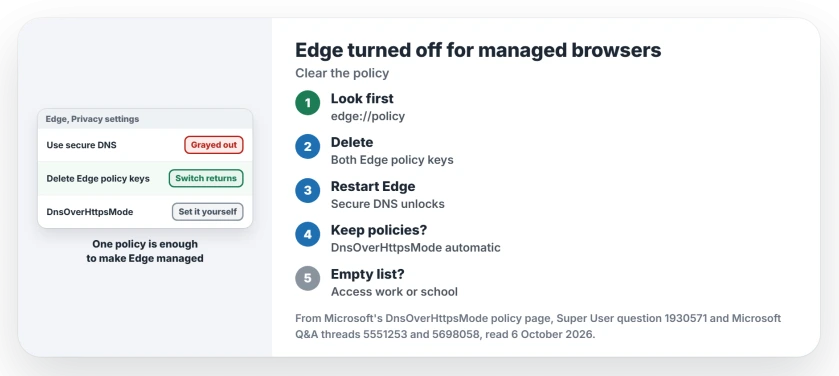
Status: checked 6 October 2026. Edge grayed out secure DNS on a home PC as a managed browser. Leftover policies from a tweaking tool caused it; deleting them brought the switch back.
Edge counts itself as managed once any policy is set, whoever set it and whatever it does. The asker explained in a comment that one is enough, "even if it's just a single policy".
Microsoft's DnsOverHttpsMode page explains your gray switch: "If you don't configure this policy for managed devices, DNS-over-HTTPS queries aren't sent".
So a stray policy about something else entirely turns secure DNS off too, without telling you why.
1. See what edge://policy lists
Type edge://policy where you normally type a web address. Each row is one policy, with its value and where it came from.
The asker's answer points at tools like O&O ShutUp10++ and Chris Titus Tech's Windows Utility. Such tools "create registry policies", their answer says. Edge then acts as if a company runs it, locking settings you never chose to lock.
2. Delete Edge's policy keys
Close Edge. Right-click Start and open Terminal (Admin), then remove both policy keys:
reg delete "HKCU\Software\Policies\Microsoft\Edge" /f
reg delete "HKLM\Software\Policies\Microsoft\Edge" /f
Reopen Edge. The asker's result: "The notification should no longer appear, and you can enable secure DNS".
Confirmed by an owner as well, in a Microsoft Q&A thread where Edge also claimed to be managed. They had "only 1 highlighted policy showing on edge://policy" and wrote "It is now gone".
Ours: if one line says it cannot find the key, that key simply was not there. If a tweaking tool is still installed, undo its Edge changes in the tool first. Otherwise it may put them back.
3. Or keep your policies and set secure DNS by policy
A commenter asked whether a smaller change would do, without deleting every policy at once. Microsoft documents a policy for exactly this, DnsOverHttpsMode, as a string value in the same Edge key.
Its values are off, automatic and secure. Microsoft maps automatic to "Enable DNS-over-HTTPS with insecure fallback", the mode that still loads pages if a secure lookup fails. Ours: this line sets it and leaves your other policies alone:
reg add "HKLM\Software\Policies\Microsoft\Edge" /v DnsOverHttpsMode /t REG_SZ /d automatic /fOurs again: expect the switch in Settings to stay gray after this, since a policy now controls it. Secure DNS is on, and edge://policy gains a new row.
I would use this route only if you set policies on purpose, for example to block extensions.
When edge://policy is empty
Edge's Secure Network shows the same gray switch and the same line. One asker on Microsoft Q&A found no Edge keys to delete, even after looking in both places.
Other members saw the managed message with no policies listed at all, and locked new tab options too.
Ours: none of them reported a fix, so I would not delete anything blindly. Look under Settings, Accounts, Access work or school first, and remove any you have stopped using. An old job or school login can sit there for years.
Chrome works the same way once a policy exists, as removing Ask Gemini from Chrome's menu found. If websites fail to load at all, DNS server not responding covers the router side.
The Short Version
- Edge treats any policy as a sign it is managed.
- Managed Edge sends no secure DNS without the policy.
- Privacy tweaking tools can leave policies behind.
- Check edge://policy, then delete both Edge keys.
- Keeping other policies? Set DnsOverHttpsMode to automatic.
- Empty policy page? Check Access work or school.
Where to Next
Open edge://policy now. If it lists policies you never set, delete the two Edge keys and restart Edge.
Did a tweaking tool leave policies on your PC? Name it in the comments.

Isaac Smith is the founder and editor of PC Glance, a website that covers computers, laptops, and technology. He is a tech enthusiast and a computer geek who loves to share his insights and help his readers make smart choices when buying tech gadgets or laptops. He is always curious and updated about the latest tech trends.