
You start the Windows 11 installer, reach the screen that asks where Windows should go, and the list is empty. The drive is fitted. Setup still sees no disk.
Before you send it back, I would check one Intel setting. An owner on Super User spent days on this exact screen before an ASUS support page explained it.
Asked in January 2025, the question has 24,286 views. A second owner wrote in March 2026 that one BIOS switch fixed it at once.
What the empty list means
The owner had an ASUS Pro B760M-CT-CSM board, a 12th Gen Core i7-12700K and a 2 TB Crucial P3 Plus. Setup stopped on "a screen asking me to install a driver so that Windows 11 can see my storage devices".
Crucial's own driver was no help, since it "appears to only be installable once Windows 11 has been installed". The missing piece was Intel's.
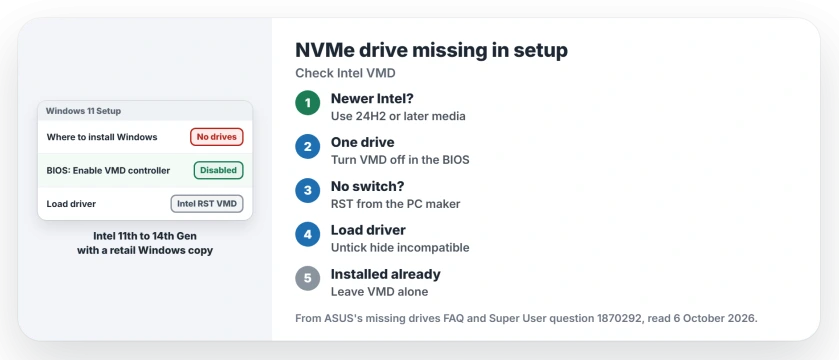
Status: checked 6 October 2026. On Intel 11th to 14th Gen PCs, Windows Setup cannot see an NVMe drive run through Intel VMD. Turn VMD off, or load the RST driver.
The owner's accepted answer explains it. Intel added Volume Management Device, or VMD, to its 11th Gen chips to handle RAID and Optane. The NVMe driver on the Windows 11 installer cannot work with it. So setup sees no disk.
Which PCs get this
ASUS covers the fault in a support FAQ on missing drives, and it limits the fix to Intel's 11th to 14th generation processors.
With a retail copy of Windows, ASUS says "you must first load the Intel Rapid Storage Technology (IRST) driver to complete the installation successfully".
Newer Intel laptops are different. On Lunar Lake chips and later, "manual installation of the IRST driver is no longer required", according to the same page.
Its advice for those laptops fits in one line: "Simply use Windows 11 version 24H2 or later to complete the OS installation".
Ours: if your laptop has one of those newer chips, try a fresh USB stick before touching the BIOS. A stick made in 2023 carries an older setup than the 24H2 one ASUS names. Our page on making a new installer stick covers Microsoft's tool.
1. One drive and no RAID: switch VMD off
The second answer is blunt: "Since you have only 1 drive, simply disable VMD in the BIOS and retry the Windows 11 installation". It adds: "No need for any drivers".
One owner with a Lenovo ThinkBook G14 did exactly that in March 2026. In their words: "Disabling the VMD option immediately fixed the issue". Not every G14 shows the option, they add.
On its own boards, ASUS puts the switch under Advanced, then VMD setup menu. Set Enable VMD controller to Disabled. Other makers use other menus, so look for VMD by name in the storage settings.
ASUS warns that with VMD off, your PC cannot run a RAID array. With one drive and no Optane, that costs you nothing.
A commenter points out that some firmware has no switch at all, and VMD "may remain ON by default". If yours hides it, go straight to the driver.
2. No switch, or no change: load the RST driver
The first owner tried the switch, and "it didn't make any difference for my Asus motherboard". What worked in the end was Intel's RST driver from the board maker's own download page.
They are firm about the source: "You must use the driver supplied by your motherboard manufacturer". I would follow that, since a maker can change Intel's driver for its own boards.
Download it on another PC. Extract it onto the same USB stick that holds the Windows 11 installer. At the empty list, click Load driver and browse to that folder. ASUS says to open the RST folder, then pick Intel RST VMD Controller.
If the folder looks empty, untick the box under the list. The owner calls it out by name: "Hide drivers that aren't compatible with this computer's hardware". Unticking it showed them the RST drivers.
Click Next. Setup loads the driver, and your drive finally turns up in the list of places to install.
Windows already installed? Leave VMD alone
Ours: change VMD only before you install. Flipping a storage setting under a working copy of Windows is one way to reach the INACCESSIBLE_BOOT_DEVICE stop code.
Windows expects to start in the same storage mode it was set up in. I would note how the switch is set before you touch it. If Windows will not start after a change, put it back first.
Does VMD off make the drive slower?
Not by the account quoted in the second answer. It comes from an owner who ran benchmarks on a Z690 system with a Samsung 980 Pro: "It does not hurt or improve performance if you have it enabled and are not using RAID or Optane".
Speed stays the same. With it off, the drive simply uses the standard NVMe driver that Windows already has. You only give up RAID and Optane.
The Short Version
- An empty drive list in Windows 11 setup on an Intel 11th to 14th Gen PC points to VMD.
- One drive and no RAID: switch VMD off in the BIOS and start again.
- No switch, or no change: load the RST driver from your PC maker.
- Untick the box that hides incompatible drivers.
- On newer Intel laptops, use 24H2 or later media first.
- Never flip VMD under an installed Windows.
Where to Next
Open the BIOS setup, find VMD, and write down how it is set before your next attempt.
Did the switch do it, or did you need the driver? Tell me which PC you have in a comment.

Isaac Smith is the founder and editor of PC Glance, a website that covers computers, laptops, and technology. He is a tech enthusiast and a computer geek who loves to share his insights and help his readers make smart choices when buying tech gadgets or laptops. He is always curious and updated about the latest tech trends.