
Your external hard drives used to spin down when the Mac sat idle. Now they hum all day. You toggled the sleep setting and restarted a few times, and they still never rest.
I would shut the Mac down completely, and wait, before anything else. Restarts did not clear it for one owner. A full shut down did.
The thread is on the macOS 27 board at MacRumors, from an iMac M3 owner with Seagate USB drives plugged in all day. Another member there called it a problem "for many years". Apple's own setting is your second stop.
What changed for the owner
They noticed it a few days in: "I've noticed that my external USB drives from Seagate are no longer sleeping." It had worked shortly before. "It was doing it a few days ago."
They tried the obvious steps. "Rebooted the iMac M3 a few times." Low Power Mode went on and then off again, and nothing changed. "The drives just never sleep anymore."
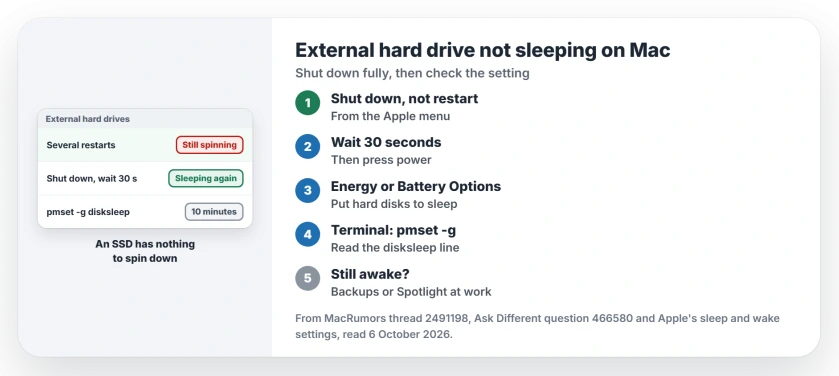
Status: checked 6 October 2026. External USB hard drives stopped sleeping on an iMac M3. Restarts did not help. A full shut down with a 30 second wait fixed it for the owner.
Ours: the drives you hear spinning are hard disks. An SSD has nothing to spin down, so it stays silent whether it sleeps or not.
1. Shut down, wait 30 seconds, start again
Owners report this as the fix. This owner's words: "Full shut down and wait 30 seconds. Turn back on and external HDD are starting to sleep again. That fixed it."
Choose Shut Down from the Apple menu, not Restart, and close your open apps first so nothing stops it. Wait until your screen is dark. Count to thirty, then press the power button.
The member who suggested it gave two options for drives that stay awake. Either "using the 'pmset' command from the cli will fix, or a hard power cycle of the Mac (or both) addresses the issue."
2. Check the sleep setting
Apple's sleep and wake settings put it under Energy on a desktop Mac. A laptop is different. There, Apple says to open Battery, then click Options.
The switch you want is "Put hard disks to sleep when possible". I would check it even if you never touched it, because it only takes a few seconds to look.
On a laptop it can hide. An Ask Different member wrote that "there is no Energy Saver panel on my MacBook Pro".
3. Read the real value in Terminal
When your switch is hidden or seems ignored, Terminal tells you the truth. Open it from Applications, then Utilities, and type:
pmset -gLook for the disksleep line. That member found the same value on both Macs: "both the Mini and laptop have disksleep set to 10". The number is minutes of idle time, and I trust that line over the switch in System Settings.
4. Set it back to ten minutes
If yours shows 0, your disks never sleep. This line sets ten minutes:
sudo pmset -a disksleep 10Ours: Terminal asks for your Mac password after sudo. Nothing shows as you type it. That is normal, so type it and press Return.
Something may be keeping them awake
A drive only sleeps when nothing reads from it or writes to it for the whole idle period.
The owner keeps one app open all day: "I do keep mail running 24/7, usually minimized in the dock." Mail did not stop the fix working for them, even left open all day.
Ours: Time Machine backups and Spotlight indexing both wake a drive. If you just added the drive, Spotlight may still be reading it, and our Spotlight page on external SSDs covers that.
If a drive will not appear at all after the shut down, our page on drives that will not mount is the next stop.
The Short Version
- Hard drives that stopped sleeping can start again after a full shut down.
- Shut down, wait 30 seconds, then start.
- A restart did not do it.
- Check Put hard disks to sleep when possible in Energy, or Battery Options.
- Run pmset -g and look for disksleep.
- Backups, Spotlight and open files keep a drive awake.
Where to Next
Shut your Mac down, wait thirty seconds and start it again. Then leave it idle for ten minutes and listen to the drives.
Which Mac and which drives do you have, and did a full shut down quiet them? Tell me in a comment.

Isaac Smith is the founder and editor of PC Glance, a website that covers computers, laptops, and technology. He is a tech enthusiast and a computer geek who loves to share his insights and help his readers make smart choices when buying tech gadgets or laptops. He is always curious and updated about the latest tech trends.