

iCloud Drive on your Mac has slowed to a crawl. The upload count in Finder barely moves, files you saved an hour ago are still waiting, and restarts change nothing.
I would clear two cache files that belong to fileproviderd, the process that runs the sync. It takes five minutes, and nothing you saved is removed.
An Ask Different question from July 2024 holds the fix, with 10,856 views. The asker confirmed the accepted answer, and two more owners did later.
What the slowdown looked like
The asker was on macOS Sonoma with an M1 Mac mini. "I have been unable to sync iCloud files for the past 3 days now". In two words: "It is unbearably slow."
Console showed hundreds of the same error from fileproviderd: "Significantly too slow SQL statement". That is the clue that pointed to its database.
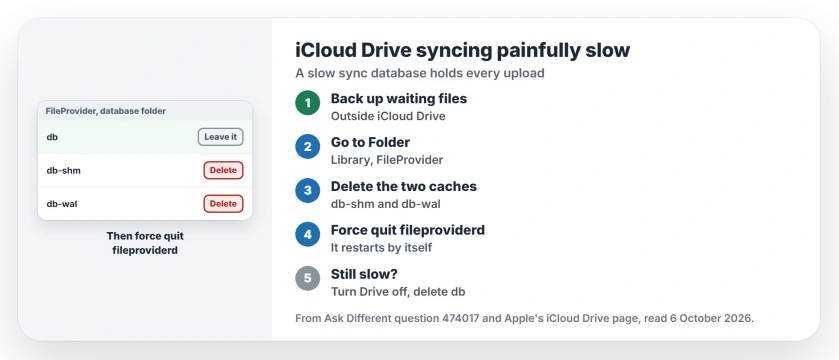
Status: checked 6 October 2026. iCloud Drive crawled on macOS Sonoma while fileproviderd logged slow database errors. Deleting two cache files and force quitting fileproviderd got it moving.
The usual advice did not help. Signing out of iCloud, then back in, changed nothing: "Everything got deleted and is being re-synced, just exactly as slow as before." Safe Mode gave "no difference (same in Safe Mode)."
Ours: fileproviderd keeps a database of every file it tracks. When that database turns slow, every upload waits behind it, however fast your internet is.
1. Back up what only lives on this Mac
Ours: before you touch sync files, make sure anything not yet uploaded is safe. Copy files that show as waiting to upload to a folder outside iCloud Drive, or run a Time Machine backup.
2. Delete the two cache files
The answer explains where to look: "fileproviderd maintains an SQLite database at this location". In Finder, choose Go, then Go to Folder, and paste:
~/Library/Application Support/FileProvider/Open the folder with a long string of letters and numbers, then its database folder.
"Inside the database folder are files named db, db-shm, and db-wal." The answer adds: "The first one contains the actual database, and the others are caches."
Delete db-shm and db-wal only. Leave db alone. I would not touch it yet. Then open Activity Monitor, search for fileproviderd, and force quit it. In the answer's words, "It should restart immediately."
The asker tried it and wrote back: "now syncing indeed looks different". The counter started moving again.
Two or three folders?
You may see more than one long-named folder. That is normal. One owner had three: "I had to clear out database in both folders to force database rebuild." Clear the cache files in each one that has a database inside.
3. Still slow? Rebuild the database
The answer's second step is heavier. "Disable iCloud Drive and all third-party cloud file-sync services, if any. Delete db, restart fileproviderd, and then re-enable iCloud Drive."
To switch iCloud Drive off and then on again, Apple's iCloud Drive page gives the route: System Settings, your name, then "Click iCloud, click Drive". The switch is Sync this Mac.
Ours: if macOS asks whether to keep your iCloud Drive files on this Mac when you switch off, say yes. Then expect the first full sync to take a while. I would start it in the evening.
Dropbox or OneDrive can be the cause
Other cloud apps plug into the same system. Owners report it. An owner wrote, "In my case this was caused by the Dropbox File Provider". They switched it off under System Settings, General, Login Items & Extensions, then File Providers.
Apple says this too. "Syncing by other third-party apps or cloud services can interfere with or stop the updating performed by iCloud Drive."
If iCloud Drive only stalls after your Mac sleeps, our iCloud Drive sleep page has a faster fix. And if copies stop with an error, our Finder error 8062 page covers that one.
Is it safe to delete db-wal and db-shm?
The answer treats them as caches that come back on their own: "The cache files you deleted will be recreated, perhaps after a delay." Ours: your documents are not kept in those two files.
The Short Version
- Painfully slow iCloud Drive sync can come from fileproviderd's database.
- "Significantly too slow SQL statement" in Console is the sign.
- Back up anything still waiting to upload.
- Delete db-shm and db-wal in the FileProvider database folder, then force quit fileproviderd.
- Still slow? Turn iCloud Drive off, delete db, and turn it back on.
- Dropbox's File Provider caused it for one owner.
Where to Next
Open Go to Folder, find the FileProvider database folder, delete db-shm and db-wal, and force quit fileproviderd. Then watch the Finder counter for ten minutes.
Did the cache files alone fix your sync, or did you need the full rebuild? Tell me in a comment and include your macOS version.

Isaac Smith is the founder and editor of PC Glance, a website that covers computers, laptops, and technology. He is a tech enthusiast and a computer geek who loves to share his insights and help his readers make smart choices when buying tech gadgets or laptops. He is always curious and updated about the latest tech trends.