

You click on a button and Windows clicks a little to one side of it. The arrow sits in one place, and the click lands somewhere else. A new mouse changes nothing.
I would switch on one old mouse setting before you buy anything. It changes how Windows draws the arrow on your screen. For the asker, that closed the gap.
On Super User this question goes back to August 2023, on a new Windows 11 PC. It has 25,753 views. The fix came in a comment, and the asker replied that it worked.
Where the click really lands
The asker described it carefully: "The location of my mouse pointer on my monitor does not line up with where the click actually lands." The gap was small but constant.
"The actual click location is about 1/4 inch up and to the left of the pointer icon." They tried several mice, on the old PC and the new one, and changed the pointer scheme too. Nothing changed.
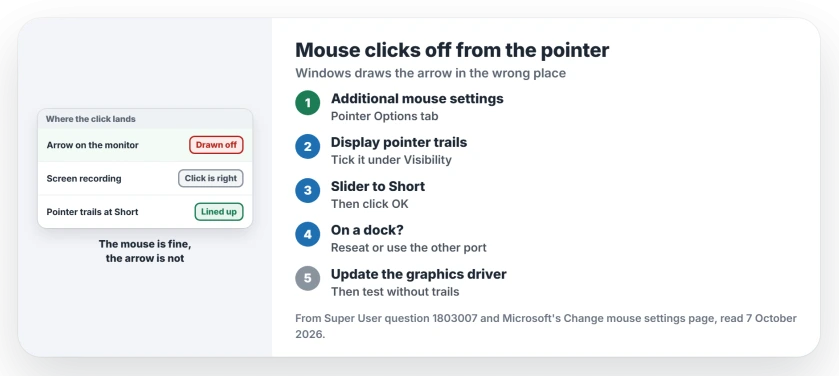
Status: checked 7 October 2026. On a Windows 11 PC the click landed beside the pointer. Pointer trails at the shortest setting fixed it, and a second owner fixed it by changing the dock port.
Then they found the clue. Their screen recorder "shows the click as if it was accurate, even though my monitor doesn't display it correctly."
So the mouse was fine. Windows knew where the pointer was. Only the picture was wrong.
Why pointer trails fix it
Windows normally hands the arrow to the graphics hardware, which paints it on top of everything else. When that goes wrong, the arrow you see drifts away from the real position.
Pointer trails force a different method. The accepted answer says the setting "should make your mouse use software-rendered mouse mode."
Windows then draws the arrow itself, in the right place. It is an old accessibility setting, put to a new use here.
1. Turn on Display pointer trails
Search for Mouse settings, open Additional mouse settings, and go to the Pointer Options tab. Under Visibility, tick Display pointer trails.
Microsoft's mouse settings page describes the same box: "select the Display pointer trails check box." Microsoft says the box is meant to make the pointer easier to find. You are using it for something else.
Drag the slider all the way to Short, then click OK to save it. The asker replied: "That worked!"
Owners report one small cost. At the shortest length the trail barely shows, but you may still see a faint flicker behind the arrow.
2. Using a dock or hub? Reseat the cable
Another owner saw the gap only on external monitors behind a Lenovo hub. They wrote: "It's gone after cable reconnection."
A later reader tried that and it did not help. But "my docking station has two ports so I tried plugging it in the other port and it worked." They had lived with pointer trails for a year before that. The fix was the port.
So if your laptop screen is fine and only the big monitor is off, move the monitor cable to the dock's other video port. Our monitors through a dock page covers which of a dock's ports actually carry video.
3. Then update the graphics driver
Ours, not from the thread: the arrow is the graphics driver's job until trails take over. Install the newest driver from your PC maker or the chip maker, then turn trails off and test again.
If the click still lands off after the update, turn trails back on. I would just leave them at Short.
Settings that will not fix it
If you already bought new mice, they would not have helped: the asker's did not, nor did a different pointer scheme.
Enhance pointer precision made no difference either. Those settings change how the pointer moves, not where the arrow is drawn on your screen. Skip them.
A pointer that keeps switching its size or color on its own is a separate fault. Our cursor settings page has the reports on that one.
A pointer that halts at the border between two monitors is a layout fault, not a drawing one, and closing the gap in Display settings fixed it for owners.
Why did the problem start on a new PC?
The asker never found a root cause. Your new PC brings a new graphics chip and driver, and those draw the arrow. That fits the fix, but it is our reading, not a confirmed cause. So I would start with the driver.
The Short Version
- The click is right; the arrow on screen is drawn in the wrong place.
- A screen recording showing the click in the right spot proves it.
- Turn on Display pointer trails at Short, in the Pointer Options tab.
- On a dock, reseat the cable or try the other video port.
- Then update the graphics driver and test without trails.
Where to Next
Open Pointer Options, tick Display pointer trails and set it to Short. Then click something small, like a close button, and see where it lands.
Did the trails fix yours, or was it the cable on the dock? Leave a comment with the one that worked for you.

Isaac Smith is the founder and editor of PC Glance, a website that covers computers, laptops, and technology. He is a tech enthusiast and a computer geek who loves to share his insights and help his readers make smart choices when buying tech gadgets or laptops. He is always curious and updated about the latest tech trends.