
You press Windows key and Spacebar, and a keyboard you never chose sits in the list. English (United States) is the usual stranger, next to the layout you actually type with.
Yet Settings lists no such language, so you have nothing obvious to remove.
I would add that exact language on purpose, then remove it again, and restart. That cleared it for several owners. If it returns, my bet is the copy Windows keeps for the sign-in screen. One command fixes that.
One Microsoft Q&A question about it carries a Same question count of 100+. Two Super User questions have 70,172 and 51,905 views.
In the switcher, missing from Settings
Layouts and languages are separate lists. Microsoft says on its language settings page that "Installed keyboard layouts aren't always part of a matching language". So the two can drift apart.
An English (United States) keyboard can hang under your own language's entry, or under no entry you can see at all.
On Super User, grawity explained the rest in the accepted answer: layouts still sit in the same place in the registry as in older Windows.
That store "doesn't really have a relationship with the Windows language list". Settings never shows it.
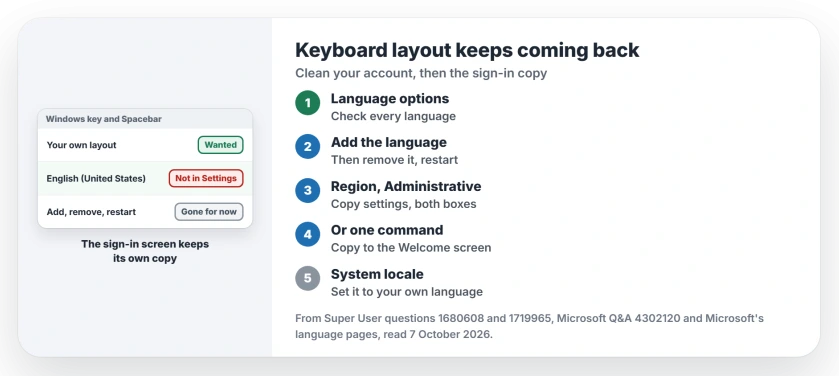
Status: checked 7 October 2026. A stray keyboard in the Windows switcher can live in a hidden copy of your settings. Add it and remove it, then copy your settings to the sign-in screen.
Ours: our Windows 11 Home laptop keeps two layout lists. One sits under HKEY_CURRENT_USER for the account you use, and the other under HKEY_USERS\.DEFAULT, which the sign-in screen reads. That second copy is the one people forget.
1. Look under every language first
Open Settings, then Time & language, then Language & region. Select the three dots next to each language, choose Language options, and read its Keyboards list.
Microsoft says the stray layout "can be located either under the current Windows display language or the language that matches the keyboard layout". Check both.
One owner found German QWERTY (US) under German (Germany) and removed it from there, with the three dots and Remove. If Remove is unavailable, that keyboard is the only one left for your display language, so add your real one first.
2. Add the language, remove it, restart
No language shows it? Give it a home. Add the language it belongs to, add that exact keyboard under it, then remove the whole language again.
It is the accepted fix on the bigger Super User question, with a score of 48. One reader added that "after you remove that language, then it will no longer show up".
Another had tried the registry first, then found "installing and removing the language worked for me".
The asker of the second, smaller question added the restart step. Removing the language took one copy away, and "restarting did help" with the last one.
3. Copy your settings to the sign-in screen
Back after a restart, or a few hours? Then the add and remove trick only cleaned your own account. One reader under that accepted answer wrote simply, "It comes back after restart, unfortunately".
On Microsoft Q&A, the person with the returning layout had the same story, with an English keyboard that kept doubling.
Their fix was Copy settings in the old Region window, sending their language settings to the Welcome screen and to new user accounts, then restarting. After the restart, they wrote, "That seems to have done it".
Microsoft documents the same copy as one PowerShell command, available on Windows 11 and later versions.
It copies your "Windows Display language, Input language, Regional Format/locale, and Location/GeoID" to those two places. Run it in an administrator terminal.
Copy-UserInternationalSettingsToSystem -WelcomeScreen $True -NewUser $TrueThen restart, because Microsoft says "Changes take effect after the computer is restarted". The command needs an administrator account.
Prefer clicks? Open Control Panel, then Region, then the Administrative tab, and select Copy settings. Tick Welcome screen and system accounts, plus New user accounts, then OK and restart the PC.
Still there? Check the system locale
Look on that same Administrative tab. The Language for non-Unicode programs has its own setting there, called the system locale.
If it still names the language you removed, select Change system locale and pick your own. Then restart once more.
One owner found US English still set there, marked by them as unwanted. Changing it to their own language "seems to have got rid of the US keyboard option".
If you skipped this step, try it: another owner said it was the one that "fixed it after restart".
What I would not do
Your registry is the last place I would start. The person who asked the bigger question tried a registry edit, and in their words "it is back as soon as I sign in".
Another asker deleted the Preload keys, which helped until the layout came back again, even after a reset.
Hiding your language bar is no fix either. It only hides the switcher from view, and leaves the extra keyboard installed on your PC.
If the extra layout is gone but the wrong symbols still appear, our page on keyboard language sorts out the three settings that share that name. Keys typing nothing at all is a different fault.
Why does Windows add a keyboard by itself?
Owners mostly noticed it after an update or a fresh install, so you may see it again. One 2026 asker watched Windows add the language of the country they live in, every day. One reader called it "a bug introduced by the update", and redid the add and remove whenever it happened.
Keep the copy step in mind. Redo it if an update ever brings the layout back to your switcher.
The Short Version
- Check the Keyboards list under every language in Language & region.
- None shows it? Add that language and keyboard, remove the language, restart.
- Back again? Copy your settings to the Welcome screen and new user accounts.
- Still back? Set the system locale to your own language, then restart.
- Leave the Preload registry key alone; it comes straight back.
Where to Next
Count the layouts in your switcher now, with Windows key and Spacebar, so you know exactly which one to chase.
Did the copy step hold for you after the next Windows update came in? Tell me which language kept coming back, and I will keep this page accurate about how long the fix lasts.

Isaac Smith is the founder and editor of PC Glance, a website that covers computers, laptops, and technology. He is a tech enthusiast and a computer geek who loves to share his insights and help his readers make smart choices when buying tech gadgets or laptops. He is always curious and updated about the latest tech trends.