

You come back to your PC, wake it, and every window that sat on your second monitor is now stacked on the main one. So you drag them all back across, and tomorrow you do it again.
I look at how the second screen goes to sleep first, because Windows reacts to a monitor that seems to vanish. Its February 2018 Super User question now shows 477,496 views. A 2021 Q&A copy collected 40+ people with the same problem.
The screen that looks unplugged
When your monitor sleeps, some connections drop it from the PC for a moment. Windows then sees one screen fewer, so it moves that screen's windows to the one left. Waking does not always move them back.
Microsoft's DirectX team calls it Rapid Hot Plug Detect: "This behavior impacts DisplayPort multi-monitor setups which results in unwanted desktop rearrangements".
In 2021 they shipped a fix to Windows Insider testers, on build 21287 and later.
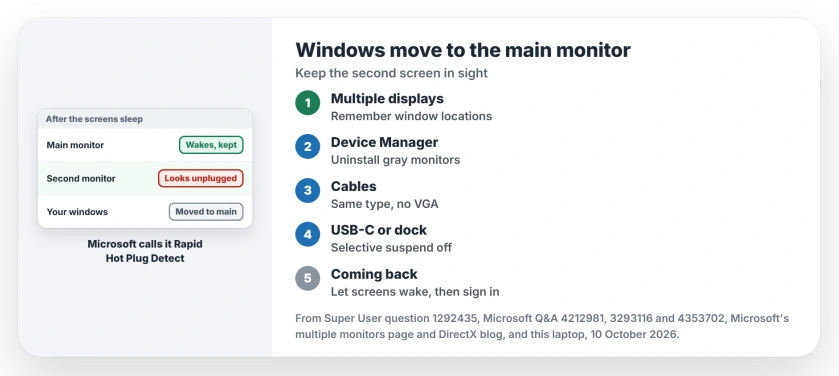
Status: Microsoft documents the cause and the Remember window locations box. The other fixes come from owners. Settings and Device Manager looked at 10 October 2026.
Every Windows 11 build is past 21287, yet owners on Windows 11 kept reporting it in 2022 and 2023. So the fix does not cover every setup.
Ours: this laptop runs build 26200, and its Device Manager still lists an old Dell screen on DVI next to the two screens in use.
1. Tick Remember window locations
Microsoft's page on multiple monitors describes what should happen for you: "When you re-dock your computer to your monitor, Windows puts everything back exactly where you had it before".
That depends on one box, so go to Settings, System, Display, and expand Multiple displays. Make sure Remember window locations based on monitor connection is ticked.
Then test it without waiting for sleep. Press Windows and L to lock your PC, sign back in, and see whether your windows stayed put. One owner suggested that lock test instead of waiting for sleep.
2. Remove the monitors Windows remembers
Open Device Manager, select View, then Show hidden devices, and expand Monitors. Gray entries are screens Windows remembers.
Right-click each gray one and choose Uninstall device, leaving the active ones alone. Then restart your PC.
Readers of this accepted answer split. One wrote "This worked perfectly for me" after a new graphics card had started the moves. Another: "Now they stay in place when unlock the screen".
Others saw no change, and one reader in July 2022 said the cleanup did nothing for them at all. It takes two minutes, so I try it anyway. The same cleanup is step 7 on the second monitor not detected page.
3. Put both screens on the same kind of cable
Owners noticed that the screen which answers first after sleep tends to collect your windows, because Windows sees it before the others.
A Super User owner found theirs always moved to the monitor on a VGA cable, not the DisplayPort one. Their guess was that VGA keeps reporting a screen even while it is off. Moving that monitor to DisplayPort fixed it.
Two readers confirmed the cable swap. One wrote: "one of my screens was on VGA, I replaced the cable with HDMI (the other is DVI) and that solved it".
Mixed DisplayPort and HDMI can do it too. On a 10+ Q&A thread, two owners with one of each saw the browser move every time. One said it began when a DVI monitor was replaced by an HDMI one.
If your monitor's menu has a DisplayPort deep sleep or auto power off option, turn it off. Not every monitor has one.
4. Dock or USB-C? Keep the ports awake
On a monitor fed through USB-C or a dock, the port itself can sleep. An owner on the 40+ Q&A thread, with monitors on USB-C, fixed it in Power Options. Their note: "it prevents the USB ports from going to sleep in sleep mode".
Open Control Panel, then Power Options, then Change plan settings for your plan. Open Change advanced power settings, then USB settings. Set the selective suspend entry to Disabled, on battery and plugged in.
Is your second screen black after sleep instead? That is a different fault, covered on the monitor not waking after sleep page.
5. Wake the screens before you sign in
No setting is involved here, only a habit you can build. Press Windows and L before you walk away. When you come back, move the mouse and wait until both screens show the lock screen, then sign in.
The owner who found it said the screens may blink once or twice, so give them five to ten seconds. A second reader confirmed it: "the windows stay where they are after logging back in".
What did not hold up
A registry value called UseIViewHelper, under a TMM key, still circulates from 2020. The owner who posted it later added that it held only a couple of times. Another wrote "Didn't work for me", so I would skip it.
Hibernate is different too: one owner found the newer fix kept windows in place after sleep but not after hibernate. If your PC hibernates overnight, expect some moves.
Owners who tried everything turned to PersistentWindows, a free tool on GitHub that runs in the background. It records window positions and restores them. Several said it worked, with a short blip.
The Short Version
- Tick Remember window locations based on monitor connection.
- Uninstall the grayed-out monitors in Device Manager, then restart.
- Same cable type on both; avoid VGA.
- On USB-C or a dock, disable USB selective suspend.
- Lock first, and let both screens wake before you sign in.
Where to Next
Still piling up after all five? Tell me your two cable types and your graphics card, and I'll compare them with the owners' setups.

Isaac Smith is the founder and editor of PC Glance, a website that covers computers, laptops, and technology. He is a tech enthusiast and a computer geek who loves to share his insights and help his readers make smart choices when buying tech gadgets or laptops. He is always curious and updated about the latest tech trends.