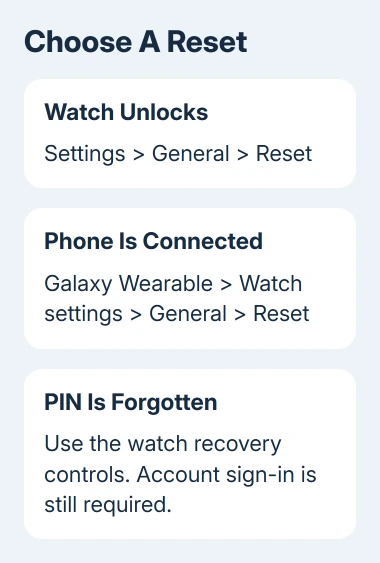
A Samsung watch can be reset from Settings > General > Reset, or from the connected phone's Galaxy Wearable app. A forgotten screen-lock PIN needs the watch's recovery controls instead.
A factory reset erases personal data and restores default settings. Back up first if the watch still connects, and keep your account email and password ready for setup afterward.
In this guide
Match the reset route to the watch's condition
Use Settings when the display responds and you can unlock the watch. Use Galaxy Wearable when the connected phone is easier to operate. Recovery is the route for a forgotten PIN or a watch whose menus can't be reached.
For a temporary freeze, I'd try a restart before erasing anything. Restarting and factory resetting are different actions, even though the recovery sequence begins by making the watch reboot.
Check the model name in Galaxy Wearable or the watch's information screen before following recovery instructions. Older Gear watches, Galaxy Fit bands and Wear OS watches don't all show the same final menu.
The Samsung reset instructions cover those differences. Use the instructions for the model on your wrist, rather than choosing by its round or rectangular shape.
Save the backup and check your accounts first
Open Galaxy Wearable on the paired phone. On supported watches, use Watch settings > Account and backup and review the available backup options. Choose Backup settings or Back up data, select the items, and tap Back up.
Use the backup controls offered by your model. Wait until it confirms the backup is complete before continuing. The phone needs a working connection and account sign-in to save the watch's data.
The watch backup guide explains the available methods. Backups don't include every item, so check what yours saves before erasing the watch.
Keep the Samsung account email and password available. Recovery can require the same Samsung account that was on the watch. Complete any Google account checks shown by a Wear OS model during setup as well.
An LTE watch with active service may need the carrier to reactivate service after resetting. Before erasing it, check the carrier's instructions for keeping the plan or transferring ownership. A reset doesn't cancel billing.
Reset an unlocked watch from Settings
- Open Settings on the watch.
- Find and tap General.
- Tap Reset.
- Review the message, then tap the checkmark or reset confirmation your model shows.
- Leave the watch to finish and return to its initial setup screen.
Look for the setup screen when it finishes. A normal watch face after a restart doesn't mean it has reset. If the usual face returns with your apps and settings intact, the factory reset hasn't completed.
For a Gear S2, the route is Settings > Gear info > Reset Gear > Factory reset > Done. That older menu uses different names from the Galaxy Watch General menu.
The Galaxy Fit2 uses its own controls: tap the Home key, swipe down for Quick settings, swipe to the far right, and open More options. Tap the reset icon at the bottom and confirm with the checkmark.
The original Galaxy Fit needs Galaxy Wearable for a reset. Don't keep searching its band menus for the full-watch Settings route.
Reset through the connected phone
On Android, open Galaxy Wearable and check that the correct watch is selected. Tap Watch settings > General > Reset, then confirm Reset again. Some older models skip the Watch settings level.
For Galaxy Fit or Fit2, use Galaxy Wearable > About band > Reset band > Reset. Keep the phone nearby while the command is being sent to the connected band.
An older compatible watch paired to an iPhone can be reset in the Galaxy Watch app. Open that app, choose General > Reset, then confirm Reset a second time.
Newer Wear OS Galaxy watches don't pair with an iPhone. The Samsung watch compatibility guide helps identify the supported older models before you search for an iPhone reset control.
If the app says the watch isn't connected, it can't send the reset command to the watch. Use the watch's Settings when possible, or the recovery route if you can't unlock it or reach Settings on the screen.
Use recovery when the PIN or menus block access
Recovery still erases the watch. It doesn't remove the need to sign in with the account associated with it afterward. Recover that account first if you no longer know the password.
- Hold the watch's Home/Power and Back keys together until the bottom of the display shows Rebooting.
- Quickly press the Home key repeatedly until the reboot menu appears.
- Press Home to move the selection to Recovery.
- Hold Home to select Recovery and start it. Don't leave the menu idle, because the watch can start normally.
Older supported watches start recovery after you select it. Wear OS watches can show another menu, so wait to see which screen appears rather than repeatedly pressing both buttons again.
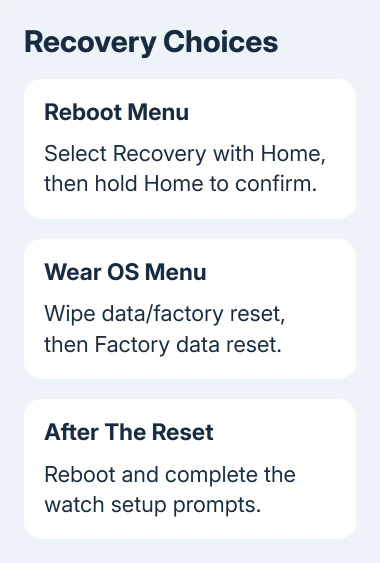
On the Wear OS recovery menu described in the reset guide, swipe down to Wipe data/factory reset, then swipe right to select it. Select Factory data reset with the same gestures. When finished, swipe right to reboot.
If a newer model shows different controls, check its manual or ask Samsung support before confirming an unfamiliar option. Report the exact model and menu labels so the adviser can give the right recovery sequence.
Set it up again or finish handing it over
For your own watch, open Galaxy Wearable to reconnect, then follow its restore prompts. If you reset it to fix a recurring problem, check that it works normally before restoring all your custom settings.
Before giving the watch away, remove its Bluetooth pairing from the old phone. On a Galaxy phone, open Settings > Connections > Bluetooth, tap the settings control beside the watch, and choose Unpair.
If the watch won't reach setup, contact Samsung support through the reset page's support section. Ask for model-specific recovery or repair help and explain whether it stops at Rebooting, Recovery, or the setup screen.
Resetting won't repair cracked glass or a failed touch panel. A damaged Active model needs a screen repair assessment if the touch panel won't respond.
The Short Version
Save a backup, confirm account access, and choose a reset on the watch or paired phone. Use Recovery for a forgotten PIN. Match the final steps to Gear, Fit or Wear OS, and check LTE reactivation with the carrier.
Checked November 11, 2026.