An Apple Watch stuck in Sleep Mode usually needs two separate actions: unlock the sleep screen, then turn off Sleep Focus. Hold down the Digital Crown to unlock the screen, open Control Center, and disable Sleep Focus.
If Sleep returns at bedtime, check its schedule. If the screen won't respond at all, follow the restart steps instead. A dark display without the bed symbol can be Theater Mode or an ordinary sleeping screen, so check the symbol first.
In this guide
1. Unlock the sleep screen with the Digital Crown
Wake the display and read its instruction. On current watchOS releases, hold the round Digital Crown button down through the unlock animation. A quick press or a spin isn't the same action.
Keep holding until the watch returns to a screen that responds to taps. Apple says its status-icon instructions identify the bed symbol as Sleep Mode and describe holding the Crown to exit its locked screen.
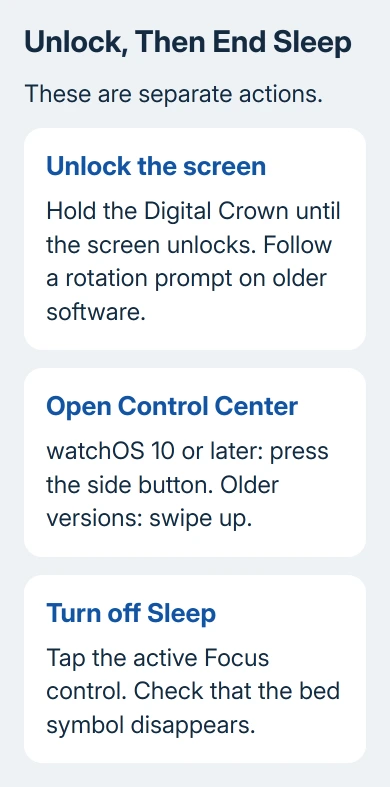
Older watchOS versions can ask you to turn the Crown rather than hold it. Follow the instruction displayed on that watch. If a passcode screen appears afterward, enter your watch passcode to finish unlocking the device.
Try tapping an app or returning to the watch face. If taps work, the screen is unlocked. If the bed icon remains, continue to the Focus control; unlocking the display doesn't necessarily switch off the active Focus.
I'd make that distinction before resetting anything. A watch that accepts taps after the Crown action isn't frozen, even if it still looks different from its usual daytime face.
2. Switch off the active Sleep Focus
On watchOS 10 and later, press the flat side button once to open Control Center. This is the button beneath the Crown, not the Crown itself. On watchOS 9 and earlier, swipe upward while your normal watch face is showing.
Find the active Focus control and tap it to turn that Focus off. If the panel opens a list, choose the active Sleep entry to disable it. Return to the watch face and check whether the bed symbol has disappeared.
The Watch Focus controls describe turning off a Focus through Control Center. This is different from turning off Silent Mode, which changes sound but doesn't end Sleep Focus.
On your paired iPhone, open Control Center and check Focus too. If Sleep is highlighted, tap the active Sleep control to turn it off. The phone and watch can share Focus settings, so look at both when one seems to undo the other.
If notifications still don't arrive after the bed symbol disappears, the Watch notification checks address that separate problem. Don't delete your sleep schedule just to correct one app's alerts.
3. Correct the schedule when Sleep turns itself on again
Open Health on the iPhone and find Sleep. Depending on the iOS layout, start from Browse or use the app's search. Open Full Schedule & Options and review the days, bedtime, wake time, and wind-down period.
Wind Down starts Sleep Focus before bedtime. A watch that enters Sleep during that interval can be following its schedule correctly. Change the wind-down length if the quiet period begins earlier than you want.
In the full sleep options, find Use Schedule for Sleep Focus. Disable it to keep your schedule but start the Focus manually. That way, you don't need to delete your saved schedules.
On the watch, open the Sleep app and its schedule controls. Review Full Schedule, including weekday and weekend entries. The watch's current guide allows schedules to be edited, disabled, or deleted there.
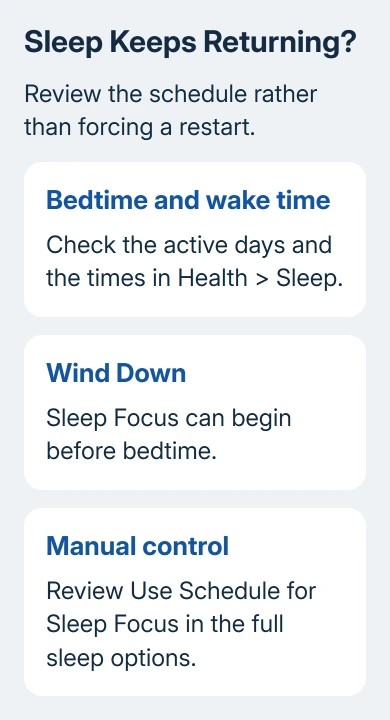
Change the days or times that are wrong, then check what happens when the next scheduled bedtime or wake time arrives. Switching Sleep off once fixes the current session; correcting its schedule addresses the reason it returns.
For missing sleep records after the screen problem is resolved, use the sleep-tracking checks. Display behavior and recorded sleep are different parts of the feature.
4. Restart a watch that won't respond
If taps and button presses don't produce their usual controls, try a normal restart. Disconnect the watch from its charger first. Hold the side button to bring up the power controls, tap the power control if shown, and drag Power Off.
After the watch turns off, keep the side button pressed, releasing it once you see the Apple logo. Older watchOS versions show Power Off directly, without the extra power button. Let startup finish before trying the Focus control again.
Use a force restart only when a normal restart isn't possible. Use both controls at once: the side button plus the Digital Crown. Keep both pressed for 10 seconds or longer, releasing once the Apple logo shows.
Don't force restart during a software update. If an update progress ring is showing, keep the watch charging until that ring completes. Interrupting an update can cause problems that a normal frozen screen doesn't have.
Once the watch works, open the iPhone's Watch > My Watch > General > Software Update and check for an available update. Install it using the displayed charging and connection requirements, rather than forcing more restarts.
5. Match a dark screen to its actual mode
A bed symbol points to Sleep. The two masks symbol points to Theater Mode, which keeps wrist raises from lighting the display. Open Control Center and turn off Theater Mode if that's the control that's active.
A padlock means the watch needs its passcode. A plain dark display that wakes normally when tapped can simply be the screen resting. Those cases don't call for changing Health's sleep schedule.
A control that physically jams calls for the stuck Watch button checks, starting with case interference and residue.
If the watch stays unresponsive after the restart, use Apple Support's Watch service route and ask about an unresponsive display or Crown. Give the model, watchOS version, visible symbol, and whether holding the Crown produces an animation.
For a watch that responds but keeps re-enabling Sleep outside its schedule, report the paired iPhone's iOS version and the times it happens. Ask support to check the shared Focus settings and schedule before erasing and re-pairing.
The Short Version
Hold the Crown to unlock the sleep screen, then disable Sleep Focus in Control Center. Review the sleep schedule and Wind Down if it returns. Restart only when the watch won't respond, and check which mode the icon identifies.
Checked November 12, 2026.
 If you have any business, I can build it online