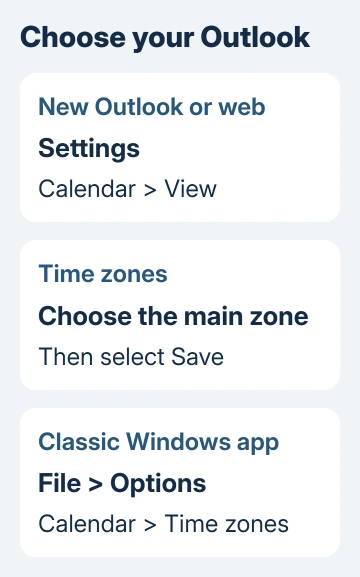
Changing Outlook's time zone changes how your calendar displays meeting times. For new Outlook and browser access, open Settings > Calendar > View and change Display my calendar in time zone.
Choose the region whose local time you want your schedule to show. A second time-zone column is useful for colleagues elsewhere, but it doesn't change the main zone or alter the meeting's scheduled moment.
In this guide
Choose the main calendar zone
Open Outlook's Settings, then choose Calendar > View. Scroll to Time zones and open Display my calendar in time zone. Select the appropriate region, add a helpful label if wanted, and select Save.
Use the region's full name rather than choosing an unrelated city with the same current offset. Two places can have the same clock time today but follow different daylight saving rules later in the year.
Microsoft documents these calendar controls for the new app and browser calendars. The setting affects how you read the calendar and the default zone used for new calendar items.
Return to Calendar and check a familiar timed appointment. Compare it with the meeting details and the zone you selected. Your chosen zone should still be selected when you reopen Calendar's View page.
For travel, that same page offers When I travel across time zones, ask me if I want to update my time zone. Select it if you'd like a prompt instead of keeping the calendar tied to one region without a reminder.
Work hours are a separate choice. If your calendar times are right but colleagues see the wrong working day, use the Outlook work-hours settings rather than shifting the calendar zone to compensate.
Change the zone in classic Outlook for Windows
Look for the File tab at the top of the desktop app. Open File > Options > Calendar, then scroll to Time zones. Choose the region in Time zone, enter a label if useful, and confirm with OK.
The label names the column, such as Home or Office. Editing the label alone doesn't select another region. Check the actual Time zone list before closing the window.
If your app doesn't have File and Options, return to the new Outlook procedure. The two Windows apps arrange their settings differently, so you won't find classic Options in the new app.
Check the Windows clock as well when the incorrect time also appears in other apps. Outlook's calendar display choice shouldn't be used to hide an incorrectly configured computer clock.
On Windows 11, open Settings > Time & language > Date & time. On Windows 10, open Settings > Time & Language > Date & time. Check the selected zone and the automatic time-zone option to see whether other apps are affected too.
A locked Windows time-zone control needs its own permissions and location checks. On a managed PC, give the administrator your required region rather than overriding their policy.
Add another column without changing the main zone
For new Outlook or the web, return to Settings > Calendar > View and choose Add time zone. Under Other time zones, search for the city or region, add a label and enable Show in calendar. Save the change.
Use a day or week calendar view to compare the columns. This is useful when arranging a call between two offices: the same row shows the corresponding local time in each selected zone.
In classic Outlook, open File > Options > Calendar > Time zones and select Show a second time zone. Choose its region and label. Recent Microsoft 365 editions may include Show a third time zone; older versions can have only two.
The extra column helps you compare local times. It doesn't send a change to attendees or move an appointment. For a daily comparison with another office, add this column rather than changing your main zone each morning.
I'd label the columns with recognizable places, especially when two offices share the same offset for only part of the year. Home and Office can become confusing after a move.
Keep a display change separate from a meeting change
Outlook saves timed calendar items using UTC, a shared worldwide time reference. It then shows them in the local time zone you've selected. The same meeting can correctly show a different clock time on two people's calendars.
For example, a call at 10 a.m. in one region can appear at 11 a.m. for a colleague an hour ahead. Both entries can represent the same moment. Changing your display zone doesn't mean that call has been rescheduled.
If the appointment itself was entered in the wrong zone, open it and check its start, end and event time-zone fields.
Correct the event through the organizer's calendar rather than changing your entire calendar to make one invitation look right.
For meetings, only the organizer should distribute an updated invitation to attendees. The Outlook invitation steps explain sending updates from the organizer's event. A recipient's private display change doesn't update other attendees.
For a recurring series, check whether you're editing one date or the entire series. Review any dates you've moved separately before sending a series change. After changing the time zone, you may need to recreate those individual changes.
Check Mac, mobile and recently changed regional rules
On a Mac, check System Settings > General > Date & Time for the computer's zone. Outlook adjusts displayed events with the system zone; its Calendar preferences set the default for new items.
For extra Mac columns, choose Outlook > Settings > Work Schedule under Calendar. Under Time zones, enable Time zone 2 or Time zone 3, then use Edit to name the column and review its zone.
For an individual Mac appointment, use Time Zones on its Appointment or Organizer Meeting tab. In current editors offering a globe button, open the event, choose Edit, then the time-zone globe to review its region.
Outlook Mobile uses the phone's zone for new events. On iPhone, review Settings > General > Date & Time. With Google's Clock app on Android, open More > Settings > Change date and time and review the automatic time-zone option.
After correcting the phone's region, open a new draft event and check its time before saving. Existing meetings can need separate review, especially after regional clock-rule changes.
Recent changes in regional clock rules can require updated software and a newly named region. Choose the zone that follows your region's current rules instead of selecting a fixed offset just because it matches today's clock.
For a calendar still off by an hour, compare one affected event in desktop Outlook and the web version.
Record its date, displayed time, selected zone and whether it's recurring. For a work mailbox, send that comparison to its Microsoft 365 administrator.
For a personal account, use Outlook's Help support option with the same example. State whether every event is shifted or only one series; that helps separate a display setting from an event that needs correcting.
The Short Version
Choose Calendar View for the new app or browser, or File, Options, Calendar in classic Outlook. Add extra zones for comparison.
Review a known appointment after saving, and correct the event itself if only that meeting has the wrong scheduled time.
Checked November 12, 2026.