

An iPad that keeps saying Reconnecting during setup has lost contact with the old iPhone or iPad. Keep both devices together and plugged in. Check the old device's Wi-Fi and Bluetooth before restarting Quick Start.
That message is different from an iPad that can't join Wi-Fi or can't activate. Follow the screen you're actually seeing: a transfer needs both devices, while a network or activation error needs its own check.
In this guide
1. Keep both devices ready for Quick Start
Place the old iPhone or iPad beside the new iPad and plug both into power. Leave both devices side by side while the transfer runs. Moving the old device away to take a call can interrupt the setup you're trying to complete.
On the old device, check Settings > Wi-Fi and confirm it's connected. Then check Settings > Bluetooth and turn Bluetooth on. Unlock the device, leave the Home Screen visible, and try starting the nearby setup again.
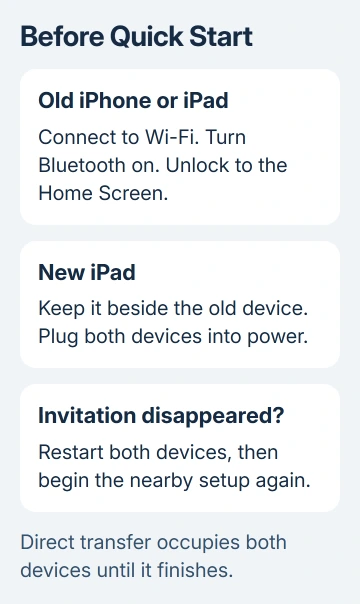
Apple's Quick Start instructions call for a nearby, unlocked device with Wi-Fi and Bluetooth available. Quick Start supports an old iPhone with iOS 11 or later, or an iPad with iPadOS 13 or later.
Look for the setup invitation on the old device. Accept it and follow the pairing instructions on both screens. A direct transfer occupies both devices until it finishes; even a working transfer won't immediately free the old phone.
An iCloud download behaves differently. It can let you start using the new iPad while apps and data continue arriving. Don't expect that background download to show the same screen as a direct device-to-device transfer.
Compare the full iPad migration routes when deciding whether to retry a nearby transfer or restore a saved backup.
If the invitation disappears or Reconnecting returns without progress, restart both devices rather than repeatedly accepting the same failed invitation.
2. Restart both devices and begin again
Restarting only the new iPad leaves the other half of the connection unchanged. Close the failed attempt on both devices, restart them, and place them together again. Keep the original device and its data intact.
On iPads without Home, press and hold two buttons: top and either volume button. Drag the power slider when it appears. Wait 30 seconds after shutdown, then press and hold top again. Release it when startup shows the Apple logo.
On Home-button iPads, press and hold top to show the power slider, then drag it to shut down. Wait 30 seconds, then press and hold top again. Release it when startup shows the Apple logo.
For an old iPhone with Face ID, press and hold two buttons: side and either volume button. The power slider should appear. On an iPhone 6, 7, 8, or SE second or third generation, press and hold side alone for the power slider.
On an iPhone SE first generation, iPhone 5, or earlier, press and hold top for the slider. After shutdown, press and hold the button your model uses (side or top). Release it when startup shows the Apple logo.
Once both devices are back on, unlock the old one and retry Quick Start. A new invitation and a transfer that advances past the previous stopping point show that the restart helped. If it reconnects again, check the network case next.
3. Separate a Wi-Fi failure from a transfer failure
Read the new iPad's full message. A failure to join the selected Wi-Fi network happens before a stable transfer can continue. Re-enter the correct network password and check that the old device can load a normal web page on that network.
If other devices can't load pages either, fix the router or connection first. Try another working Wi-Fi network when one is available. Repeating Quick Start won't repair an internet outage.
For a network that accepts the password but still won't work, the iPad Wi-Fi connection checks cover the network settings separately. Return to setup after the iPad can connect.
An activation message is another separate case. Record its exact wording and give it to support if it persists on a working connection. A message about the previous owner's account isn't a Bluetooth pairing problem.
I'd try a fresh Quick Start attempt on a working connection before choosing a different transfer method. If the same connection failure returns, use an existing backup rather than spending the evening repeating it.
4. Restore an existing backup instead of transferring nearby
Choose the manual setup option, which may appear as Set Up Without Another Device or Set Up Manually. Continue until the Transfer Your Apps & Data screen, then choose From iCloud Backup if you have a suitable saved backup.
Sign in with that backup's Apple Account. Check the backup's date and size before selecting it, then keep the new iPad connected to Wi-Fi and power while the progress bar completes.
If setup asks for a newer iPadOS version, follow its update instructions. A backup made on newer software can require an update before restoration. A successful download of the backup is separate from the later download of individual apps.
For a backup already on a computer, use Finder on macOS Catalina 10.15 or later, or Apple Devices on Windows 10 or later. Connect the iPad by USB, select it, and choose Restore Backup.
Older Macs use iTunes. Select the correct dated backup and enter its encryption password when requested. Leave the iPad connected through its restart and sync; disconnect it after syncing finishes.
Don't erase a device containing your only copy of important data. A restore route needs a usable backup, and finishing setup as a new iPad doesn't itself copy everything from the old device.
5. Use a force restart only for a frozen iPad
If the screen won't respond, force restart the iPad, since you can't use the normal power slider. If setup still responds but keeps asking for a connection, use the earlier steps.
Without Home, find the two volume buttons. Quickly press, then release, the one nearest top. Next, quickly press the farther volume button and let go. Keep top pressed next, releasing it when startup shows the Apple logo.
With Home, hold Home plus Top until the Apple logo appears, then release both buttons. After startup, check whether setup responds normally before attempting the transfer again.
If the iPad stops at the Apple logo instead, follow the iPad frozen-screen and startup steps. That needs a startup repair route rather than more changes to Quick Start.
For repeated setup failure, use the help option on the iPad support page. Give the adviser both device models, their software versions, the exact message, and whether an iCloud or computer restore also failed.
A school or business iPad can have setup restrictions. Quick Start transfers aren't available for new devices enrolled through Apple School Manager, or through Apple Business. Ask the administrator for its setup method.
The Short Version
Keep both devices nearby, powered, and ready with Wi-Fi and Bluetooth. Restart both when Quick Start loses its invitation. If reconnecting continues, use a saved backup, or ask support to check a repeatable setup or activation failure.
Checked November 12, 2026.






