
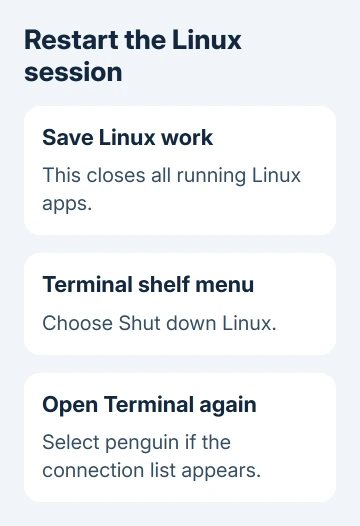
A Chromebook Terminal that hangs while starting Linux usually needs the Linux environment restarted before any repair commands can run. Close your Linux apps, use Shut down Linux from Terminal's shelf icon, then open Terminal again.
A missing Linux option is different from a window that opens with a startup error. And a working prompt followed by a failed command means Terminal itself has started. Choose the checks for the problem on your screen.
In this guide
1. Restart the Linux environment from the shelf
Save anything open in Linux apps first. Right-click Terminal's icon on the shelf, or use a two-finger touchpad tap, and select Shut down Linux. This shuts down the Linux system that your Linux apps share.
Open Terminal from the launcher again. If its opening screen lists Linux connections, select penguin, the usual default environment. Wait for the command prompt rather than repeatedly opening more Terminal windows.
A prompt with a blinking cursor means Linux has started and is ready for commands. The text before the cursor can contain your Linux username and Chromebook name; it doesn't have to match a picture in an installation guide.
Google's Linux development instructions recommend shutting down Linux when troubleshooting. I'd try that before changing settings; it restarts the affected environment.
If the same startup error returns, copy its full wording and continue with a Chromebook restart. A number such as a startup error code is useful when asking for help; just saying the window is black gives them less to work with.
2. Restart ChromeOS and finish its update
Save your browser work and restart the Chromebook. This restarts ChromeOS as well as Linux, including parts that the shelf's shutdown command leaves running. Open Terminal once the Chromebook has finished signing in.
If it still won't start, open Settings > About ChromeOS > Check for updates. Let an available update download, then select Restart when offered. Reopen Terminal after the restart, rather than leaving the update waiting.
An update download and an installed update aren't the same thing. The restart completes the change. The Chromebook update guide covers the normal update screen if that part gets stuck.
Keep a working internet connection during setup or an update that needs downloads. A school or work Chromebook can also have restrictions that a personal Chromebook doesn't, even when both have the same ChromeOS version.
When Terminal opens normally after this, move to package updates in step 4. If it still shows a Linux startup error, check whether the environment exists before trying commands that need a working Linux prompt.
3. Check a missing Linux connection or setup option
Open Settings > About ChromeOS > Developers and look for Linux development environment. On older layouts, Developers sits under Advanced. Searching Settings for the full setting name can find it faster.
If the setting offers Set up, Linux hasn't been set up for that account. Follow the prompts and let setup finish. Google says setup may need 10 minutes or more, so wait for the download and setup to finish before trying Terminal.
The Terminal app can also offer SSH connections. SSH opens a command session on another computer; it doesn't create the Chromebook's local Linux environment. For local Linux commands, open the Linux connection instead.
On a managed Chromebook, ask the administrator whether Linux is allowed on that Chromebook. Don't enable Developer Mode to work around a missing option. Developer Mode is a separate feature and isn't required for normal Linux apps.
If Linux was previously installed and your files matter, don't use Remove as a quick repair. Removing it deletes the environment and leaves you trying to recover files instead of fixing startup.
The Linux setup walkthrough covers first-time installation. If Linux is already installed but won't start, continue with the remaining checks instead of trying to install it again.
4. Update packages only after the prompt works
Once Terminal accepts typing, run the package-update command from Google's Linux troubleshooting page:
sudo apt-get update && sudo apt-get dist-upgradeThe first command refreshes the list of available software. The second updates installed packages and can change their dependencies, which are other packages an app needs to run. Read the proposed changes before agreeing to continue.
The && means the upgrade runs only if refreshing the package list succeeds. If the first part reports a network or repository error, save that message. Repeating the whole line won't correct a wrong repository address.
A message about a command not being found is different from Terminal refusing to open. Check the command's spelling and the app's installation instructions. For a missing file, check its folder and filename before reinstalling Linux.
If only one app fails while other commands work, send that app's exact error to its developer. Restart the Chromebook after package updates when needed, then try the affected app again to check whether its behavior changed.
Once Terminal opens, a Linux app installation error can need a matching processor build or an unfinished-package repair.
5. Protect Linux files before rebuilding anything
If Linux starts intermittently, use that working session to save important files. In Files, look under Linux files and copy the documents you need to a separate location you can open outside Linux.
For a full environment backup, open the Linux settings and choose Back up and restore > Back up. Choose a location with enough free space and wait until the backup notification confirms completion before relying on the file.
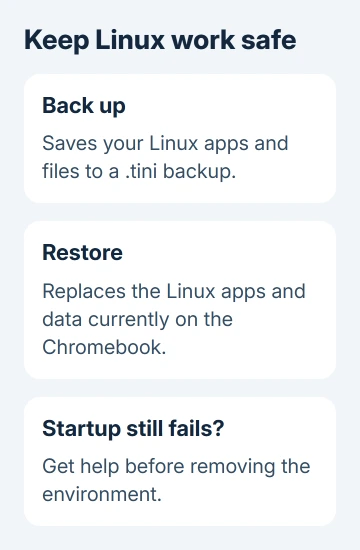
A Linux backup uses the .tini extension. Restoring one replaces the current Linux apps and data, so it isn't a harmless restart button. A backup from another Chromebook also needs the same type of processor, such as ARM or x86.
If backup fails because Linux won't start, stop before removing the environment. Ask the Chromebook Help Community about the startup error and say that you need to preserve existing Linux files. That changes which repairs they can suggest.
Include the Chromebook model, ChromeOS version from About ChromeOS, full error, and whether Linux files remain visible. For a managed device, start by giving IT those details. They can check policy without deleting your environment.
The Short Version
Restart Linux from Terminal's shelf menu, then restart and update ChromeOS if startup still fails. Missing Linux setup, a failed startup and a failed command need different checks. Save Linux files before considering removal or restore.
Checked November 12, 2026.





