

An ASUS keyboard can ignore taps when Filter keys is on, while a stuck driver can stop typing entirely. Restart the laptop first. If keys work only when held down, turn off Filter keys before reinstalling anything.
Letter keys failing everywhere, a few damaged keys, and brightness shortcuts failing are different problems. Choose the check that matches what's wrong. Missing software for the shortcut keys doesn't mean the keyboard needs replacing.
In this guide
1. Restart before repairing the keyboard driver
Save open work using the mouse, then select Start > Power > Restart. Choose Restart rather than simply closing the lid. After Windows returns, open Notepad and try letters, numbers, Backspace, and Enter.
If typing works there but not in one program, close and reopen that program. Check that its text box is selected and that no dialog is waiting for a response. A single app ignoring keys isn't the same as the built-in keyboard failing.
Plug in a USB keyboard if you need to sign in or enter search terms. The laptop's mouse or touchpad can also open the onscreen keyboard. At the Windows sign-in screen, select Accessibility and enable On-Screen Keyboard.
Once a separate keyboard types correctly, a forgotten login needs ASUS account or PIN recovery rather than another keyboard repair.
Inside Windows 11, open Settings > Accessibility > Keyboard and turn on the onscreen keyboard. Windows 10 places it under Settings > Ease of Access > Keyboard. Click its keys when a later step needs typed text.
If a spill happened just before the failure, power down and ask ASUS about a repair. Reinstalling drivers won't fix liquid inside the keyboard.
2. Turn off Filter keys for ignored short presses
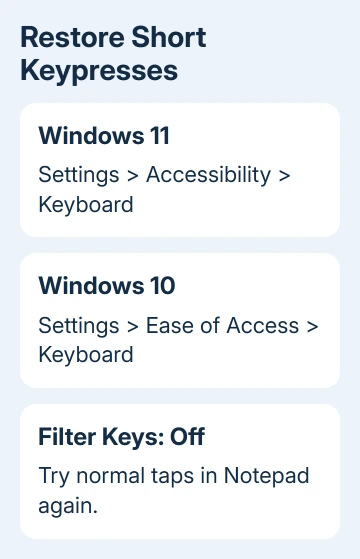
Hold a letter key briefly in Notepad. If the letter appears only after a delay, while quick taps seem to do nothing, check Filter keys. This accessibility feature can ignore short or repeated keypresses.
On Windows 11, open Settings > Accessibility > Keyboard and turn Filter keys off. On Windows 10, open Settings > Ease of Access > Keyboard and switch off Use Filter Keys.
Try a short sentence again with normal taps. If every letter now appears as you type, Filter keys was the cause. You can leave the drivers installed after the keyboard has returned to normal.
ASUS lists Filter keys in its built-in keyboard help for slow key response. It also separates ordinary typing failures from shortcut failures, which need different software.
If Filter keys was already off and quick taps still fail, keep that setting off and move to the keyboard driver. Don't change repeat speed to compensate for keys that aren't registering at all.
3. Reinstall the keyboard device in Windows
Right-click Start and select Device Manager. Expand Keyboards to see the installed entries. The built-in keyboard's name can differ by model and driver, so it won't necessarily say ASUS.
Have your mouse and onscreen keyboard available first. Right-click a keyboard entry, select Uninstall device, and confirm. The steps call for removing the devices in the Keyboards category, then restarting the computer.
Restart Windows after removing those entries. Windows should install the keyboard devices again during startup. Test ordinary typing in Notepad before opening your usual apps or changing another setting.
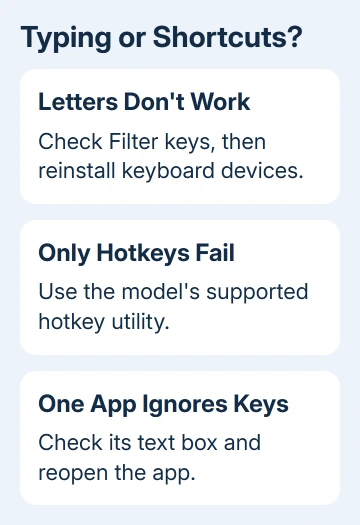
If typing returns, reinstalling the keyboard device fixed the problem in Windows. If it doesn't, look for updates and compare how the built-in keyboard works outside the app that was ignoring it.
An external keyboard working doesn't rule out the built-in keyboard or its connection. It lets you carry on working and reach the support tools without repeatedly fighting the failed keys.
4. Install updates for the exact laptop model
Open Settings > Windows Update in Windows 11. Windows 10 uses Settings > Update & Security > Windows Update. Apply the offered updates and complete the restart they request. Test the keys afterward.
Open MyASUS and check its update section for drivers offered for this laptop. Names and layout can vary by MyASUS version. Use the laptop's full model identifier when looking for downloads manually.
Don't install a driver package just because another ASUS laptop has a similar name. The keyboard and hotkey utilities differ by generation. I'd use MyASUS first because it reduces the chance of choosing another model's package.
The support steps also recommend updating the BIOS, the laptop's startup software. Follow that model's firmware-update procedure, with the required power connection. Let that update finish without interrupting it.
If only the lighting is missing while typing works, use the ASUS keyboard-light guide. The backlight has its own controls. It can be off even when typing works.
5. Repair hotkeys when normal typing still works
Try a letter key and then a brightness or volume key. If letters work but the shortcut doesn't, check the symbol printed on that key. Test the marked key with Fn, and without Fn if your model supports hotkey mode.
Some models use Fn+Esc to switch the function-key behavior. Check that your model supports this shortcut before trying it. The model's manual explains whether F1 through F12 act as function keys or the printed shortcuts by default.
Use the model's support downloads to identify its hotkey package. Depending on the laptop's generation, it may need ASUS System Control Interface, ASUS Keyboard Hotkeys, or an older ATK Package.
Install the package listed for your model and Windows version, then restart. Test the same shortcut afterward. Installing every generation's utility together isn't a useful repair method.
If the keyboard's power button is the only unresponsive control, the separate ASUS power-button checks address that startup problem. The typing driver only comes into play after the laptop starts.
6. Decide when the keyboard needs service
If several keys still fail after the supported Windows and driver steps, note which ones. A row of dead keys or keys that respond only at an angle gives the repair team different information from a missing volume shortcut.
Ask ASUS support for the built-in keyboard diagnostic and repair options for your model. Include whether a USB keyboard works, whether the failure started after an update, and what changed after reinstalling the keyboard device.
Resetting Windows is a later option in the support procedure. Back up your files first, and ask whether the symptoms point to hardware. A reset can clear software problems; it doesn't repair a damaged key or cable.
The Short Version
Restart, try Notepad, and disable Filter keys when quick taps fail. Reinstall keyboard devices and update the model's software for persistent typing failures. Working letters with failed shortcuts need the correct hotkey utility.
Checked November 13, 2026.






