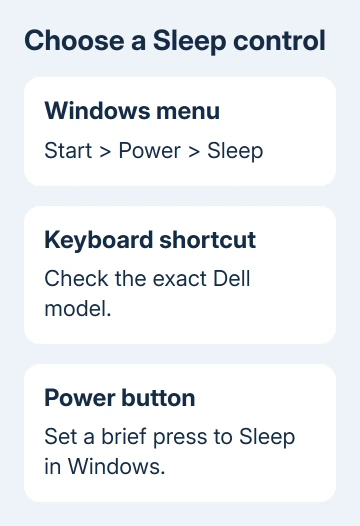
The sleep button on a Dell laptop may be a keyboard shortcut rather than a separate key. Some models, including the Latitude 5480, use Fn + Insert, but it depends on the keyboard. The Windows menu offers Start > Power > Sleep.
The power button is another option once Windows is set to make a brief press sleep. Check what yours does first: it can be set to shut down, hibernate or do nothing instead.
In this guide
Start with the Sleep command in Windows
Select Start, select Power, then Sleep. This route works without finding a special key so you can confirm Sleep works before checking the keyboard layout.
Save your current work first. Expect the screen to go dark when sleep begins. When it resumes, your apps and documents should still be open rather than a new desktop session.
Briefly tap the power button to wake the laptop if opening the lid or pressing a key doesn't work. Wake methods differ by model, so a keyboard that won't wake it doesn't automatically mean Sleep failed.
Windows 10 and Windows 11 both provide Sleep through the Start power menu when the feature is available. The icons and Start layout differ, but you don't need a Dell utility to select that Windows command.
I'd use the menu for the first attempt. If that works while the shortcut doesn't, you can concentrate on the keys instead of changing unrelated power settings.
Find the shortcut for the exact Dell keyboard
Look for a sleep symbol on the keyboard and check the model's keyboard-shortcut list. The Fn key is usually involved when a key has a second function printed on it.
The Latitude 5480's documented shortcut is Fn + Insert. That example doesn't mean every Inspiron, XPS, Latitude or Precision uses the same combination, or that Insert always means Sleep on every Dell keyboard.
Hold Fn, press the key listed for Sleep in your model's manual, then release both. Try it with no unsaved work open so the result is easy to recognize and compare with the Start menu command.
If the key performs its ordinary function instead, compare the printed legend with the shortcut table for that exact model. An external keyboard can have its own sleep key or no sleep command at all.
Don't change BIOS function-key settings just because another model uses a different shortcut. Find the laptop's model number in its system information or label, then consult the matching keyboard section of its manual.
The Dell Home key guide explains another shared-key layout. The broader lesson is the same: the printed secondary function and the model's manual decide the combination.
Make a short power-button press put it to sleep
Open Windows Search, type Control Panel and open it. Choose System and Security > Power Options, then Choose what the power buttons do. Choose the button action on this page.
Find When I press the power button. Set the On battery choice to Sleep, then decide whether the Plugged in choice should also be Sleep. Choose Save changes when finished.
If the settings are locked and Change settings that are currently unavailable is offered, select it. A managed computer may require your administrator to approve that change.
The two columns matter. Setting Sleep only for battery use can leave the button shutting down or doing nothing when the charger is connected. Pick the action for each situation you actually use.
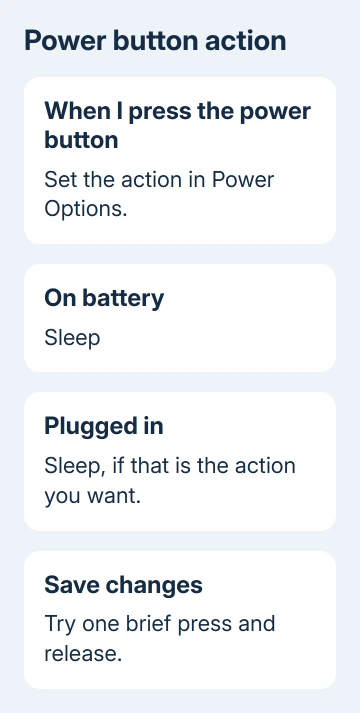
After saving, give the power button one quick tap. A long hold can force the machine off, so it isn't a valid way to try the Sleep action you just selected.
If a brief press gives no response even when set correctly, the Dell power-button checks cover a failing button separately. Use the working Start menu while checking that fault.
Set closing the lid to Sleep if that's more convenient
Stay in Power Options and find When I close the lid. Select Sleep for On battery, Plugged in, or both, then choose Save changes.
Closing the lid now requests that action when running on battery, plugged in, or both, as you selected. That makes pausing work easier when the keyboard is hard to see.
Check both columns before using a closed-lid monitor setup. A laptop configured to sleep when plugged in will stop your session when you close the lid, even if an external display is connected.
Microsoft explains these choices in its Windows power instructions. The lid and button can have different actions.
For example, a brief button press can sleep while closing the lid does nothing when plugged in. Pick that arrangement only if keeping the laptop running with its lid closed is what you want.
When Sleep is missing or the laptop wakes immediately
If Sleep is absent from the Start menu, return to the power-button settings page in Power Options. Select Change settings that are currently unavailable and check the available Shutdown settings.
If a Sleep checkbox is available, enable it and save. When the option isn't offered at all, repeatedly pressing Fn combinations won't make the missing Sleep option appear.
On a work laptop, ask IT whether power options are restricted. On a personal machine, give Dell support the model and Windows version. Ask why Sleep isn't available with its installed drivers and firmware.
A computer that enters sleep and immediately wakes has a different problem from a missing Sleep key. Note whether a connected dock, mouse or other accessory changes that behavior, and tell support what changed when you disconnected it.
A dark display alone doesn't tell you the laptop is asleep. Check how it resumes and whether your session stays open. If it runs hot with the lid shut, get that fixed before carrying it in a bag.
For a longer break without charging, consider Hibernate if Windows offers it. It preserves the session with less power use than Sleep, but resume takes longer; it isn't a substitute for finding the model's Sleep shortcut.
The Short Version
Use Start > Power > Sleep on any supported Dell setup. Confirm the model's shortcut before using Fn + Insert, or set a brief power-button press and lid closing to Sleep in Control Panel's Power Options.
Checked November 13, 2026.