To see photos in Messages on iOS 26, open the chat and tap its heading with the contact name. Swipe across the categories if Photos is hidden, then tap Photos to browse that conversation's pictures.
For a picture whose sender you can't remember, use Messages search instead. The conversation gallery shows pictures from one chat; the main search field helps you look across your message history.
In this guide
Open the Photos category in the right conversation
Open Messages and select the conversation that contains the picture. Tap the heading showing the contact or group. This opens the conversation's details, rather than the photo picker used to send new pictures.
Find the category choices and swipe left or right across them until Photos is visible. Tap it. Other categories can include links and documents. Check that Photos is selected if you're expecting a grid of pictures.
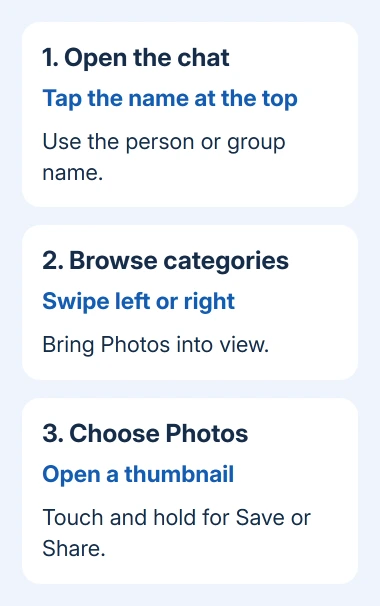
Apple's Messages attachment instructions describe this category navigation. The extra sideways movement matters when Photos isn't immediately visible on the details screen.
Open a thumbnail to view the picture at a larger size. Browse the available attachments until you recognize the one you need. This collection includes pictures and other media sent and received in the chat you opened.
A separate chat with the same person can have different attachments. For example, a group containing that person and a one-to-one conversation have separate histories. Go back to the Messages list and check the other chat if needed.
The plus button > Photos inside a message opens your photo library for sending something. It isn't the route to all the pictures already exchanged in the conversation, even though both controls use the word Photos.
Search when you don't remember who sent the photo
Return to the main Messages list. In iOS 26, search sits along its bottom edge; tap it and enter a word connected to the conversation or picture. On iOS 18 and earlier, swipe down to reveal the search box instead.
A person's name can narrow the results. Select the suggested conversation filter, then add another term or an available photo filter. Tap the suggestion to limit the results more precisely than typing the name alone.
Try the place, event or words sent with the photo. A picture from a birthday conversation may be easier to locate through the accompanying message than through the image itself.
Search won't recognize every object in every image. If the first word returns nothing useful, use a person's name or wording you remember from the chat instead of repeatedly entering the same description.
On supported iPhones with Apple Intelligence enabled, iOS 26 also offers natural-language search for messages and media. That means typing a description in ordinary words; it isn't required for the conversation's Photos category to work.
Older iPhones that run iOS 26 can still use standard Messages search. You don't need Apple Intelligence to browse attachments in an individual conversation.
Open a group of photos inside the message thread
Sometimes the quickest route is the original message. Scroll to the group of pictures and tap the collection to open it. Several photos sent together can appear as a stack instead of separate large images in the conversation.
Open the collection and select a picture to inspect it. Swipe through the available images rather than assuming the front picture is the only one sent. Return to the thread when the surrounding messages help explain what you're seeing.
Use the thread when you remember roughly when the picture arrived. It also lets you confirm the sender and read the words that came with it before saving or forwarding it.
If the item shows a download control rather than the picture, tap it while connected to the internet. Wait for the image to load before deciding whether it's the right one or trying to share it elsewhere.
Don't delete an attachment as a way to make it download again. Deleting it changes your message history and, with Messages in iCloud, can also delete it from other devices that sync your messages.
Save the picture into your photo library
In the conversation's attachment collection, touch and hold the picture to see available actions. Choose Save when offered. The other choices can include Copy, Share and Delete, so check the label before tapping.
Saving gives the image a place in Photos instead of leaving it accessible only through the chat. Open Photos and inspect the saved copy before removing any conversation you no longer want to keep.
Open the saved image and check that it's the right picture, especially after saving several similar shots. Confirm the save in Photos before expecting the image to appear in another app's library picker.
For photos stored in your cloud library, the iCloud photo-viewing options explain that separate collection. Messages attachments and iCloud Photos aren't interchangeable views of the same archive.
If the next task is moving saved pictures to a computer, transfer photos from iPhone to Mac after confirming the images are in Photos. Finding the picture in Messages and transferring it from Photos are separate steps.
When the grid doesn't contain the picture
Check the original thread and the correct conversation first. Check whether the picture is still in the thread but missing from Photos, or whether it's missing from both places.
I'd save an important picture directly from the conversation when it's still available there. That gets you a copy without waiting for the attachment gallery to fill in.
For a missing or incomplete gallery, see the shared-photo section of the Messages photo troubleshooting page. Navigation alone won't recover a deleted attachment or resolve a syncing problem.
If a visible attachment won't download, request Messages help in the Support app. Give the iOS version, whether the original message remains, and whether that attachment opens on another device already syncing your messages.
The Short Version
Tap the chat heading, browse its categories and select Photos. Search Messages when the sender is unknown, or open a collection in the original thread. Save important pictures before deleting the conversation.
Checked November 13, 2026.