Windows 11 can display tags it can't remove. Try Properties > Details > Remove Properties and Personal Information on a copy first. If the tags remain, use an app that understands that file format's stored information.
A tag in File Explorer, a keyword in an Office document and a label inside a music app aren't always the same field. Check the actual file after each change so you know which information still needs removing.
In this guide
1. Remove the tags from one local copy
Copy one affected file into a local folder that allows edits. Keep the original separate while checking removal, especially if its tags help organize a large photo or music collection. Close the file in its editing app.
Right-click the copy, select Properties, then open Details. Find Tags in the property list. For a field Windows lets you edit, click its value, remove the unwanted text and select Apply.
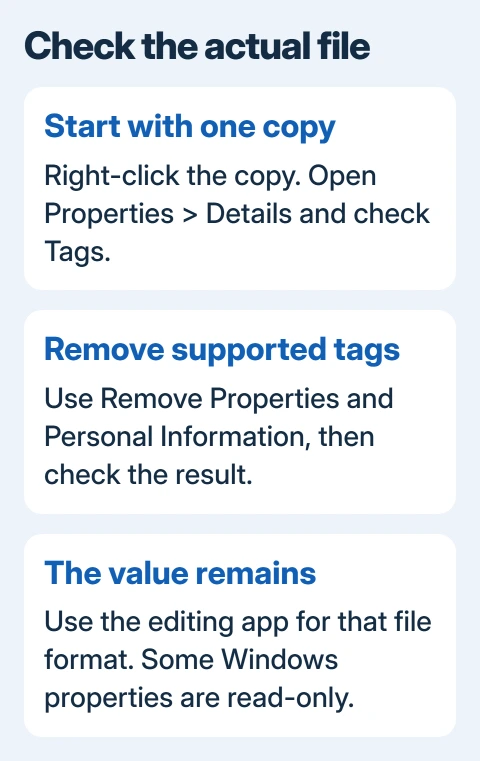
Close Properties, reopen it and check the same field. If it's empty, you've removed the tag shown there. A search result still listing the file is a separate check from a value that remains inside Properties.
If you can't edit the field, try the removal dialog next. Clicking a label or column heading might not let you edit its value, and Windows can only read some formats' information.
I'd start with one file rather than selecting the whole folder. That makes it clear whether the file type supports the change before you apply it to hundreds of items with different properties.
2. Use the removal dialog and inspect its output
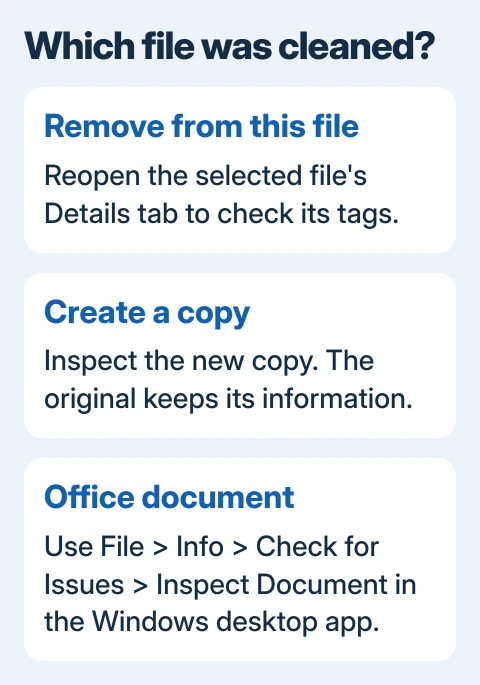
In Properties > Details, select Remove Properties and Personal Information. Choose Remove the following properties from this file, select Tags when it is listed, then select OK.
The other option, Create a copy with all possible properties removed, makes a separate file. Open the resulting copy's Properties to check it. Looking at the untouched original can make a successful removal seem to have failed.
Pay attention to the words all possible. The dialog uses the information Windows can access for that format. It won't necessarily clear every private detail saved by your editing programs.
Microsoft's property-handler guidance explains that the component reading a format can support read-only properties. So a value can appear in File Explorer even when Explorer can't clear it.
Keep any access or write error message. Try a local copy with its editing app closed. If the change fails only in a shared folder or one managed by work, ask its owner for editing permission rather than changing system permissions.
3. Remove Office document properties inside Office
For a Word, Excel or PowerPoint file, open the copy in its desktop app. In the Windows app, choose File > Info > Check for Issues > Inspect Document. Save the copy when prompted so the inspection checks its current contents.
Select Document Properties and Personal Information and run Inspect. Review the results, then use Remove All for that category if those are the details you intend to remove. Save the cleaned copy.
Run the inspection again to check the result. This category covers document properties, not just the single Tags value File Explorer happens to display. Read the results before removing other categories such as comments or hidden content.
Document Inspector needs the Windows desktop app; these steps aren't for browser editing. If you only have browser access, ask the document owner to clean a copy in the desktop app before sharing it.
Check the file in the format you actually plan to send. If it's still an old Word file, the DOCX saving instructions explain the conversion separately. Changing the extension alone doesn't clean document properties.
4. Handle photo and audio information in the right app
If a JPEG's Tags field clears in Explorer but an editing app still shows keywords, check the copy in that app's information or metadata panel. It shows stored file details, which may differ from Explorer's Tags property.
Remove the unwanted keywords with that app's controls, save the copy and reopen it. The same principle applies when a music program shows artist, album or title information that wasn't removed by Explorer.
For audio, confirm the file extension before choosing a tool. A WAV file and an MP3 file can store information differently. A procedure that removes one format's tags isn't automatically suitable for another format.
Both Explorer removal options left a title in one owner's WAV file, according to their Microsoft forum follow-up. Their follow-up identified the file as WAV, so advice aimed at Office document properties didn't apply to it.
The thread ends without a successful audio cleanup. If your app can't remove the field, ask its support how it stores those details and how to clear them from an exported copy. Include the extension and exact field name.
5. Check the file itself before rebuilding search
Open the exact copy you plan to share and inspect its properties again. Compare its full path and file name with the item shown by search or your library app. Two copies with similar names can carry different tags.
If Properties is empty but Explorer still returns the item, check whether the search also matches its file name or other information. That result alone doesn't show that the removed tag has returned to the file.
Use the File Explorer guide for search and file-extension controls. Rebuilding the search index won't remove information that is still visibly stored in a file's Details tab.
If a local copy still won't change, tell the app's support its format, the field and any error. If you can edit the files elsewhere but not in Explorer, use Get Help and describe the removal failure with an affected format.
The Short Version
Remove Tags from one copy and reopen its Properties to check. Inspect the new file when using the copy option. Use Document Inspector for Office files and the format's editing app when Explorer can't clear its information.
Checked November 13, 2026.