Download a Teams meeting recording from More options > Download after opening it in the meeting chat's Shared tab. Your account needs permission to download the video, even if you can already watch it.
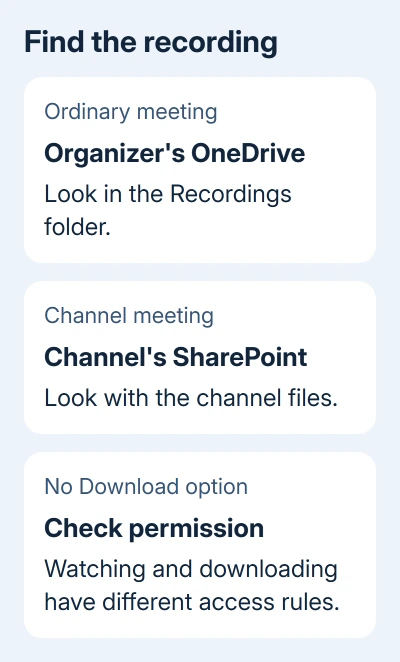
The recording normally lives in the organizer's OneDrive, or in SharePoint for a channel meeting. That location matters when the Download command is missing or the meeting link has expired.
In this guide
Open the recording with the meeting account
Open Teams on your computer and check the account shown by your profile picture. Use the work or school account invited to the meeting, rather than a similarly named personal login.
The browser opening a recording link might be using another organization's account. If it asks for access, check the account on that page before asking the owner to change permissions. Use the login that received your meeting invitation.
In Chat, select the meeting conversation, then Shared. Find the recording and open it. For a past calendar meeting, open Calendar, select the meeting, and choose Recap to reach its recording instead.
Both routes open the same stored video. If it plays from Recap but you can't save it there, return to Shared and open the recording's own menu.
For readers still getting used to the layout, the guide to using Microsoft Teams covers chats, channels and joining meetings. The download steps start after the recording exists.
Save the video from its own menu
Microsoft says to use this sequence in its recording download instructions for a meeting chat or channel:
- Select Shared in the meeting chat or channel.
- Find and select the meeting recording.
- Open More options, then select Download.
- Wait for the browser or app to finish saving the file before closing it.
The recording is an MP4 video. Check the browser's Downloads list if it doesn't ask where to save it. A browser can save straight to its configured download folder, so a missing Save dialog doesn't mean the command failed.
Find your downloaded MP4 using Windows File Explorer or the Mac's Finder, then open it. Play the beginning and another point later in the meeting to check that the copy is usable before taking it somewhere without internet access.
I'd check that local copy while the original is still available. A link saved in a note opens the online recording again; it isn't an offline copy of the meeting.
Keep the original filename until you've checked the file. Renaming a completed MP4 is fine, but changing its extension won't turn it into an audio recording or another video format.
Find a channel recording in the channel
A meeting held in a Teams channel stores its recording with that channel's files in SharePoint. Open Teams, select the channel, then Shared, and find the MP4 recording there.
Some file views use Files as the tab label. Look for the channel's Recordings folder in its SharePoint document library if the video isn't obvious in the first view. An ordinary meeting's chat won't contain every channel recording.
Channel membership and the file's permissions control access. Don't assume the person who clicked Record is the only person who can manage a channel video, or that every recording in your organization follows the same sharing rules.
If the channel files open but Download is missing, ask its owner or your Microsoft 365 administrator about recording restrictions. A new download folder on your computer won't change SharePoint permissions.
Ask the organizer when Download isn't offered
For a scheduled meeting outside a channel, ask the organizer first. The standard download instructions are for organizers, though the file's sharing permissions and your organization's rules also affect access.
Send the meeting title and date. Ask for a downloadable MP4 or permission to save the stored recording. Mention whether the video plays but Download is missing so the owner knows which permission to check.
A meeting invitation usually lets you watch the recording, but it doesn't mean you can download it. Guests and people outside the organization also need a direct recording link with suitable access.
An administrator can block downloads through OneDrive, SharePoint or recording policy. When that restriction applies, the owner may need the administrator's help too. Reinstalling Teams won't remove a rule attached to the stored file.
For a recorded one-to-one call, the person who started recording owns the file in their OneDrive. Ask that person rather than looking for a scheduled meeting organizer who doesn't exist for the call.
Handle an expired or missing recording
Recordings can expire under your organization's settings, moving into the storage location's recycle bin. Ask the organizer to check OneDrive for an ordinary meeting or SharePoint for a channel recording.
Ask for restoration promptly. Once the file has also been deleted from the recycle bin, that restore option can no longer bring it back. A broken link can mean that the file expired, was moved or had its access changed.
If the recording never appeared, ask the organizer whether recording actually started and whether an upload error appeared. A calendar entry or transcript alone doesn't mean the meeting was successfully saved as an MP4.
When the problem affects other Teams features too, work through the Teams connection and app checks. Tell the administrator whether only the recording is missing or other Teams features fail too, so they know which service needs checking.
Keep captions separate from the downloaded movie
Captions shown during playback aren't captured in the recording download. Don't promise someone a captioned offline video just because captions appear when you watch it in Teams.
If you need a transcript too, ask the organizer for it separately. The video and transcript have different controls and permissions, and a downloaded movie shouldn't be treated as a copy of everything shown in Recap.
If access or downloads still fail, send your Microsoft 365 help desk the meeting date, recording link, signed-in account and exact error. Ask them to check the file in OneDrive or SharePoint and the policy blocking its download.
The Short Version
Open the meeting chat or channel, select Shared, open the recording, then choose More options > Download. If that command is missing, ask the organizer to check download access. Check expired recordings in the correct storage recycle bin.
Checked November 13, 2026.