FaceTime sound can vanish when volume is low, a headset receives the audio, or the other caller is muted. Raise volume during the call and disconnect headphones first. That checks the sound you're receiving before you change call settings.
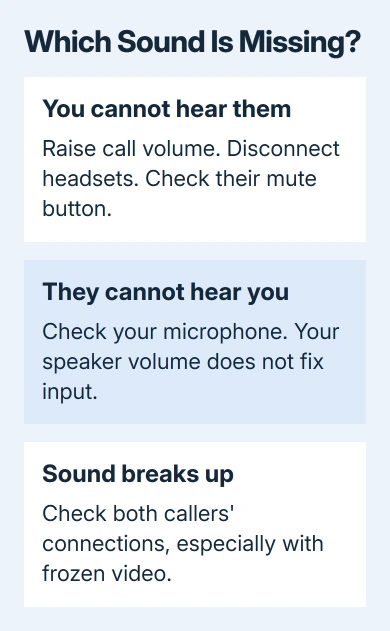
Check which direction has failed: can they hear you, can you hear them, or does sound break up for both people? The next step depends on whose voice is missing. A call that never connects needs connection help before a speaker repair.
In this guide
1. Adjust volume during the conversation
Keep FaceTime open during a connected call and press the volume-up button on the side of the iPhone. Have your contact speak as you adjust the sound. Raising the ringer before a call isn't the same check.
If you can hear their voice, stop at a comfortable volume and continue talking. The sound was reaching your phone, but the volume was too low. You don't need to switch FaceTime off and activate it again.
On an iPad, use its volume buttons during the call in the same way. Check that you're listening to the device currently carrying the conversation, especially if another nearby Apple device also rang when the call arrived.
If FaceTime never connects or continually drops before anyone can speak, use the iPhone FaceTime connection checks. A silent connected conversation is a different starting point from an unanswered or failed call.
2. Take headphones and automatic routing out of the call
Disconnect any wired or USB audio accessory. Close the earbuds' case with both earbuds inside, or temporarily turn Bluetooth off in Settings > Bluetooth. Then listen again through the iPhone itself.
This is useful when the call appears normal but the voice is coming from earbuds on a desk or a headset in another room. If sound returns, reconnect the intended accessory, then check its charge and volume.
On iPhone, check Settings > Accessibility > Touch > Call Audio Routing. Choose Automatic if you don't want a fixed destination. This affects phone and FaceTime calls, so note your choice first if you use it for accessibility.
Apple says its call-routing controls can direct sound to the speaker, a Bluetooth headset, or a hearing device. That setting can explain why several calls send sound to a device you didn't expect.
I'd check the headset before changing network settings. A voice that returns the moment an accessory disconnects gives you a specific device to check, instead of leaving every FaceTime setting in doubt.
If the iPhone remains silent with accessories disconnected, leave them disconnected for the speaker checks. You'll then be checking the iPhone's own speaker with another kind of sound.
3. Check the microphone at the sending end
When your voice reaches them but theirs doesn't reach you, ask them to show the FaceTime controls and check the microphone button. A muted microphone stops their voice from reaching you even though your own speaker works.
The mute button on your phone controls what you send. It doesn't turn the other person's voice up. Ask the person whose voice is missing to check whether they're muted, rather than both of you changing unrelated settings.
If your voice is the one missing, use the FaceTime microphone checks. Those steps cover headset microphones, microphone modes, and recording checks. They help you check the microphone separately from the speaker.
Call a different person for comparison. If sound works, check the original caller's microphone, device, and connection. Ask them to try another contact too, so the result doesn't depend on just one conversation.
If the original caller also sounds unclear in their own recordings, they need to check their microphone. If their recordings sound clear but only your conversations break up, continue with the connection check.
4. Compare FaceTime with the iPhone speaker
End FaceTime and play a video or audio recording you recognize with Bluetooth accessories still disconnected. Raise the playback volume. Listen for complete silence, muffled sound, or crackling rather than changing several settings at once.
Remove a case or protective film that covers a speaker opening. Check for visible dirt. If cleaning is needed, use a clean, dry, soft-bristled brush on the opening; don't push a sharp object into the speaker grille.
Open Settings > Sounds & Haptics and move Ringtone and Alerts back and forth. On an iPad, the page can be labeled Sounds. This provides another built-in sound check apart from the remote person's voice.
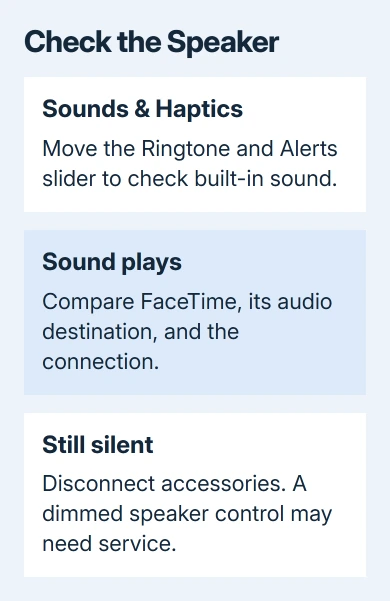
If you hear nothing or the speaker control is dimmed, your device may need service. If local playback and the alert sound work, return to the call and network checks before arranging a speaker repair.
For a missing incoming ring, inspect Focus > Do Not Disturb and the Silent mode setting. These affect the ringtone. They won't tell you why a caller's voice is missing after you answer.
5. Compare the connection, then restart
Audio that cuts in and out, a frozen picture, or connection alerts can come from a slow or busy network. Ask both callers to pause heavy downloads or streaming, then place a new call.
On iPhone, compare a trusted Wi-Fi connection with cellular data when your plan allows it. In Settings > Cellular, check that FaceTime has permission to use data. The other caller's connection matters just as much as yours.
If the call works on one connection but breaks up on another, focus on the failing connection. If it's a workplace or school network, tell the administrator what happens during calls and ask whether the network restricts FaceTime.
For an iPad without cellular service, try another working Wi-Fi network. Cellular settings won't help without an active plan. A phone hotspot can provide another connection if one is available.
Restart if sound remains missing on a working connection. For iPhone Duo or a model with Face ID, keep either volume button plus the side button held. Watch for the power-off slider, then release both buttons.
On iPhone 6, 7, 8, or SE (2nd or 3rd generation), hold the side button until that slider appears.
On iPhone SE (1st generation), iPhone 5, or earlier, hold the top button for the slider.
For every iPhone listed, drag the slider to switch off and wait 30 seconds. Start the phone by holding its side or top button. The Apple logo should appear.
On iPad without a Home button, hold either volume button and the top button for the slider. With a Home button, hold the top button. With either type, power off and wait 30 seconds. Keep the top button pressed to start the iPad again.
Report a speaker fault or a FaceTime-only failure
For silence across apps or a dimmed speaker control, select your device in Apple Support and request sound or speaker help. Explain what happened when you played sound on the device, tried the alert slider, and disconnected accessories.
For a FaceTime-only failure, report the software version, whether another contact works, and whether changing connections helps. Those details help support separate a device sound fault from a call problem before suggesting an erase.
The Short Version
Raise call volume, disconnect accessories, and check whose voice is missing. Compare speaker playback and connections, then restart. Silence across apps needs speaker help; one caller failing needs checks at their end too.
Checked November 13, 2026.