

To create a folder in OneDrive, open My files and choose Add new > Folder. Enter a name and select Create; older layouts put Folder under New. Open an existing folder first if the new one belongs inside it.
If an iPad Office app refuses cloud folders that OneDrive opens, try the Office credential reset and folder comparison before reorganizing storage.
When OneDrive is syncing, you can also make folders in File Explorer or Finder. Choose the OneDrive location: installing the app doesn't automatically put every folder on your computer in cloud storage.
In this guide
Choose the account and the parent folder
Open OneDrive and read the account name beside the profile picture. Your personal storage is separate from your work or school OneDrive. A folder made in one won't appear in the other unless you've shared it between them.
Next, open My files or Files. For a folder inside another folder, open that existing folder first. For example, open Receipts before making 2026 if you want the new folder to sit inside Receipts.
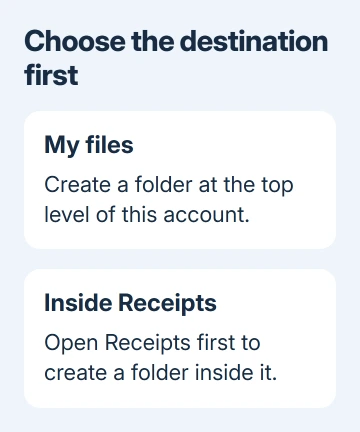
I'd choose the destination before pressing New. It's easier than making several folders at the top level and moving them afterward, especially with similarly named personal and business accounts.
The Shared and Recent views help you find items, but they aren't your own folder list. Open the actual destination before creating anything, particularly when someone else owns the folder.
Make the folder in OneDrive on the web
Use this route on Windows, Mac, or a Chromebook. It doesn't require the OneDrive desktop app, and it creates the folder directly in the account you're viewing.
- Open OneDrive.com. Sign in using the Microsoft account where these files belong.
- Enter My files, then open the parent folder if you want a subfolder.
- Select Add new, or New in layouts using that label.
- Choose Folder, type the folder name, then select Create.
- Open the folder you just made and check its name in the location path.
The folder should appear among the items in the location you selected. A search result can also find it later, but checking the path now tells you whether you created it in the right place.
Folder upload is a different command. It sends an existing folder from your computer to OneDrive. Choose Folder when you need an empty folder, and upload when the folder and its contents already exist locally.
For a folder that exists online but will not export, check the stalled ZIP download route rather than making another empty folder.
An organizational account also offers OneDrive through the Microsoft 365 app launcher. The OneDrive setup instructions explain that account's Files view and New menu.
Create it from Windows File Explorer
Open File Explorer, then select your OneDrive entry in the navigation pane. It may read OneDrive - Personal or show your organization's name. Check that entry before using the folder shortcut.
Inside that location, open the parent folder and press Ctrl+Shift+N. Name the folder, then confirm with Enter. Windows creates the folder there; the OneDrive app uploads the change when syncing is working.
Windows 11 also offers New > Folder on File Explorer's command bar. Windows 10 has New folder on the Home ribbon. The keyboard shortcut avoids the difference between those two layouts.
Desktop folders need a separate check. Desktop can be backed up by OneDrive, but that isn't true for every account or setup. Creating it directly under the OneDrive entry removes that uncertainty.
Wait for syncing to finish, then check the same account in OneDrive on the web. Seeing the folder there confirms it reached cloud storage. If it appears only in File Explorer, it's on your PC, but its sync status still needs checking.
When the app reports a sign-in problem, use the OneDrive account connection checks. Repeating the new-folder command won't repair an account that isn't connected.
Add a folder from Finder on a Mac
With OneDrive set up on your Mac, open Finder and select the OneDrive location in its sidebar. Open the parent folder, then choose File > New Folder, or press Shift+Command+N.
Enter the name and press Return. Keep the folder inside the OneDrive location if you want it synced. A folder you make elsewhere in Finder stays there unless you move it or that location has its own backup setup.
If OneDrive isn't listed, open the OneDrive app and finish its account setup first. Alternatively, use the web procedure without installing anything. The browser route is enough when you only need an occasional folder.
Check the same OneDrive account online once the Mac finishes syncing. If another computer can't see it, compare account names and the parent path before making a second folder with the same name.
Use the OneDrive app on iPhone or Android
In the mobile app, open Files and enter the place where the folder belongs. Tap the plus (+) control and choose Create folder or Create a Folder, then enter the name and confirm.
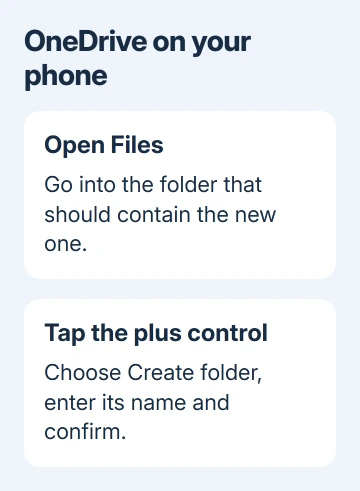
The plus control's position varies across app layouts. Microsoft's mobile overview shows it at the bottom, while the platform-specific Android and iOS instructions describe it at the top. Look for the plus symbol inside OneDrive.
When an empty SharePoint folder has no upload control on Android, try restoring the missing Add button before changing its name.
On layouts that show Folder instead, choose that item and finish with OK. Once you've made it, open the folder to check that it's in the right place. Taking a photo or scanning a document from the same menu creates different content.
To put existing files inside, select them and use Move or Move to. Choose your new folder as the destination and confirm the move. Making the folder alone doesn't collect matching documents automatically.
Fix a missing command or rejected name
A shared folder can be view-only. If you can open it but can't create anything inside, request edit access from its owner, or make the folder in your own My files area instead.
An expired invitation instead needs a renewed OneDrive link from the owner before the recipient can use that shared location again.
For a rejected name, try a short name containing ordinary letters and numbers. OneDrive rejects characters such as :, *, ?, /, and \. If that name works, the original name was the problem rather than your access to the folder.
If the new folder appeared and was later deleted, use the OneDrive folder recovery steps rather than recreating an empty replacement and expecting its old contents to return.
If the error keeps appearing, write down the message and check whether you can create a folder on the web. Send that information to OneDrive support for a personal account, or ask your organization's administrator to check folder creation.
The Short Version
Open the destination in OneDrive, choose Add new or New, then Folder. File Explorer and Finder work too when the destination is inside OneDrive. Check the web account to confirm the folder has synced.
Checked November 13, 2026.






