

The Surface app shows which Surface Pro you have: open Device information and read Surface model. If Windows won't start, read the tablet's serial number beneath its kickstand and check your Microsoft account's registered devices.
The model name, Windows version, and serial number answer different questions. A device running Windows 11 can belong to several Surface generations, so the operating system alone won't identify the tablet or the parts it needs.
In this guide
Read Surface model in the Surface app
Select Start, search for Surface, and open the app. Expand Device information, then look for Surface model. Copy the complete wording, including an edition, screen size, or business label if one appears.
Microsoft's Surface identification instructions recommend this app because it shows the device's model information directly. You don't need to guess from a photograph of the ports.
If the app isn't installed, you can get Surface from Microsoft Store. On a managed work computer, use the built-in System Information method in the next section if installing an app requires your IT team's approval.
Record the model before shopping for a keyboard, charger, pen, or repair. A product listing that says only Surface Pro can omit the generation or edition needed to check compatibility.
Once the model is confirmed, the Surface first-start checklist covers account setup, updates and accessory checks before transferring your work.
I'd use the app's complete label rather than shorten it to the largest number in the name. A Surface Pro 7 and a Surface Pro 7+ are different model entries, and a Pro X label carries information of its own.
Make sure the result belongs to the Surface you're holding. An account entry or old purchase email could refer to another device. If the app doesn't open or the label is unclear, System Information gives you a second local route.
Check System Model and System SKU in Windows
Open Start, type system, and select System Information from the results. Choose that app rather than stopping at an ordinary Settings page with a similar name.
In the pane on the right, find System Model and System SKU. A SKU is a product code that helps tell hardware versions apart. Copy both values exactly if the model wording isn't specific enough.
These steps work in Windows 10 and 11, as long as Windows can start. They don't require a detachable keyboard; the touchscreen keyboard can enter the search.
System Model is useful for the product name. System SKU can help when that name is broad or when a support team needs the exact variant. Don't substitute a CPU name for either field.
To match that code to a model, use the Surface System SKU reference linked from the identification page. Compare the complete SKU with its model entry, rather than matching only a few digits that happen to appear in another device's name.
If you're choosing a driver package, keep the model result beside the download page. Similar product names don't make driver packages interchangeable between Surface models.
Windows can show these details without a reset. The Surface reset guide is for recovery decisions, and explains the data choices if a separate fault eventually requires that step.
Find the serial number when Windows won't open
Set the Surface on a stable surface and gently open the kickstand. On Surface Pro models, you'll find the serial number near the base underneath the kickstand. Bright lighting makes the small print easier to read.
The serial number identifies the individual device. It isn't the friendly model name, and a general web search for it won't replace the device record held in your account.
If the tablet is inaccessible, look at its original packaging for the serial-number label. Keep the tablet's details separate from labels on a detachable keyboard or other accessory.
A keyboard can have its own serial number. That label can help support with a keyboard fault, but it identifies the accessory, not your Surface tablet.
Share the serial number privately with the service provider or enter it on the official device page. A public forum post asking which Surface you own usually needs the model wording, not the full serial number.
If the label can't be read and Windows won't start, use an existing account device record or purchase paperwork next. For a no-power problem, the Surface Pro power checks can help you reach Windows again.
Check the device record in your Microsoft account
On another phone or computer, sign in to account.microsoft.com/devices with the personal account used for the Surface. Locate the device and choose Info & support to view its information.
An empty device list doesn't mean the tablet isn't a Surface. The device might not be registered with that account, or the current account might differ from the one that originally registered it.
If it isn't listed, choose Register device and follow the instructions to register the serial number. Use the number from the tablet or its original box, rather than the keyboard's label.
Check the device information against the model details you've already checked on the Surface. If the account contains several old Surfaces, don't choose one simply because its picture resembles the tablet on your desk.
This account route is helpful when the Surface won't boot, but you'll still need the right account or a readable serial number. If neither is available, keep your purchase details for the support route.
Keep model, processor, and Windows details separate
Once you know the model, note any other details the repair provider or seller asks for. A repair provider might need the serial number, while a software or peripheral supplier might also ask for processor and Windows details.
An app saying it supports Windows 11 doesn't mean it will work on every Surface. Some models use Arm processors, a different processor family. Check your exact model or processor when choosing drivers and software.
Likewise, a detachable keyboard or a USB-C port doesn't tell you the generation on its own. Surface designs and accessories overlap across models, so visual guesses are a weaker starting point than the app or device record.
For a used-device listing, include the full Surface model and the storage and memory amounts you've checked separately. Don't assume that identifying the model name also tells you the storage capacity of every unit sold under it.
Before budgeting for extra memory, check the Surface Pro RAM upgrade limits; removable file storage and working memory are different parts.
Ask support to identify an unclear result
If the app, System Information, and account record still leave the model unclear, open Surface support through the Surface app or Get Help. Ask for model identification using the serial number and the System SKU, if available.
For an organization-owned Surface, ask the IT helpdesk to check its device inventory. Give them the label or asset number they ask for, and tell them whether Windows can start. That avoids recovery work just to identify the hardware.
The Short Version
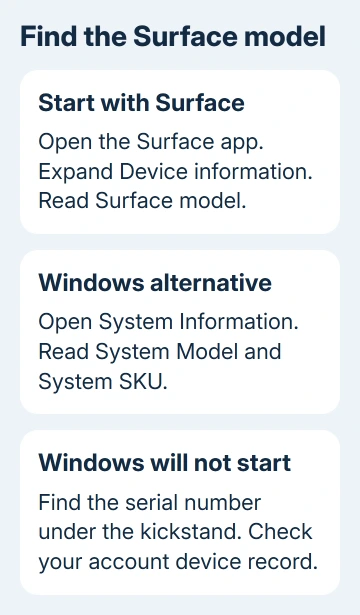
Open Surface > Device information > Surface model first. System Information offers System Model and System SKU. Without Windows, read the tablet's serial label beneath the kickstand and check your Microsoft account's device record.
Checked November 15, 2026.






