

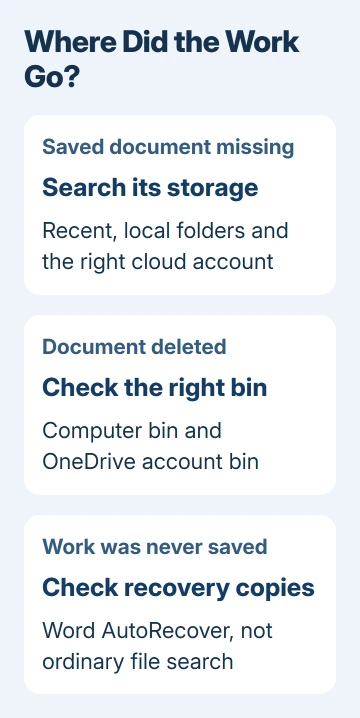
A missing Word document can be in another folder, a different OneDrive account, or the recycle bin. Check Word's recent files and search its storage locations first. Use AutoRecover for work that was never saved.
That distinction matters: recovery folders aren't the best place to look for a finished report saved last week. Start with the search that fits what happened: a file saved on your computer, a cloud file, or work you hadn't saved.
In this guide
1. Check Recent and the account Word is using
Open Word and choose File > Open > Recent on Windows. Look for a recognizable document title and check its location where shown. A file can live in OneDrive even when you normally work from Documents.
Try opening the entry. If it opens, use the version's File > Save As command or Save a Copy option. Choose a folder you'll recognize for the copy. Check that it opens before deleting any duplicates.
A recent-files entry is a shortcut to a location, rather than a separate copy of the document. If the file was moved or renamed, that entry can stop opening even while the document remains elsewhere.
A located file that opens with the mswrd632 converter error needs its real format checked before another folder search.
Check the account name in Word and the location attached to the recent entry. Personal and organizational Microsoft accounts have separate OneDrive storage. Signing into one won't show all the files saved in the other.
2. Search by name, then by Word file type
On Windows 11 or 10, select Start and search for a distinctive part of the document's name. If the result appears, open it and check its contents. Similar names can refer to an older draft or a downloaded copy.
If that fails, open File Explorer, choose This PC and search for *.docx. Search for *.doc too if the document may use the older format. Let the search finish before treating an empty first result as final.
Check Documents, Desktop and Downloads, including OneDrive versions of those folders. Search an attached USB drive separately if you used one. Windows can't search a drive that isn't connected.
Use the modified date to narrow a large result list, then open files that look like possible matches. A remembered filename might have changed, but the file type and approximate working date can still lead you to the correct document.
On a Mac, open Finder and use its search field. Select This Mac for a broader search rather than keeping it limited to the current folder. Search the document name first, then try its Word extension.
For the Windows-specific recovery locations, Microsoft's lost Word document instructions describe the distinction between document files, backup files and AutoRecover files.
3. Search the cloud account where it was saved
Open onedrive.com and check the signed-in account. Use Search everything to search for the document. When you have personal and organizational accounts, search each account rather than searching the same one again.
The OneDrive missing-file instructions also explain that files inside Personal Vault are excluded from ordinary search. Unlock and check the vault if you put the document there.
For a document shared by someone else, return to the shared location or ask its owner. If the owner removed the file or your access, it isn't an unsaved local document. Ask whether they can restore the original or share it again.
If you can see the document online but not on your laptop, check where it's stored and whether it's syncing. Open the online file and download or save a copy if permitted. Don't reset Word before securing the copy that is already available.
If a downloaded copy lands somewhere unexpected, the Word download guide helps distinguish the browser's download from the cloud original. Check which copy you're opening when you return to editing.
4. Restore a deleted document from the right bin
For a file deleted locally, open the Windows Recycle Bin or the Mac's Trash. Search for the filename. On Windows, right-click the matching item and choose Restore to return it to its original location.
For a file deleted from OneDrive, open that account's website and choose Recycle bin. Select the document and choose Restore. Then return to its original folder and confirm that the restored copy opens.
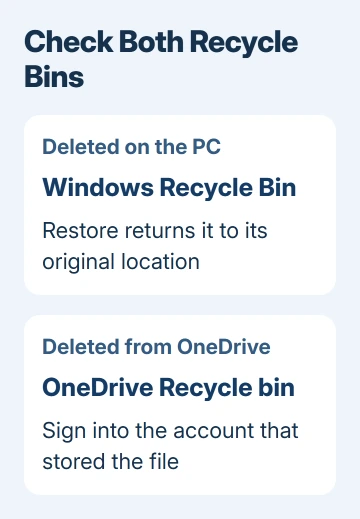
The OneDrive restore instructions also recommend checking the computer's local bin. A missing online item and a locally deleted item can leave different recoverable copies.
Don't empty either bin while searching. If you can't restore a shared work file, ask the folder's manager which recycle-bin or retention options are available. Include the filename, original folder and deletion date.
5. Recover unsaved changes only when that is what disappeared
After a crash, reopen Word and inspect Document Recovery if it appears. Open a recovered file and check its contents, then give the rescued copy a recognizable filename. The newest timestamp is useful, but read the actual document too.
In supported desktop Word versions on Windows, open File > Info > Manage Document > Recover Unsaved Documents. Open a file that looks like your document and use Save As. This looks for recoverable work, not all saved files on your computer.
The earlier-version instructions cover that Windows route. For a Mac crash, use the separate Mac unsaved Word recovery guide because its recovery files live elsewhere.
If the Windows recovery window has nothing useful, search for .asd files. These are AutoRecover files. Use File > Open > Browse in Word and select All Files if needed to see a recovery file that isn't a normal .docx file.
Word backup copies use .wbk and exist only if the backup-copy option was already turned on. Search for those as another way to look for a recoverable copy. Switching on backup copies now doesn't recreate a file that was lost earlier.
6. Keep the remaining copies while seeking recovery help
If the file opens but yesterday's edits are missing, check the cloud file's Version history instead of searching for a new document name. Preview a version with the missing edits and save a copy before replacing your current work.
A located document that reports an XML start-tag and end-tag mismatch needs file recovery rather than another folder search.
If a saved local file was permanently deleted and no backup exists, stop adding files to that drive before seeking recovery help. For a work document, ask IT about backups, retention and the exact cloud library where it was stored.
Give support the Word version, account type and last known location. Say whether the whole file is missing or just recent edits. That tells them whether to check Word recovery, OneDrive or storage backups.
If the document is present and only its metadata panel disappeared, Word 2016 uses the Info page to expose those properties.
The Short Version
Check Recent, local folders, the right cloud account and both recycle bins. Use AutoRecover for unsaved work and Version history for missing edits in a cloud file. Save recovered work in a folder you can identify.
Checked November 15, 2026.






