

Saving attachments locally, then copying them to the shared drive, gets around Outlook's bulk-save failure. The Outlook 2016 reports describe one file saving to the share successfully, while two or more selected together fail.
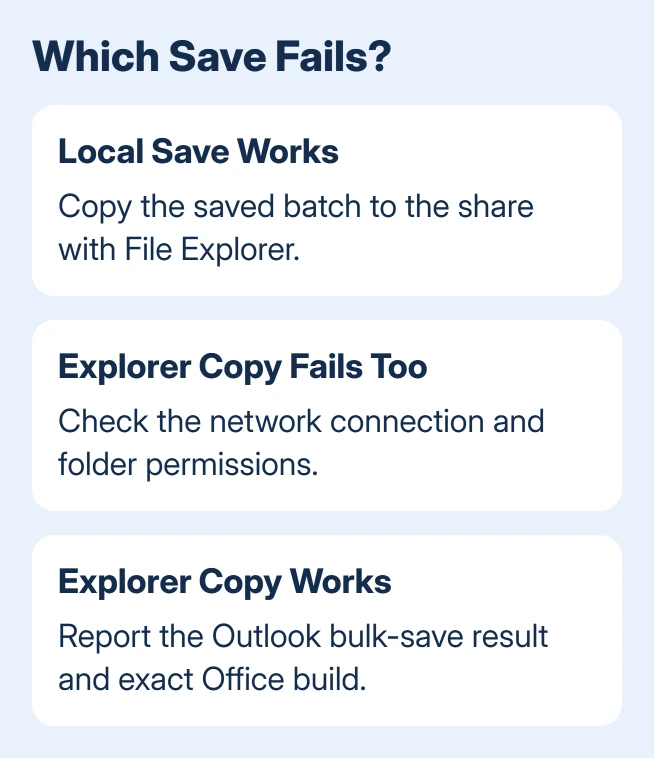
If File Explorer can't write to the share either, check network access and permissions first. If saving locally and copying with Explorer works, you can deliver the files and narrow the problem down to Outlook.
In this guide
1. Save the batch locally, then copy it to the share
Open the email in classic Outlook. Select the menu beside an attachment and choose Save All Attachments. Confirm the files selected in the attachment list, then choose a new folder on your computer as the destination.
If Ctrl-click loses the selection before saving starts, choose files inside the Save All Attachments list instead.
Use a separate folder for this message so the saved files are easy to count. For example, create a folder in Documents with the project name and today's date. Finish saving before opening File Explorer.
Check that the filenames and file count in that folder match Outlook's attachment list. If any are absent, stop before copying: the local save hasn't finished the job. Retry the missing attachment individually and note any error.
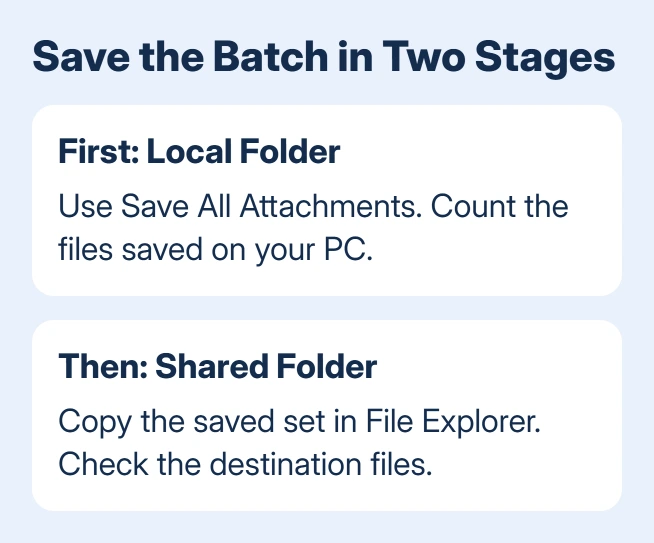
Copy the saved set in File Explorer and paste it into the shared project folder. After copying finishes, compare the destination with the local set. Open a destination file to check it's usable.
Keep the local copies until that check is complete. If Windows asks whether to replace same-named files, check which copies the project needs first. An Outlook save problem shouldn't lead to overwriting a colleague's newer document.
Microsoft's response in the original bulk-save thread gives this local-save-and-copy route as a workaround. It also offers saving each attachment separately, which is useful when only a few files are involved.
2. Save individual attachments for a small batch
Open the attachment's menu and choose Save As. Select the shared folder, confirm the filename and save. Check that the file appears at the destination before moving to the next attachment.
Repeat for the remaining files. If one saves and the same destination rejects a selection of several files, you're seeing the behavior described in the original report. Your account can write there, but Outlook's bulk operation is failing.
For a large batch, the local-folder method is usually easier to verify than many separate Save As dialogs. I'd put all the files in one local folder rather than try to remember which of ten attachments I'd already saved.
Neither route changes the original email or removes its attachments. Keep that message available while checking the saved set. For a file that isn't visible in the email at all, use the missing attachment checks instead.
3. Check the shared folder outside Outlook
Open File Explorer and navigate to the exact destination. Confirm that it opens and shows the expected project files. A drive letter visible in the sidebar isn't enough if opening it produces a disconnected-drive or access error.
Try copying a harmless local file into the same folder, using a unique filename so it doesn't replace anything. If that also fails, record the Windows error. Outlook repair won't grant permission to a folder your account can't write to.
A PST opening error on the share needs its own path-permission checks, separate from saving attached documents.
For a share available only on the company network, reconnect its approved VPN or network connection. Ask IT which connection is required. Changing Windows file-sharing security won't create that network path.
For a mapped drive that no longer reaches its share, the Windows network-drive guide explains the mapping and credential checks. Use the address your administrator provides, especially when several project shares have similar names.
If Explorer can copy the whole local batch successfully while Outlook can't save it directly, tell IT exactly that. That points to how Outlook saves to the folder, though it doesn't rule out every possible network problem.
4. Check the build before changing Office
In classic Outlook, open File > Office Account, then About Outlook. Record the product name, version, build and whether it's 32-bit or 64-bit. Include the update channel if the Office Account page displays one.
An owner traced the failure to Version 1711, Build 8730.2127, released in December 2017. They reported that Version 1710, Build 8625.2139 restored the bulk save, and that reapplying 1711 made it fail again.
That shows an older update introduced the fault. It doesn't mean you should install either 2017 build today. The thread's early 2018 response still described workarounds rather than a completed fix.
Choose Update Options > Update Now when available. Microsoft's Office update steps explain where that control sits. Let the installation finish, restart Outlook and retry with a harmless test message.
On a managed computer, ask IT to check the build and available updates. Keep using the local-copy workaround while they review it. Don't disable Office updates or roll back to a 2017 version to solve this inconvenience today.
5. Separate file restrictions from a bulk-save fault
If one particular attachment fails even when saved locally, read its error before treating it as the network-drive bug. Blocked file types, unavailable cloud links and damaged attachments call for different repairs.
A cloud-sharing link in an email isn't the same as an attached file. Open it through the account with access and follow the owner's approved download method. Save All Attachments can't collect documents that were supplied only as links.
For a blocked-file warning, have the sender supply the document through an approved sharing method, or have IT review the block. Renaming a risky file to bypass the warning doesn't repair the bulk-save feature.
If only the destination copy fails, give the file-server administrator the exact folder, error and filenames involved. If local saving fails too, give Outlook support the attachment type and whether other messages save normally.
What to send to support
If it still fails after updating, give your administrator or Microsoft Support an example without private information and the build number. Include results for one attachment, several attachments, local saving and Explorer copying.
The Short Version
Save into a separate local folder and copy the checked batch to the share, or save each attachment individually. If Explorer also fails, check network access and permissions. Otherwise report the bulk-save fault with the Office build.
Checked November 16, 2026.
 If you have any business, I can build it online






