
Clicking Heading 1 and getting Heading 2 was a Word 2016 Styles pane bug from a December 2015 update. Build 6366.2056 carried the fix. Update Office before rebuilding headings for this particular fault.
A style that applies correctly but looks different is another case. Check the style's formatting only after you've confirmed that Word is actually applying the name you selected.
In this guide
1. Install the update for the wrong-selection bug
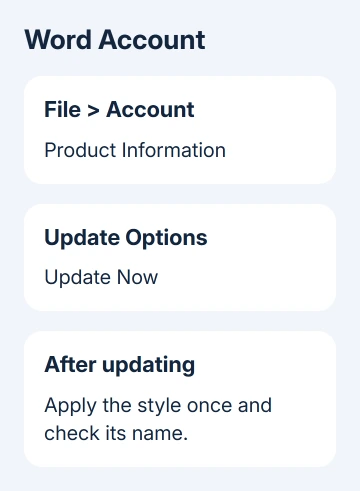
Open Word and choose File > Account. Under Product Information, select Update Options > Update Now. If Enable Updates appears instead, select it before checking again.
Save your work when the updater needs to close Office. Once the update finishes, reopen the affected document and try applying the intended style to one paragraph. Check whether the style you chose stays selected after the change.
The historical bug could make Body Text apply a table-of-contents style or make repeated clicks move through different heading styles. The pane selected the wrong style; the problem wasn't just Heading 1's font size.
The saved Word 2016 discussion identifies 6366.2056 as the fixed build for the affected consumer and small-business subscription rollout. That number is historical, not a current version to download.
Use the update offered for your installed edition. If Update Options is missing, your company may manage updates or use a different installation type. Give IT the version shown in File > Account > About Word and the wrong-selection symptom.
If a current build still applies a neighboring style, try comparing the pane and gallery next. A ten-year-old update announcement can't explain every present-day style problem, even when the result looks similar.
2. Try the Home tab's style gallery
Keep a backup copy before making changes across your document. Click inside a heading, then choose the intended style from Home > Styles, the visible row of style previews on the ribbon.
That gallery and the Styles pane are different ways to reach styles. If the gallery applies the intended name while the pane picks another entry, keep using the gallery to finish the document while checking the Office update.
To make a needed style available there, open the Styles pane using the small launcher in the Home tab's Styles group. Choose Options, then All styles under Select styles to show, and confirm.
Find the required style in the pane, open its menu, and choose Add to Style Gallery. You can then select it from Home. The style gallery controls also let you remove gallery entries without deleting the style from the document.
One owner reported that recommended styles worked while the all-styles list still picked a different entry. If your old pane behaves the same way, try the recommended list through its Options display choices.
That workaround doesn't repair the update bug. Also check the name after applying a style: a heading that looks right may still have the wrong heading level, which affects document navigation and contents lists.
If the correct heading still stays out of the list, check Navigation pane exclusions, especially headings inside table cells.
3. Change formatting only when the style name is right
Click a paragraph and check the highlighted style in the gallery. If Heading 1 remains Heading 1 but the font, spacing or indentation is wrong, edit that style instead of looking for a different item-selection fix.
Right-click the style in Home > Styles and choose Modify. Change its formatting, then apply it to the current document. Remember that other paragraphs using the same style will change too.
When the heading's edge resists a new color, apply the border choice in Preview inside that style's border settings.
Missing review references need the Word comment-number workaround, with a check for extra numbers in long comments.
Another method is to format one correct example paragraph first. Right-click its style in the gallery and select Update [Style Name] to Match Selection. Use this only when you want that example to define the style for the document.
For a resume or another layout-sensitive export, compare margins and page size too. The Word resume formatting guide explains why a correct paragraph style can't repair a mismatched page layout.
A random jump from Heading 1 to Heading 3 points toward the app or selection control. When Heading 1 stays selected but the spacing is wrong, change that style's formatting. Those results call for different repairs.
4. Compare a fresh document before changing templates
Create a new blank document through File > New and type a few short paragraphs. Apply Body Text and the heading styles you normally use. Compare the selected names, rather than judging only by the text's appearance.
When the pane lists unused names instead of applying a wrong style, refresh the In use filter before changing formatting.
If styles behave properly there, return to a copy of the affected document and inspect its style definitions. Your document's Heading 1 can have different formatting from Heading 1 in a blank document without anything being broken.
In Modify, Only in this document limits the change to the current file. New documents based on this template also affects later documents using that template. Choose the option that matches where you want this formatting to apply.
I'd keep the change in the current document until its headings behave correctly. That keeps an experiment with one manuscript from changing the starting format of your next document.
If the fresh document also selects the wrong names, report that to IT or support with the Word build. Deleting your templates before trying this can remove useful custom settings without fixing a Word bug.
5. Send a repeatable case for the remaining fault
The original replies include owners for whom Safe Mode didn't help. Don't treat another Safe Mode restart as a repair for that confirmed old pane bug. Record whether the fault affects the pane, the gallery, or both.
For a supported Word edition, open Get Help in Windows Start and request Office support. Provide a copy without private material, the clicked style name, the name actually applied, and the result from your fresh-document comparison.
Office 2016 for Windows ended support on October 14, 2025. Ask your workplace about a supported replacement; a new 2016 fix isn't coming. The old update fixed that historical problem, but it doesn't bring support back for that edition.
If Word is opening extra empty documents rather than choosing a wrong style, use the blank-document fault guide for its separate version-specific checks.
The Short Version
Update Office for the old wrong-selection bug, then compare the Home style gallery with the Styles pane. Modify a style only when its name is correct and its formatting is wrong. Check a fresh document before changing shared templates.
Checked November 16, 2026.






