

Excel reports a problem with the clipboard when another app holds the Windows clipboard open. Close clipboard tools and copy again. If it returns, try turning off Live Preview, which worked for an Excel 2016 owner.
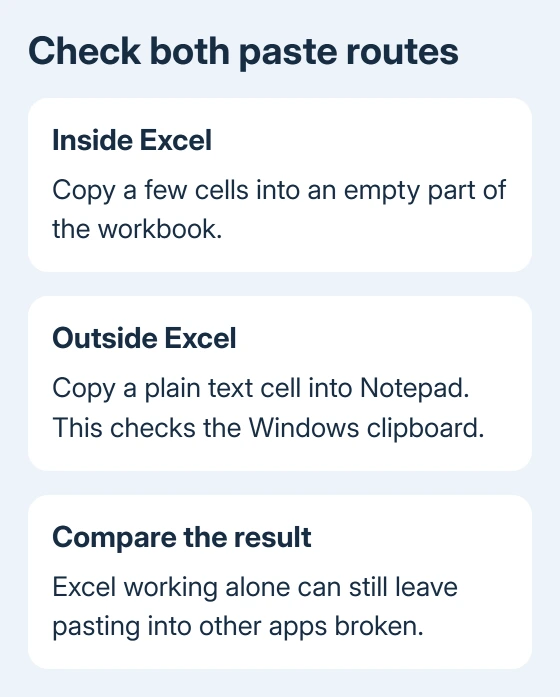
Excel may still paste inside the workbook while copying into Word or an email fails. Try pasting in both places so you know whether the Windows clipboard works again.
In this guide
1. Release the clipboard from other apps
Save your workbook and close apps that monitor or change copied content, such as a clipboard manager or screen capture utility. Quit each app separately and check whether the warning stops. Don't remove software just to try this.
Copy a small cell range again after each app closes. Paste it into an empty part of the workbook, then copy a plain text cell into Notepad. Pasting in both places shows the system clipboard works again.
If closing one app fixes it, reopen that app and repeat the same copy. A warning that returns with it gives you a specific program to update or report. Leave the tool closed to keep working until you can fix or update it.
The separate picture-too-large warning while copying text has confirmed remote-clipboard and memory-utility fixes to check.
On a legacy Excel 2010 setup, a brush that cancels instantly with text-only paste choices can match the Format Painter browser conflict.
Microsoft's explanation of this clipboard message distinguishes Excel's internal paste from the Windows clipboard. An Office 365 change reduced repeated warnings; it didn't remove the outside app's lock.
If nothing obvious is running, save your other work and restart Windows. Test Excel before opening your usual background tools. If copying works only for a while after restarting, check the programs that start or get used later.
2. Turn off Live Preview in Excel
An owner with Excel 2016 on Windows 7 reported that turning off Live Preview stopped this problem. It's a useful next try when the usual app check doesn't help, especially on an older Office installation.
In desktop Excel for Windows, open File > Options > General. Under User Interface options, clear Enable Live Preview, then select OK. Repeat the workbook and Notepad checks with those cells.
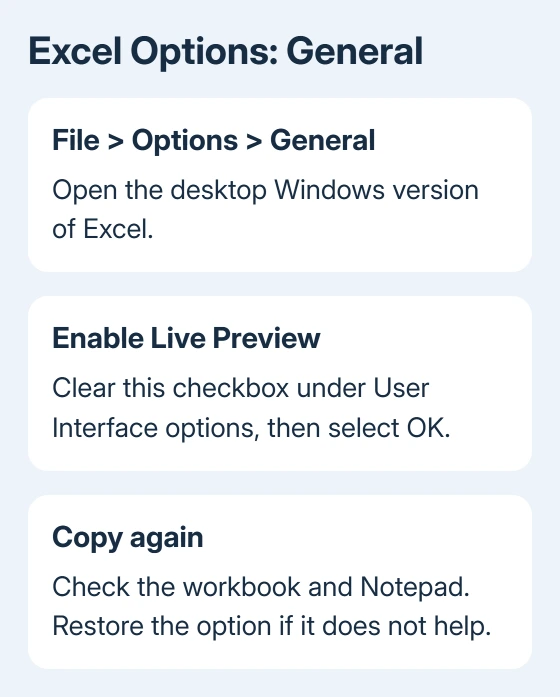
Live Preview shows formatting while you point at a choice. Turning it off leaves copying, formulas and formatting commands available. The General options reference confirms the setting's purpose.
This worked for an Excel 2016 owner; newer clipboard errors can have other causes. If your current Excel has the option, you can compare the result. Turn previews back on if disabling them doesn't help.
This Windows menu path doesn't apply to Excel for Mac or Excel in a browser. Don't look for File > Options there. Tell support which platform you use; the Windows clipboard explanation doesn't tell you what's causing it on those platforms.
3. Compare Excel in Safe Mode
Close every Excel window after saving. Press Windows + R, enter excel /safe, and press Enter. Check that Excel opens in Safe Mode, then try a few copied cells in a blank workbook.
Safe Mode leaves out several startup customizations and add-ins. If copying works there, check those extras next. It doesn't identify a particular add-in or close outside apps holding the clipboard.
Quit that session and launch Excel normally. Go to File > Options > Add-ins. At Manage, choose COM Add-ins, select Go, and record the enabled entries, then clear their checkboxes.
Restart Excel and repeat the copy. If the warning stops, turn the entries on individually, restarting between tests. Keep the troublesome add-in disabled until its developer provides an update. Ask IT before disabling required add-ins.
If Safe Mode shows the warning in a blank workbook, stop changing extensions. Move on to updates and keep a note of which other apps you closed. Support can use that information to try to reproduce the warning.
If copying works but the cell menu flashes shut, use the Excel right-click menu checks to check add-ins and menu customizations.
4. Check updates before repairing Office
Open File > Account > Update Options > Update Now in a Click-to-Run Office installation. Missing controls can mean a different installation or managed updates. Ask IT which update channel and build your Excel should have.
Restart Excel after updates finish. Under File > Account > About Excel, record the version and build. The old discussion was about Excel 2016, so support needs your current build even if the symptoms sound familiar.
For persistent trouble across blank workbooks, use the Office repair procedure. On Windows 11, open Settings > Apps > Installed apps; on Windows 10, use Settings > Apps > Apps & features.
Find Microsoft 365 or Office and choose Modify. Click-to-Run offers Quick Repair and Online Repair. Online Repair requires internet access and repairs the whole suite. Save and close Office files first.
I'd check the other apps and Live Preview before repairing Office. They take less time, and a repair can't prevent another program from grabbing the clipboard again.
5. Recognize a different copy problem
Cells losing their moving selection after another action can be Excel clearing copied cells, which is a different behavior. A workbook warning about the system clipboard needs the app and clipboard checks here.
If copying also fails in Notepad and other programs, follow the broader Windows copy and paste checks. If those apps can't copy either, the problem goes beyond one workbook's formatting or formulas.
If it persists, open Help > Contact Support in Excel, or have your work administrator raise a case. Include the full message, build, Safe Mode result, and whether pasting into another app fails.
The Short Version
Close apps that use copied content, then check both Excel and Notepad. Try disabling Live Preview, compare Safe Mode, and update Office. A warning that survives a blank workbook and app checks needs support with the exact Excel build.
Checked November 16, 2026.
 If you have any business, I can build it online






