

Outlook's Run a script rule action can disappear because an update restricts it for security. Check the rule and security setting in classic Outlook. New Outlook doesn't support VBA macros, so a registry change won't add them.
The EnableUnsafeClientMailRules registry workaround reverses a security protection. Don't turn it on just to restore the option. Before restoring an old automation, have its code reviewed and consider the protection you'd be turning off.
In this guide
1. Confirm which Outlook and which missing action you have
Open Outlook and look for File > Office Account > About Outlook. You'll find that menu in classic Outlook, where it shows the version and build. Record those details before changing settings or asking IT to restore an old workflow.
Open File > Manage Rules & Alerts and select the affected rule. Read its description. This problem affects run a script or start application, rather than a normal rule that moves mail to a missing folder.
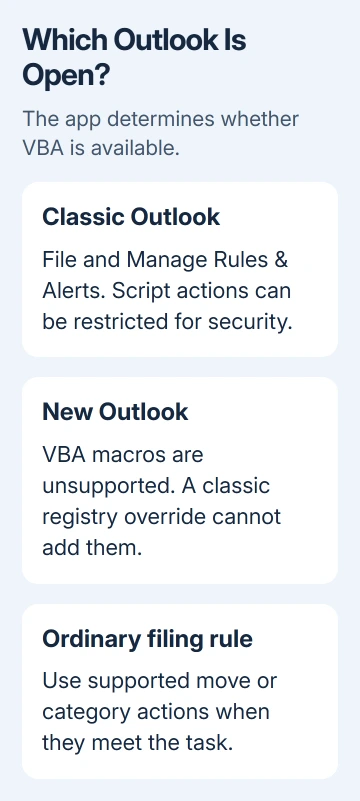
If Outlook instead uses its newer Settings interface, compare the new and classic Outlook feature list. VBA Macro is available in classic Outlook and unsupported in new Outlook.
A Windows registry override for classic Outlook can't give new Outlook that missing feature. Use your installed classic Outlook for automation that requires VBA, or ask the workflow's author to replace that automation.
If your rule only moves, categorizes, or forwards messages, follow the ordinary rule repair steps. Those actions have different failure points and don't need the unsafe script override.
2. Understand what the update changed before undoing it
Mail rules can run automatically when a message arrives. Letting a rule start a program or execute code creates a different risk from letting it place a message into a folder. That's why this setting isn't just a display preference.
Microsoft's rules and forms security guidance describes the protection and the registry override. A value of 1 overrides the patch; 0 disables the Start Application action.
If the value is absent and Outlook has its security updates, the override isn't set. The action may be missing because the protection is working. Repairing Office or recreating the same rule won't necessarily bring it back.
In the original update report, an owner restored the action by reverting Office. Another reply immediately pointed out the problem with staying on that older release.
That 2016 result isn't a reason to remove current security updates. Keep Office updated while deciding how to replace or approve the automation. Restoring an old capability shouldn't depend on staying with an unpatched installation.
I'd first ask what the macro actually does. Moving messages, applying categories, and other standard mail handling may be possible without running code automatically for incoming messages.
3. Inspect the override without changing it
Close Outlook. Press Win + R, enter regedit, and open Registry Editor. For a classic Office 16.0 installation, inspect the following location under your current user account:
HKEY_CURRENT_USER\Software\Microsoft\Office\16.0\Outlook\SecurityLook for EnableUnsafeClientMailRules in the right pane. Reading the name and value doesn't require creating it. If the Security key or value is absent, record that result rather than adding something to make the screen match.
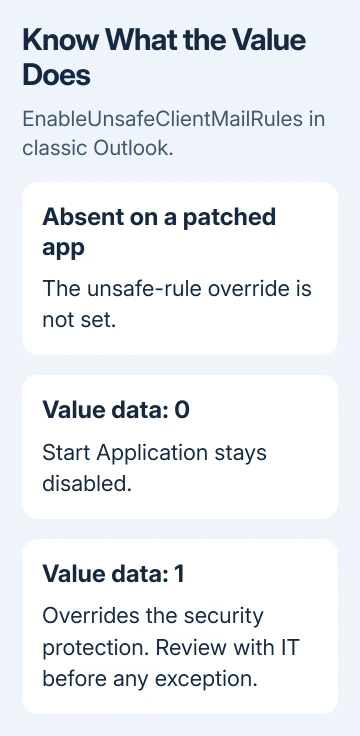
The old Outlook 2013 path uses 15.0 instead of 16.0. Match the installed application before discussing a change. A 64-bit Windows installation doesn't mean that every registry value should be a 64-bit value.
The old workaround creates a DWORD (32-bit) Value named EnableUnsafeClientMailRules, with value data 1, then restarts Outlook. That's the setting to discuss with IT, rather than a different macro-permission switch.
Before any approved registry edit, export the specific key through File > Export with Selected branch chosen. Keep that backup and a note of the original value. On a managed PC, have IT make the change under its policy.
Before approving an exception, IT needs to review the script, the rule's conditions, and who can change them. Getting the menu item back doesn't tell you whether the script is safe or works correctly.
4. Separate a missing action from a script that won't run
When the action is visible but no script is offered, or a chosen script fails, stop treating it as the missing-menu problem. Ask the macro's author whether Outlook can access the code and whether it works with your installed version.
In classic Outlook, File > Options > Trust Center > Trust Center Settings > Macro Settings controls whether macros can run. It's separate from the rule-action override. Changing one doesn't resolve a problem with the other.
Don't allow unrestricted macro execution as a shortcut. Have IT approve the specific macro and its signing or trust requirements. Email automation needs that check even when someone you know wrote the code.
Test an approved rule with a harmless message matching its conditions, using a destination or output you can check. Confirm the expected action occurred once and that unrelated messages weren't processed.
If the action is available but nothing happens, send the rule description and any error to its author. Repeatedly setting the same registry value won't repair an invalid macro, an unsupported function, or a condition that never matches.
5. Replace the script when ordinary rules can do the job
Open the rule's description and write down the result you need in plain terms. For example, routing messages from one sender to a folder is a standard rule task, even if an old macro happened to do it.
Use the Outlook rule creation steps for those supported actions. Create a narrow replacement, turn off the old overlapping rule, and test new messages before applying anything to a large existing mailbox.
For code-based tasks, send the Microsoft 365 administrator your build, rule description, macro purpose, and override state. Ask for an approved automation replacement or a documented exception for classic Outlook.
Test the automation even after an exception is approved. What matters is that it handles the right mail correctly and meets your organization's security requirements, beyond getting the old action back.
The Short Version
Check classic versus new Outlook first. Classic Outlook can hide script actions for security; EnableUnsafeClientMailRules reverses that protection. Prefer standard rules, and involve IT before approving a legacy script exception.
Checked November 16, 2026.
 If you have any business, I can build it online






