

Word's error about sending a command to the program can come from running Word as administrator while File Explorer runs normally. Clear that setting first if Word opens on its own but refuses documents you double-click.
The /n and /dde switches in an old document-opening command aren't a reason to edit the registry. Owners with this exact error fixed it by removing the administrator setting. A wrong default app needs a separate check.
In this guide
1. Remove the administrator setting from Word
Close Word after saving anything open. Find the Word shortcut you normally use, right-click it, and choose Properties. On older Windows versions, look on the Compatibility tab.
Clear Run this program as an administrator if it's checked, then choose Apply > OK. Check Change settings for all users too, if offered.
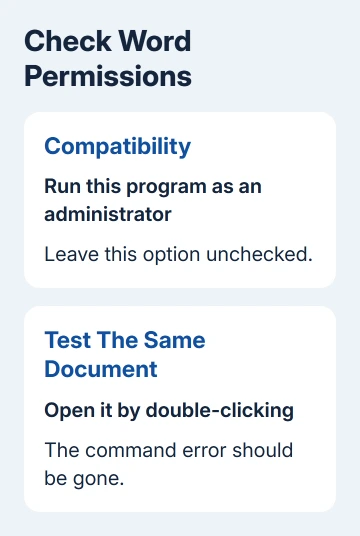
Start Word normally, close it, then double-click a known working document. The document should open without the command error or a request to run Word as administrator.
In the original Word discussion, one owner confirmed that clearing the administrator option let them open documents by double-clicking again. Another could also use Send To Mail Recipient again.
If the shortcut has no Compatibility tab, find the installed program through Start, search for Word, and use Open file location where offered. The item you reach may itself be another shortcut.
Open that shortcut's Properties and use Open File Location to reach WINWORD.EXE. Check its Properties > Compatibility too. Changing a document's properties doesn't change the program's administrator setting.
For a shortcut with Shortcut > Advanced, also check whether Run as administrator was selected there. Don't change unrelated permissions or grant every user full control of the Office folder.
On a work-managed PC, ask IT to remove any setting that forces Word to run as administrator. If those settings were already clear, leave them alone and compare the two ways of opening the file next.
2. Open the same document from inside Word
Launch Word from Start rather than from a document icon. In newer desktop Word, select File > Open > Browse, then choose the saved document. Word 2003 uses File > Open.
If the same file opens here, Word can read its contents. The problem is more likely in how Windows opens the file in Word than in the document itself.
The paired Word error 24 and Excel memory warning has a separate Office 2013 repair sequence.
Try a second known working file of the same type. If your Word supports both .doc and .docx, compare those extensions too. Windows can use a different app to open each type.
An error affecting only one document, including when opened from inside Word, needs the Word document recovery checks. Keep a copy before using a recovery command.
A trusted attachment with the Word opening error may need unblocking in its file properties rather than changes to Word's launch command.
If Word won't launch even without a document, use the Word startup checks. That guide follows add-ins and templates; changing a document association won't fix a program that can't start.
I'd compare these opening methods before touching a startup command. The comparison shows whether you're dealing with a damaged file, a Word startup failure, or Windows failing to open the file in Word.
3. Assign the affected file type to the intended Word
Right-click a saved document and choose Properties. On General, inspect Opens with. If the listed app is wrong or belongs to an unwanted Word version, choose Change, select the intended Word, and confirm.
In Windows 11, an alternative is Settings > Apps > Default apps. Search for the extension, such as .docx, select its current app, and choose Word. Repeat for .doc only if that type also needs changing.
Windows 10 also has Settings > Apps > Default apps, with Choose default apps by file type for checking extensions. Find the affected extension and choose Word.
On Windows 7, use Control Panel > Default Programs > Associate a file type or protocol with a program. Select the extension, choose Change program, and select the intended Word installation.
Close Word and retry the document icon afterward. Seeing the right Word icon isn't enough; the useful result is the file opening in the correct application without the original error.
The original asker reported that reassociating files and running System File Checker hadn't solved their problem. That makes the administrator check important, even when Windows already lists Word as the default.
Don't keep repeating association changes if they make no difference. Try re-registering Word next, once the right program is selected and its administrator setting is clear.
4. Re-register Word without rewriting its switches
Close Word. Press Windows + R, enter winword /r, and press Enter. Leave a space between the program name and /r. Allow any Office configuration window to finish before testing double-click again.
Microsoft's Office switch reference describes /r as re-registering Word in Windows. Word starts, runs Office Setup to update registration, and closes.
The /n switch starts another Word instance without a document. Seeing it in an old file-opening command doesn't mean the switch is broken, and removing text from a registry command can damage document opening further.
If Windows can't find winword, check that desktop Word is installed. On a PC with several Office versions, ask IT to identify the correct WINWORD.EXE rather than running a command against whichever old copy happens to appear.
5. Repair the installation or retire the old setup
If registration doesn't help, save your open Office files, close the apps, and repair Office. For modern Windows 11 installations, find Office in Settings > Apps > Installed apps, then use Modify.
Windows 10 uses Settings > Apps > Apps & features. Click-to-Run installations offer Quick Repair and Online Repair; older installer-based Office versions can offer a single Repair command instead.
Try Quick Repair first when available, then Online Repair if the error remains. A legacy installation may require its original installation media. Have your license and installer details ready before arranging a reinstall.
Word 2003 on Windows 7 is an obsolete setup. Ask IT to move the documents to a supported Word installation if the fault continues, especially when several Office versions share the computer.
Give support the exact error, Word versions, failing file extensions, and whether File > Open worked. Ask them to check whether Word runs as administrator and how Windows opens documents in it, before assuming the files are damaged.
The Short Version
Clear Word's administrator setting, compare opening the same file inside Word, and correct its default app if necessary. Use winword /r for registration, then repair the installation when the double-click command still fails.
Checked November 16, 2026.
 If you have any business, I can build it online






