

Word for Mac 2011's disappearing cursor can be a document-display problem rather than a broken mouse. Turn off AutoHide rulers in General preferences first; owners said this restored the pointer after other attempts failed.
When just one document loses its cursor, save that file and reopen it before larger changes. A full-page zoom or a different document view can also let you continue editing while you check your old Word installation.
In this guide
1. Disable AutoHide rulers in Word's preferences
Make Word the active application, then choose Word > Preferences > General from the Mac's menu bar. Clear AutoHide rulers, close the preferences window and return to the document with the missing cursor.
Move the pointer across the page and try placing the text cursor in a paragraph. Check the page or section that was failing, rather than only moving the pointer over the toolbar where it was already visible.
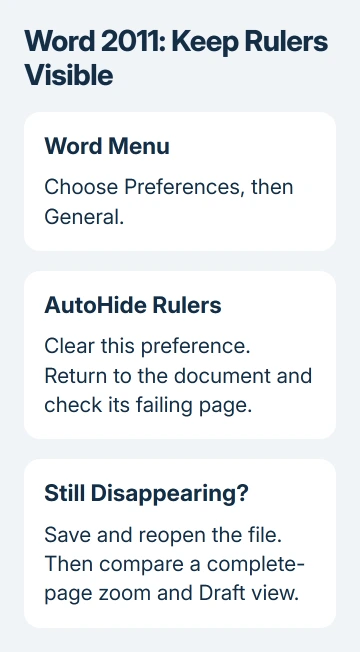
The original Word 2011 discussion includes an owner who said disabling autohide worked after other suggestions didn't. A later owner also reported success with the same preference.
This is the old Word 2011 interface. Don't use Windows File > Options instructions on the Mac, and don't assume the same preference exists in today's Word for Mac.
The preference is different from simply showing the ruler. For the ordinary measuring scale, the Word ruler controls explain visibility and layout settings. Turning off AutoHide rulers stops Word from hiding them automatically.
Leave the preference off if the pointer stays visible. If it vanishes again, note what triggered it: scrolling, switching apps or reaching a particular document section. Next check the saved file.
2. Save, close and reopen the affected document
Press Command+S and wait for Word to finish saving. Close that document, then open the saved file again. One owner reported that their cursor returned after this simple save-and-reopen sequence.
If you're unsure where the saved copy is, check the filename and folder before closing. The Mac document-saving guide helps distinguish the working document from another copy with the same name.
Test a second document too. If the cursor disappears in just one file, focus on that document's display and contents before adjusting the mouse or trackpad.
Check whether it's the mouse pointer or the text cursor that disappears. One moves with your mouse or trackpad; the other marks where text will appear. Tell a helper which vanishes, and whether typing still works.
On Windows, a cursor drawn ahead of the next typed letter fits the separate Word 2016 display problem.
Don't force-quit Word while unsaved work is still available just to refresh the screen. Use the normal save and close route first, especially on a long document you've been editing for hours.
If reopening helps only briefly, move to the view and zoom checks. A temporary recovery is useful for saving work, but it doesn't settle why the display problem returns.
3. Compare a complete page with the usual zoom
Use Word's zoom control to fit one complete page into the window. Check whether the pointer remains visible while the whole page is shown, then compare that with your normal magnification.
One accepted reply linked the problem to equations or italic text in the hidden portion of a partly displayed page. That owner said showing exactly one complete page avoided the problem. Treat this as a file-specific workaround.
It isn't a reason to remove every equation or change all your italics. What matters is how much of the page Word displays at once, so check the zoom before altering formatting your document needs.
Another suggestion in the discussion was zooming to 500% and back. A later owner said high magnification helped temporarily and then stopped helping, so don't rely on that zoom change as a lasting repair.
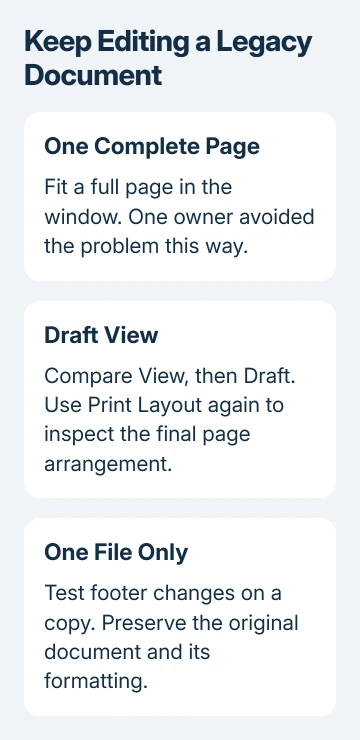
Next choose View > Draft and compare the same text. An owner reported that Draft and Web Layout worked while returning to Print Layout made the cursor disappear again.
If Draft lets you type and select normally, use it for editing. Return to Print Layout when you need to inspect page breaks, headers and the final page arrangement. A working editing view doesn't mean the printed layout has changed.
I'd use that temporary view before rebuilding a long document. It keeps the original content available while you decide whether this happens in one document or throughout Word.
4. Check the installed Word version without assuming an old fix
Open Word > About Word and note the version. The historical thread points to Office for Mac 2011 14.4.1, whose release notes covered mouse pointers disappearing in sections of documents.
The accepted reply suggests that update should fix it, but doesn't confirm it solved the problem for every owner. Don't downgrade a later installation to 14.4.1 or promise that this version cures every cursor problem.
The old update command was Help > Check for Updates. On an old Mac that still runs Office 2011, use only an official installer your organization has approved if your copy of Office needs those old updates.
Microsoft lists Office 2011 for Mac as out of support. Support ended October 10, 2017, so waiting for a new Word 2011 cursor patch isn't a workable next step now.
These steps are for an old Mac installation. Office 2011 isn't the Word version to install on a current Mac to get the AutoHide preference; use a supported Word release compatible with the computer instead.
5. Work on a copy when only one document keeps failing
Make a separate copy before changing anything in the document. An owner found an old footer was involved and reported that deleting it restored the cursor.
If your failure follows one document, test removing its footer in the copy only. Save and reopen that copy, then check the same pages. Keep the original available so page numbers, legal text or other footer content aren't lost.
If the copy behaves differently, give both versions to the person who maintains the document. Ask them to rebuild the affected footer or section while keeping the information it needs, rather than stripping formatting from the entire file.
For a continuing problem, ask IT to open a nonconfidential sample in a supported Word installation. Include your Word version, failing view, affected page and whether AutoHide, reopening or full-page zoom changed the behavior.
They can then check whether the pointer disappears while editing that file. If every document fails in Word 2011, arrange to replace Word 2011 with a supported app instead of repeatedly changing documents to work around old Word problems.
The Short Version
Turn off AutoHide rulers first. Save and reopen the file, then compare full-page zoom and Draft view. Work on a copy for document-specific changes, and move recurring Word 2011 problems to a supported installation.
Checked November 16, 2026.






