

A Surface Pen that leaves dots instead of selecting Excel cells is usually in drawing mode. Press Esc to select again. To make selection the default, enable Use pen to select and interact with content by default in Excel's options.
This applies when the pen already writes on the screen. A pen that produces no response needs a power or input check instead. Word and PowerPoint have their own drawing preferences, so correcting Excel doesn't necessarily change them too.
In this guide
1. Leave drawing mode before tapping another cell
Press Esc, then tap a cell with the pen. Look for the cell's selection outline and the Name Box showing that cell's address, rather than another dot on the sheet.
On the Draw tab, use the selection tool when available instead of leaving a pen tool selected. The important difference is whether a tap chooses content or adds ink. Selecting a drawing pen puts you back into inking.
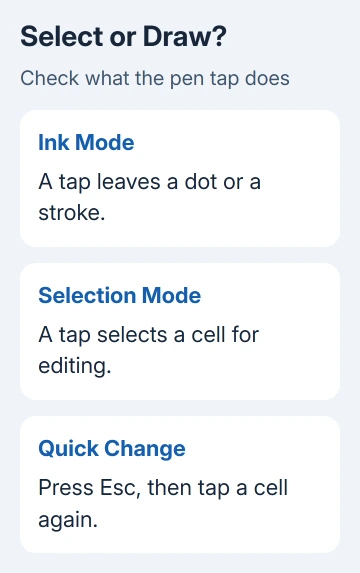
If you accidentally added a dot, use Undo immediately before doing more editing. A tap made while drawing can create an ink object rather than change the cell's value, so deleting the cell contents isn't the right cleanup.
Try a second cell once selection works. If the pen selects normally until you choose a drawing tool again, the pen hardware is responding and the remaining issue is your preferred mode.
If nothing happens after Esc, compare a mouse click or finger tap. A sheet that refuses ordinary editing too needs a workbook or app check; if your pen writes reliably but won't select, try the setting in the next section.
2. Make selection the pen's normal behavior
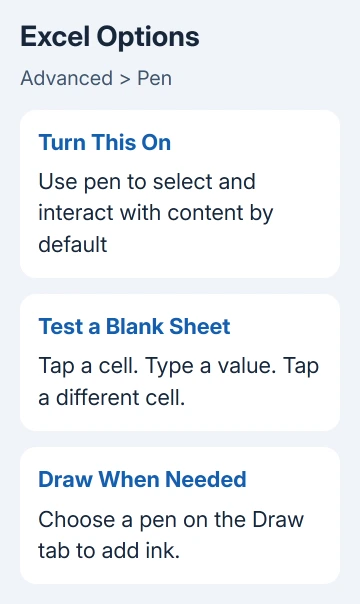
In desktop Excel for Windows, open File > Options > Advanced. Find the Pen heading and select Use pen to select and interact with content by default. Choose OK.
Microsoft's automatic inking instructions describe this preference. With it enabled, the pen normally acts as a pointer until you choose a drawing pen on the Draw tab.
Test it in a blank workbook. Tap a cell, type a short value, and tap another cell. The selection should move to the new location without a trail of ink. Then choose a drawing pen deliberately to confirm you can still draw when needed.
This doesn't remove the drawing tools. It changes what happens by default, which is useful when most of your work involves entering values, selecting ranges or placing the cursor.
I'd change this preference before replacing a pen that already draws accurately. If ink appears exactly where you touch, the pen is responding. Check its mode before treating it as a power or connection problem.
If the option isn't present, check your Office edition and build before looking for Windows-wide pen settings. Excel for the web, mobile Excel and older desktop releases don't all share this Options dialog.
3. Check the Office build when the control is missing
The Office 2016 reports followed a change that made pen taps start inking. The Office team later announced selection controls and a preference to restore pointer behavior. The fix was in Office, so replacing the pen wasn't the answer.
In supported desktop Office for Windows, open File > Account and read the product information. Where Update Options is available, choose Update Now, finish the update, and restart Excel before looking for the Pen option again.
If your organization manages updates, give IT the build number and ask about its update channel. Give them the exact symptom: the pen draws ink in Excel but you need pen taps to select cells by default.
Old screenshots can show different controls. In the 2016 thread, an owner reported that Select Objects did nothing. Repeatedly clicking that historical button isn't a reliable repair for an old installation.
Office 2016 is out of support. If you're still using it, arrange a move to a supported edition rather than waiting for another Office 2016 feature update. Preserve your workbooks before changing the installation.
After an update or upgrade, repeat the small blank-workbook test. Now test what the pen actually does. Make sure you can select a cell with the pen and enter data there.
4. Set Word and PowerPoint separately
If Excel behaves correctly but Word still draws when you try to place the cursor, open Word on Windows and choose File > Options > Advanced. Under Pen, enable the same selection-by-default preference.
To draw inside an Outlook email, select the message body and insert a drawing canvas before choosing a pen.
Check the same preference in PowerPoint if pen taps are drawing on slides. The preference is per application, so don't assume one change covers all three programs.
When you're working in Word, distinguish ordinary text selection from selecting ink or shapes. The Word drawing controls explain how to choose a pen for an annotation and leave drawing mode afterward.
For an iPad with Apple Pencil, the desktop Windows path doesn't apply. Open the iPad's Settings, find the Office app, and turn off Apple Pencil Always Draws Ink in that app's settings when offered.
On iPad versions that group installed applications under Apps, open that list first to find Excel, Word or PowerPoint. Check the setting for the application that is behaving incorrectly, rather than changing an unrelated Pencil preference.
Return to the document and test both selection and deliberate drawing. Make sure taps now select normally and that you can still choose a pen when you want to add notes by hand.
5. Use hardware checks only for missing input
A pen that makes no mark and selects nothing has a different problem from automatic inking. Open a pen-enabled app and compare writing there before making more changes inside Excel.
If the pen fails across apps, follow the Surface Pen power and writing checks. Battery replacement, Slim Pen charging and Bluetooth shortcut checks depend on the pen model and the function that failed.
If writing works elsewhere and Excel's setting is correct, compare a new workbook with the affected file. Check mouse selection in both too. If selection fails in just one file, check that file's editing restrictions next.
If selection still fails only in Excel, use File > Feedback where available, or have your Microsoft 365 administrator report the problem. Include the Office build, Windows version, Surface model and the result in a blank workbook.
Ask support specifically to check pen selection versus automatic inking. Explain that the tip already writes normally, so support can focus on selection behavior instead of starting with pairing.
The Short Version
Press Esc to leave drawing mode. Enable the pen selection preference in the affected Office app for lasting pointer behavior. Check the version if that control is missing; check hardware when the pen doesn't respond at all.
Checked November 16, 2026.
 If you have any business, I can build it online






