

Pictures and text boxes missing from Word 2010's preview can return when you select File > Options > Display > Print drawings created in Word. If preview looks right, compare PDF output and the printer driver instead.
In the reported case, the preview was correct and the drawings option was already checked. Repeating that checkbox fix won't explain an image that appears on screen but vanishes only when sent to a physical printer.
In this guide
1. Turn on drawing output when the preview is missing objects
In Windows Word 2010, open the affected file and choose File > Print. Examine a page containing a missing picture or text box. Compare that page with the editing view before changing a printer or replacing the image.
For an empty frame while editing, restore Word's picture display before changing printer output.
If the object is absent from preview, open File > Options > Display. Under Printing options, select Print drawings created in Word, then choose OK. Return to the preview and check the same object.
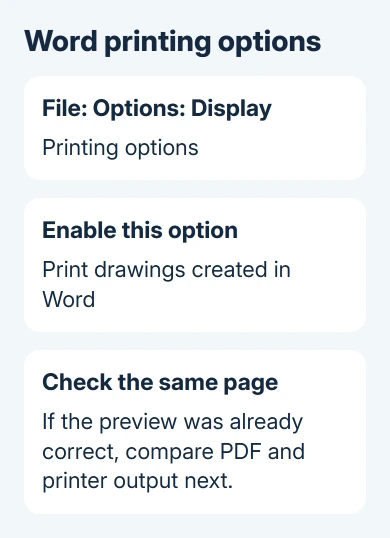
Microsoft's Display options reference identifies this as the control for drawing objects, including shapes and text boxes. It can affect objects placed separately from ordinary lines of text.
A picture wrapped with Square or another floating layout behaves differently from one set In Line with Text. That can explain mixed output, but one surviving picture isn't enough to tell you the wrapping mode of every object.
The asker found that even the one picture that printed used Square wrapping. Don't force every image inline just because one printed successfully. That can rearrange the whole document without fixing the printing problem.
If the page background is what disappears, Print background colors and images has its own checkbox under Printing options. Use it for background content, not as a substitute for the drawings checkbox.
Once the missing objects return to preview, print a single affected page. If the preview was already correct from the start, leave the drawings control enabled and compare the PDF and printed page next.
2. Compare a PDF made from the same saved document
Save the Word file first. Then choose File > Save As, select PDF in Save as type, and save a separate copy. Open that PDF and inspect the exact page that loses its objects on paper.
The original asker could produce a correct PDF using both Word's own saving function and Acrobat. Saving as PDF gave them a useful temporary way to get the finished page, even though printing directly from Word still failed.
If your PDF contains the missing images and boxes, print one affected page from the PDF reader. A correct result gives you a usable copy while you work on direct printing. Review that sample before printing the remaining pages.
Use the Word-to-PDF guide for the ordinary save choices. If the PDF itself changes the layout, the Word PDF layout checks address that different result.
If the objects are missing from the PDF too, return to the Word document and its printing options. Check that separately from a document whose PDF looks right but whose Word printout loses objects.
I'd use the correct PDF for an urgent handout rather than repeatedly send the full Word document. Keep the editable Word original, since the PDF is an output copy and won't replace it for later document changes.
3. Test the selected printer with one affected page
Return to File > Print in Word and confirm which printer is selected. Print just the page containing a missing text box or picture. Keep that sample alongside the matching PDF print if one worked.
If another printer is already installed and available, send the same single page there. If only one printer fails, check its driver or queue. If several models fail, the problem can still be in how Word sends the document to print.
Ask the administrator or printer maker for a driver supported by your model and Windows version. Send the driver name, Word version and the two sample outputs, rather than only saying that pictures don't print.
Updating the driver and reinstalling the printer were suggested, but no owner confirmed that they fixed the original case. They're still steps to check with the person who manages your printer.
Let your workplace administrator handle a shared printer's reinstall. It can carry tray, duplex and finishing settings the document needs. After the driver change, repeat the same one-page Word job and check the objects.
If the printer can't print a basic document from any application, report that wider failure too. If ordinary text won't print from other apps either, the printer needs attention beyond Word's settings.
4. Try a legacy-format copy for the reported Word 2010 fault
One owner said saving as Word 97-2003 Document (*.doc) let their file print. Another said the workaround worked for them too. This gives a second route when the drawings setting is correct but direct output still fails.
Keep a second copy for this attempt. Some newer formatting and features can change in .doc format. Keep the original .docx file as the version you continue editing.
In Word 2010, choose File > Save As, pick Word 97-2003 Document (*.doc), and use a different filename. Review any compatibility message, then inspect the copied document's pages before printing.
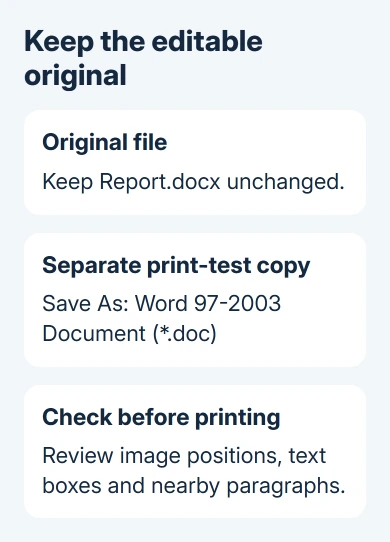
Check images, text-box positions and nearby paragraphs in the copy. If it prints correctly, you have a workaround that support can compare with the original failure. It doesn't rule out driver trouble in other cases.
If conversion changes the layout, use the correct PDF route instead. Don't accept a damaged page just because its picture is finally visible. You need a complete, readable printout with the rest of the layout intact too.
5. Give support the preview and output comparison
For a work computer, send IT the Word build from File > Help, printer model and driver, and a small document that reproduces the missing object without private content. Include whether a new document with one picture also fails.
State whether preview, saved PDF, PDF printing, and the .doc copy include the object. Those four results tell support more than a list of printers you've tried. Ask IT to try their supported Word release with this sample.
If only one file fails, ask its author to inspect its objects and compatibility. If every file fails on one printer, ask the administrator to repair that queue. Keep the working output copy until direct Word printing has been checked.
The Short Version
Enable Print drawings created in Word when objects are missing from preview. A correct preview needs a PDF-versus-printer comparison instead. Check the driver, and try a separate Word 97-2003 copy only as the reported legacy workaround.
Checked November 16, 2026.
 If you have any business, I can build it online






