

Excel 2011 can show Font size must be between 1 and 409 while changing borders with a valid text size. Cancel the dialog, press Command + 1, then apply the border in Format Cells.
Owners confirmed that this avoids the ribbon's Border Options error. Reselecting the existing font size is another confirmed workaround. Both workarounds let you keep the text at its intended size.
In this guide
1. Open Format Cells with Command + 1
Select the cells that need borders, using the same selection that triggered the error. If the error box is still open, dismiss it, then cancel the formatting dialog so you're back in the worksheet.
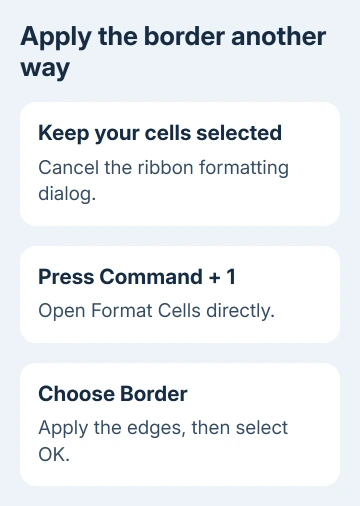
Press Command + 1, using the number 1. In Format Cells, choose the Border tab. Select the line style and the required outline or inside edges, then choose OK to apply them.
Check your selected cells when the dialog closes. The border should be visible without another font-size warning. Also check that the text has kept its intended size, especially if the selection includes headings and ordinary data.
The way you open Format Cells matters. The reported problem occurred through Ribbon > Border Options; opening Format Cells with the keyboard shortcut let the border apply. Don't return to the ribbon route for this test.
One owner found the Command + 1 workaround helpful after an adviser suggested it on Microsoft's forum. Try that before changing fonts or workbook structure; the report doesn't explain why the two entry routes differ.
If the shortcut route still produces the warning, cancel without making more changes and try reselecting the size in the next section. Keep the test focused on the cells that actually fail.
2. Reselect the current font size before formatting
Select the affected cells and check the font-size box on the Home tab. If the whole selection should use one size, choose that intended size again. For example, select 10 if those cells are supposed to remain 10-point text.
Try the required border or other formatting again. One owner reported that selecting the existing size cleared the problem even though the displayed size didn't change. They selected 12 again and could then apply the formatting.
Choosing one font size applies it throughout the selection. A heading, note and data table may intentionally use different sizes, so select only the matching portion rather than making them all the same.
I'd use Command + 1 first for a mixed selection. You can try the border change without giving every cell the same font size. That helps when your workbook already has headings and data sized differently.
If reselecting the size works, inspect the border and text together before saving. If it doesn't, undo an unwanted size change with Command + Z, then compare a small range as described next.
3. Compare one cell with the larger selection
Try the same border on one ordinary cell, then on the larger range. The original report said formatting one or two cells worked while selecting several produced the font-size error, despite the cells showing 10-point text.
Try a smaller selection when you see that difference, before resizing all your text. A valid size appearing in the box doesn't explain why only the multi-cell border operation fails.
Use the same border in both checks so you're only changing how many cells you select. A simple outside border is enough to compare the two selection sizes.
If a small selection works, you can finish an urgent border change in smaller groups. That's a practical way to get the sheet ready, though it doesn't remove the fault affecting the larger selection.
For a large table, check shared edges after working in groups. Applying an outline to each group can add lines inside the table that you didn't intend. Use Undo immediately if the first group doesn't look right.
If the problem occurs even on a single blank cell, continue with the workbook comparison. That's different from the original report about several selected cells. Mention it when you ask for help.
4. Check a new workbook before rebuilding the old one
Create a blank workbook, type a few sample labels, and try the same border on a small range. Use the keyboard shortcut route first. That lets you check another workbook in the same Excel installation.
If the new file works and the original doesn't, duplicate the file before attempting a larger repair. Note the failing sheet, range and formatting operation. A small example is easier to inspect than an entire business workbook.
Don't copy every sheet into a new file just because a border operation failed. That can turn a minor formatting workaround into a larger job involving formulas, names, print settings and linked workbooks.
For the finished table, choose borders or printed gridlines according to the result you need. Cell borders remain formatting; the print-grid setting controls the faint worksheet grid on paper.
If parts of Excel's window have disappeared as well, compare the missing scroll bar controls separately. A window preference and this Format Cells warning shouldn't be treated as one fault just because they occur in the same app.
5. Plan the next step for an unsupported Excel version
Excel 2011 is the old Mac release. Windows Excel 2010 and current Excel for Mac have different version histories; an answer mentioning Command + 1 here isn't telling a Windows user to find a Command key.
Office 2011 for Mac reached the end of support on October 10, 2017. It no longer receives software or security updates. Don't wait for a new 2011 patch to resolve this warning.
The saved discussion includes a 2016 reply saying the issue remained. The workaround can still help on that old release. The reply doesn't tell us whether later Excel releases have the bug or whether upgrading will fix your workbook.
If neither workaround lets you finish, ask the spreadsheet's maintainer to open a copy in a supported Excel installation. Check the affected borders, formulas and printed layout before replacing the working file.
If supported Excel still fails, give Microsoft Support its version and an example containing invented values. Include whether the error follows the workbook and whether the shortcut behaves differently from the ribbon.
The Short Version
Cancel the error and open Format Cells with Command + 1 to apply the border. If needed, reselect the intended font size, taking care with mixed-size selections. Compare a small range and a new workbook before making larger changes.
Checked November 16, 2026.
 If you have any business, I can build it online






