

A blank Outlook web print preview can come from the browser even when the email looks normal. Open that message in another browser and print it there first. If that works, troubleshoot the browser that failed.
An empty preview, a preview of your inbox, and a correct preview that produces blank paper need different checks. Start with the stage where the message disappears, rather than reinstalling the printer for all three.
In this guide
1. Use another browser when the message disappears
Open Edge if the failure happens in Chrome, or try another supported browser already installed. Use the same account in that browser, select the affected email, and choose its Print command. Check the content before printing.
One owner on Microsoft's forum could print Outlook emails in other browsers while Chrome produced a blank preview. Clearing Chrome's cache and restarting the PC hadn't helped them.
Using another browser let them print the email.
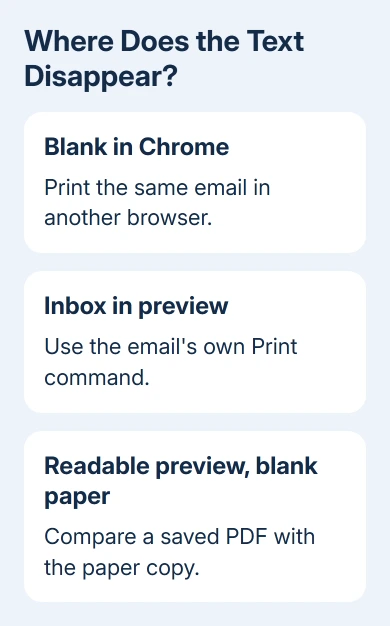
If the second browser shows the subject and message body, print the required pages there. That gets the job done and tells you printing still works through another browser. Continue with the Chrome checks when you have time.
If both browsers lose the same message, try a different email with a short, plain body. Check whether it's just that email or every message that prints blank. Keep that example for the final support step.
I'd compare browsers before touching the printer installation. A blank preview already shows the content is missing before the physical printer receives the job. Printer maintenance won't put missing email text back into that preview.
2. Print the email instead of the inbox page
Return to the message and open its More actions menu, shown as three dots. Choose Print, then select the preview's top Print button. Review the resulting browser print dialog before confirming the job.
Microsoft's Outlook printing instructions describe the second Print action in the message preview.
The browser's page-print command can select the surrounding inbox instead.
An explicit cannot print unless an item is selected error needs message-selection and Outlook-version checks before blank-preview repairs.
Look for the message body, sender, and the part of the conversation you need. Folder names and the mailbox navigation taking up the page suggest the inbox page was selected. Cancel that job and return to the message's own menu.
A header containing your name with an empty body is the blank-preview fault, even if the first Outlook preview looked right. Follow the browser comparison and cleanup steps rather than repeatedly printing the same empty result.
For ordinary page ranges and attachments, the Outlook email printing guide covers the controls.
Use this check when text is missing from the preview. If the email is readable and you just need page 2, use the page-range controls.
3. Compare Chrome's normal and private windows
Open Chrome's three-dot menu and choose New Incognito window. Sign in to Outlook there, open the same message, and repeat its Print action. Close the private window when you've finished the comparison.
If the private window prints correctly, check what differs in your normal browser window. That can include stored website data or an extension. It doesn't mean the mailbox password needs changing or the email has been deleted.
Open Extensions > Manage extensions from Chrome's menu. Temporarily turn off extensions you added that alter pages or printing, then retry in a normal window. Restore an extension if switching it off makes no difference.
When the preview starts working after one extension is disabled, leave that extension off for Outlook and check its update or site-access options.
Tell its developer which Chrome build you use and which steps produce the blank preview.
A private window can have different extension permissions, so treat this as a comparison rather than a permanent repair. If it also produces a blank preview, skip extension guessing and check the browser update and stored data next.
4. Update Chrome and remove stale page data
Choose Help > About Google Chrome from the three-dot menu. Allow the update check to finish, then choose Relaunch when offered. Save any work in browser tabs before restarting, then reopen Outlook and retry the same email.
For a remaining fault, open the menu and choose Delete browsing data. Set the time range you need and select Cached images and files. Leave the other categories unchecked.
Delete the selected data, reload Outlook, and check its print preview again.
If removing cached files doesn't change the result, repeat with Cookies and other site data selected. This signs you out of websites, so have your sign-in method ready.
Don't select saved passwords or browsing history just to troubleshoot printing.
The browsing-data controls distinguish cached files from cookies and other saved information. Check the selected categories carefully when the browser also holds work sessions.
Once you're signed back in, try the same email again. A readable preview is the result you need. If cleanup changes nothing, stop deleting data and keep using the browser that worked while you report the failure.
5. Follow the output that actually fails
When the preview looks correct, select Save as PDF in Chrome's destination list and save a local copy. Check whether the saved PDF shows the message text. This tells you whether the content is missing before it reaches the printer.
If the PDF contains the email but paper comes out blank, send a short text document to that printer from a different app.
A second app failing too belongs with the blank-page printer checks, rather than further Outlook account changes.
An attached PDF or Word file is a separate item. Open or download the attachment and print it in an app that can open it if that's the document you need. Printing the email body doesn't automatically print its attachments.
For a fault across browsers, ask your workplace Microsoft 365 administrator to check service health and open a support request for Outlook web printing.
Personal Outlook.com users can open Help in Outlook and search for printing, then use the offered support route.
Include whether one or every message fails, which browsers you tried, whether the first message preview contains text, and whether the PDF is blank too. Hide email addresses and message content in any picture sent with the report.
The Short Version
Try the same email in another browser first. Then confirm you're using the message's own Print command. A Chrome-only failure needs browser checks; a readable PDF followed by blank paper needs printer checks.
Checked November 16, 2026.
 If you have any business, I can build it online






