

Word 2016 for Mac had an early fault that could gray out Save and Save As, then leave a blank document after closing. Protect the text in another app before restarting Word, then check the installed version and its available updates.
This guide covers the old El Capitan problem: Command + S does nothing, but you can still edit the document. An Unknown Error with code 0x0 needs a different repair, so the exact message matters.
In this guide
1. Copy the document before closing Word
Keep the affected document open. Click inside its main text, press Command + A, then Command + C. Open TextEdit from Applications, create a new document, and paste the text there.
Save the TextEdit document to a recognizable folder. Open that saved copy and check that the beginning and end are present. You'll have a separate copy of your writing before trying anything that closes Word.
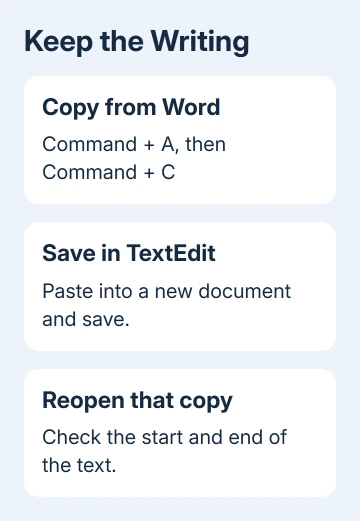
A text copy won't preserve every Word feature. Check tables, pictures, footnotes, and headers separately before relying on that copy for everything. Keep the Word window open while collecting anything missing from the copy.
The original report shows why saving a copy first matters: the save prompt appeared to work, but the file it produced was blank. Don't use that prompt as the only copy of work you need.
I'd protect the writing before spending time on updates. While the document is open, you can still copy your work. Once it's gone, you'll need to try recovering it too.
If the window has already closed, use the unsaved Word document recovery steps before opening and saving over possible recovery files.
Once the document is off screen, copying its text is no longer an option.
2. Check the Word build and available updates
In the menu bar, choose Word > About Word. Note both the version number and its build. The affected Macs in the 2016 report were running 15.18 (160109), rather than a current Microsoft 365 release.
Choose Help > Check for Updates to open Microsoft AutoUpdate. Review the updates it offers for this installation. Save anything open in Excel or PowerPoint before the updater closes those apps.
After updating, open About Word again and check whether its version changed. Then test saving with a fresh document containing no important work. Type a short sentence, save it, and close it. Reopen the saved test to inspect its contents.
In the historical thread, an adviser recommended 15.19.1 or later. The asker later reported recovery across all three Macs, but two also received a disk utility repair and one recovered without either change.
Those mixed results don't tell us whether the update fixed it. One owner said newer releases had cleared the problem on Word 15.32 with macOS Sierra 10.12.3. That report involved a different Word build and Mac operating system.
A build that worked on Sierra won't necessarily fix El Capitan. Stick to the compatible updates your Mac offers. Don't choose an installer solely for its higher version number.
If AutoUpdate offers nothing, keep the version you recorded and continue with the local-save check. Next, check whether the folder you're saving to makes a difference.
3. Compare a new file saved in Documents
Create a new document containing just a sentence. Use File > Save As if it is available, and choose the Documents folder inside your own Mac user folder. Give the test an unmistakable name.
A working Save command interrupted by the file-in-use and AutoRecover errors needs a filename comparison separate from this disabled-command fault.
The old thread suggested testing this folder, but didn't report that choosing it fixed the fault. This lets you compare saving on your Mac with saving to a network share, removable drive, or online location.
If the local file saves and reopens correctly, compare that result with the original destination. A working local copy gives you somewhere to continue while the folder or service problem is checked.
For a save dialog that's usable but confusing, the Word for Mac save-location guide explains choosing a Mac folder. A destination choice can't repair a command that remains gray everywhere.
If Save and Save As stay unavailable even in the fresh test, stop changing folder permissions. The original folder is a less likely cause now. Word itself may be stuck or need attention.
If only the original file fails, keep both it and the rescued text. Give a copy to the person checking the file, and explain that a plain new document saves normally on the same Mac.
4. Match the next step to this old installation
Microsoft's Office 2016 for Mac support notice confirms that support ended on October 13, 2020.
That includes security updates and phone or chat support for the old product.
The date doesn't mean Word suddenly deletes documents. It means this installation no longer gets fixes. Don't assume a current Office installer will work on OS X El Capitan.
Before replacing Office, ask your IT team or a Mac repair specialist to check the Mac model, its supported macOS versions, and the Office license. Keep your current apps installed until there is a compatible replacement plan.
For a workplace Mac, tell IT which Word build and OS X version you have, plus whether the new document saved on the Mac. Also say whether colleagues using the same destination can save. That helps IT compare your Mac with the others.
Disk Warrior's mention in the old reply doesn't make it the next step. The same report includes a Mac that recovered without it, so that thread doesn't justify buying or running a disk repair tool as a Word fix.
When local saving still fails after the available update, the practical next step is to move the rescued work to a supported Word installation and have the old Mac checked. Verify the transferred file before continuing your edits there.
The Short Version
Copy the unsaved writing out of Word first. Check the old Word build and compatible updates, then compare a fresh file saved in your Mac's Documents folder. Keep El Capitan compatibility in the replacement plan.
Checked November 16, 2026.
 If you have any business, I can build it online






