An old classic Outlook bug made shared calendars lose their check marks or overlay layout after a restart. An Office update fixed it. Install available Office updates first, then check whether the selection stays saved.
That repair applies to the old shared-calendar bug, not every layout preference in every Outlook app. A missing calendar, a changed Day view, and an unchecked shared calendar need different checks.
In this guide
1. Update the build that forgot shared calendars
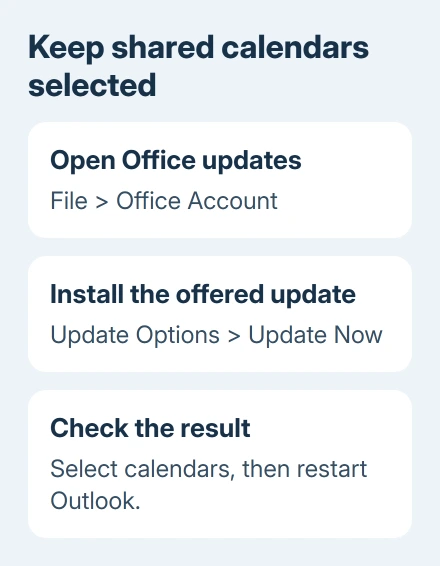
In classic Outlook for Windows, choose File > Office Account > Update Options > Update Now. Let Office finish updating, then reopen Outlook. If your organization controls updates, ask IT to check your build and update channel.
The documented bug began in build 16.0.13127.20408. Its symptoms included unchecked shared calendars after restarting, lost overlays, calendars that stayed open after closing, and missing calendar names in group views.
Microsoft's shared-calendar fault notice identifies the Current Channel repair as Version 2008, Build 13127.20508. Those are historical 2020 version numbers, not the update to install in 2026.
Use the update currently offered on your supported Office channel. Don't roll back a modern installation or join a preview channel to get that old build.
In the original report, the owner confirmed that updating corrected the problem. An earlier reset of the views hadn't solved it for another affected organization. That's why updating comes before clearing your custom layout.
2. Separate selection, layout, and calendar access
Open Calendar and look at its left-hand calendar list. If the shared calendar is listed but unchecked, select it. If it's checked and visible but arranged differently, check the display controls.
Choose the time view you need from the Calendar ribbon, such as Day, Work Week, Week, or Month. For calendars displayed together, use their Overlay control if you want appointments on the same time grid.
Switch to Mail and return to Calendar. Then close Outlook normally, reopen it, and inspect the same calendar list and layout. This tells you whether the change happens when you switch sections or only when Outlook starts.
Record exactly what resets: the check mark, the time view, the overlay, or all three. Before-and-after screenshots can show IT exactly which part of your layout Outlook forgets.
If the calendar is absent from the list, follow the shared-calendar access steps. Selecting a calendar controls whether it's shown. Sharing permissions control whether you can open its contents.
For calendars missing only from another work account, check both accounts' sharing setting in classic Outlook.
If events have disappeared while the correct calendar remains selected, compare the same calendar in Outlook on the web. Don't recreate appointments just to repair the arrangement of the screen.
For events that appear separately but vanish together, try the overlay display checks.
3. Save a custom view when the view itself changes
Classic Outlook has named views for keeping a particular arrangement. With the relevant Calendar folder selected, open View > Change View > Manage Views and inspect the available views.
Use Copy to preserve a view you want to customize. Give it a name you recognize, review its settings, and select Apply View. Return to that named view when you need that arrangement again.
A saved view keeps display options, not the list of shared calendars you've selected. It doesn't replace the update that fixed disappearing calendar selections.
I'd save an arrangement before trying a reset. That gives you a named layout to return to and makes it easier to explain which part Outlook is forgetting.
The Outlook view guide explains custom views separately from the inbox reading pane and message spacing. Mail settings won't repair a Calendar overlay.
Avoid outlook /cleanviews as a first step. It resets custom views, and an owner reported that it didn't fix this update fault. Save the layouts you need, and only try a view reset if support asks you to.
4. Check modern shared-calendar behavior separately
If Outlook is current and an Exchange shared calendar is affected, ask IT about shared calendar improvements. This feature changes how shared calendars sync, not how your own calendar works.
Choose File > Account Settings > Account Settings. Select the Exchange account used for the shared calendar, then Change > More Settings > Advanced. Look for Turn on shared calendar improvements.
The option and availability depend on the account and Outlook build. Tell IT whether it's on or off rather than repeatedly changing it. Restart Outlook after any change your administrator asks you to make.
An overlay that resets isn't a reason to remove permissions. Keep sharing as it is while checking the app and view. Permission changes can disrupt work for people managing the owner's calendar.
If the web calendar works and only the Windows app forgets selections, send IT that comparison. If the calendar is wrong in both places, have them check the shared calendar and permissions instead of continuing with saved-view changes.
5. Use the right support route for your Outlook version
Browser Outlook and the new Windows app lack classic Outlook's Office Account update controls and Manage Views window. The 2020 build number doesn't identify a fault in those apps.
For those versions, record the calendar's name, the selected time view, and whether leaving Calendar or reopening the app triggers the change. Tell support which setting Outlook forgets and which app you're using.
For classic Outlook, include File > Office Account > About Outlook version details and the update channel. Mention whether all shared calendars are affected or only one, and whether personal calendars keep their settings.
Have IT report disappearing calendar selections to Microsoft 365 support if they persist on a current build. Include what changed in section 2 and whether shared calendar improvements are on, so support has enough detail to reproduce it.
The Short Version
Use your channel's current Office update. The selection and overlay bug was repaired in 2020. Check whether Outlook is forgetting selected calendars, their layout, or sharing access before resetting layouts.
Checked November 16, 2026.
 If you have any business, I can build it online