

The Microsoft Word previewer error in Word 2010 or 2013's Open dialog has a workaround: preview in File Explorer instead. For the same message in Outlook or Explorer, check that window's preview controls first.
A failed preview doesn't automatically mean the document is damaged. First try opening the saved file normally. When it opens, keep working from that copy while you restore the preview feature.
In this guide
1. Move an old Word Open-dialog preview to Explorer
In Word, check whether the message appears only after File > Open, when you select a document with the preview pane showing. The old Office preview issue applies to this window.
Microsoft's Open-dialog workaround is to preview the file in Windows Explorer or another Office program. The article covers Word 2010 and 2013, along with other listed Office applications.
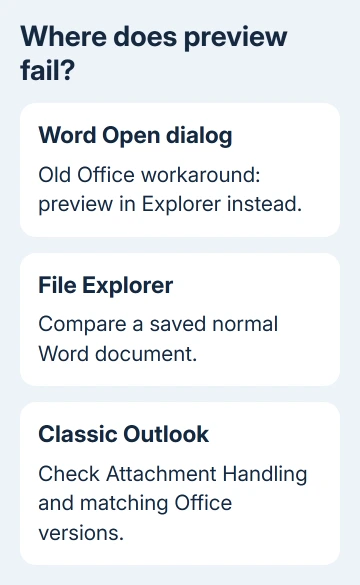
Close the Open dialog and open the document's folder in File Explorer. Select the document once. Press Alt + P to toggle the preview pane, then check whether its contents appear there.
On Windows 11, the menu route is View > Show > Preview pane. Windows 10 has Preview pane on its View tab. On the original Windows 7 setup, use Explorer's preview-pane control rather than the one inside Word.
If Explorer displays the page, you have a usable preview without changing Word security. Double-click the file when you're ready to edit it. There is no need to convert a document just because Word's Open dialog can't preview it.
For an Explorer error, compare another saved file next. If normal opening fails as well, switch to the Word document recovery checks, since restoring a preview won't repair its contents.
2. Compare a normal document with the failing one
Create a blank Word document and enter a short line. Save it somewhere recognizable. Close it, select the saved file in Explorer, and retry its preview.
For PDF pages that stay small in Explorer, compare pane width with page zoom, then review the installed PDF preview app.
If the new file previews and the original doesn't, Word's previewer can display an ordinary document. Open the original in Word. Look for a password request or another message that appears before the pages.
Keep a password-protected file protected. Open it in Word with the supplied password to read it. Removing the password just to get an Explorer preview changes how the document is protected.
For an attachment, save a fresh local copy before comparing it. Check the attachment in the message and the saved document separately. Note whether only the attachment preview fails or the saved version also fails in Explorer.
If normal saved documents open in Word but won't preview, check preview settings and the installation next. I'd compare files before running a repair, because a failure confined to one document needs different help.
One owner in the old Office 2010 discussion got previews working in compatibility mode; earlier suggestions hadn't helped another owner. An old Windows XP compatibility workaround isn't a general fix for current Word.
3. Recognize Explorer's downloaded-file warning
An updated Windows PC can instead show a preview warning containing could harm your computer. The Internet-file preview restriction is a security feature, separate from the Word previewer error.
For a saved file you trust, right-click it, select Properties, and use Unblock when offered. The preview change may need your next Windows sign-in. Otherwise, leave the restriction in place and open only trusted documents.
If the pane still reports the Word previewer error for ordinary local files, continue with the application checks. Repairing Office won't remove an intentional Internet-file preview restriction.
4. Turn on the Word previewer in classic Outlook
For an error inside classic Outlook for Windows, open File > Options > Trust Center > Trust Center Settings. Select Attachment Handling on the left.
Check whether Turn off Attachment Preview is selected. Clear it if you want attachment previews, then open Attachment and Document Previewers. Enable the Word previewer if it has been cleared, and confirm with OK.
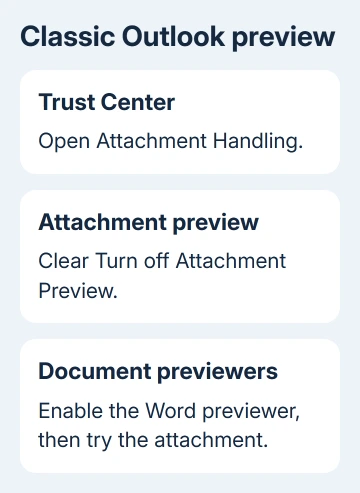
Return to the message and select the attached document in the Reading Pane. If the document's pages now appear, the disabled preview setting was preventing the preview. If the same error remains, check the Office versions next.
The attachment preview requirements include matching versions of Outlook and the Office application used for the preview. If your standalone Outlook and Word are different versions, ask IT to check the installation.
New Outlook doesn't have this classic Trust Center route. Use its attachment's open or preview action instead; don't search for classic Outlook's COM previewer controls in the newer app.
For confidential files, use the organization's approved app when opening the saved attachment. A preview repair doesn't require uploading the document to a converter or changing its sharing permissions.
5. Match classic Outlook's display preference with Word
For classic Outlook, compare File > Options > General in Outlook and Word. Under User Interface options, look for When using multiple displays and the appearance or compatibility choices.
Set both applications to the same choice, either Optimize for best appearance or Optimize for compatibility. These are display options, separate from Windows program compatibility mode.
Close and reopen the apps after changing a preference, then retry the attachment. The Office attachment previewer also needs these settings to match. Leave unrelated Windows display preferences alone.
If one of the controls is missing, record each app's product and version through File > Account > About. Ask IT to compare them, especially on a PC where Office was recently replaced or installed in separate pieces.
A message about Word being unable to create a work file is a different failure. Use the Word cache checks if that matches the error on screen, rather than deleting cache folders for every previewer error.
For an Excel attachment with the same kind of error, match Outlook and Excel preview settings before repairing Office.
6. Repair Office after the preview checks fail
Finish and save any open Office work, then close its applications. In Windows 11, open Settings > Apps > Installed apps, find Microsoft 365 or Office, open its menu, and choose Modify.
Windows 10 uses Settings > Apps > Apps & features. For an older Office installation, use Control Panel > Programs and Features, select Office, and choose Change to reach its repair option.
For Click-to-Run Office, try Quick Repair, then Online Repair if the preview still fails. An installer-based edition can offer a single Repair choice instead. A managed PC may need IT to run this.
After repair, select the saved test document in Explorer and retry the attachment in Outlook separately. Explorer can preview a file even when Outlook's preview settings or its pairing with Word still need attention.
Tell IT which window fails, your Word and Outlook versions, and whether the file opens normally. Ask them to check the Word previewer and whether those versions work together. Windows account protection can stay enabled.
The Short Version
Use Explorer to preview files when Word 2010 or 2013's Open dialog fails. For classic Outlook, check Attachment Handling, matching Office versions and display preferences. Repair Office when ordinary saved documents still won't preview.
Checked November 16, 2026.
 If you have any business, I can build it online






