

Excel for Mac can split sheets into separate PDFs when print settings differ. Compare quality, orientation and scaling first. For a report needing mixed layouts, combine the exported PDFs in Preview instead of forcing the sheets to match.
Missing sheets are a different problem from separate output files. Check that every required sheet reaches print preview before changing its page layout or joining the PDFs.
In this guide
1. Select the sheets that belong in the report
Open the workbook and select its required sheet tabs. On a Mac, hold Command while clicking individual tabs, or Shift to select a continuous group. Confirm the intended tabs are selected before opening File > Print.
Choose the option to print the active sheets, rather than only selected cells. Check the first page, last page and page count in preview. The exact print controls vary between old Excel 2011 and current Excel for Mac.
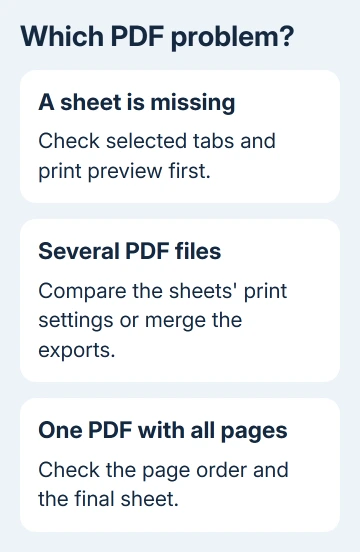
A sheet missing from preview needs its selection or print area corrected first. If the sheet appears there but saves as a separate PDF, check the print settings next.
Use the Excel PDF export guide when columns are cut off or the output contains the wrong cells. Those layout problems can survive a successful merge, so joining files alone won't fix them.
For separate workbooks, export their required pages individually. Selecting tabs only chooses sheets within that workbook, not other open files. Join the finished PDFs when the report spans several source workbooks.
Save your editable workbook before trying layout changes. After working with grouped tabs, click a single tab to leave the group; otherwise later worksheet edits can affect more than the sheet you're looking at.
2. Compare the sheets' print settings
One owner traced split PDFs to differing print quality, orientation and scaling in Excel 2011. Compare those settings when output splits; that older report doesn't describe every current release.
Select each sheet in turn and inspect its page settings. In versions with File > Page Setup, check Page for orientation, scaling and print quality. Compare the same settings on each sheet that should join the report.
Match print quality where the control is available. Then compare Portrait versus Landscape, and a fixed percentage versus fitting the sheet to a chosen page count. Screen zoom isn't print scaling.
The owner found that using the same fixed scale for each sheet helped, while fitting individual sheets to pages could create separate PDFs. Try a spare copy of the workbook so the original report's formatting remains available.
Don't force a wide table into portrait simply to make its settings match a narrow cover page. If matching settings makes the content hard to read, keep the mixed layouts and combine the resulting PDFs in Preview.
For a small report, matching orientation and scaling may be enough to produce one file. Open the result and confirm that the final sheet is present. If Excel still creates separate PDFs, continue with the Preview route.
If blank pages or an old cell range are the real problem, check the saved Excel print area. Clearing or resetting it changes which cells print; it doesn't combine separate PDF files.
3. Use the older Open in Preview workaround carefully
For the Excel 2011-era problem, owners reported success by choosing File > Print, printing the active sheets, and selecting Open PDF in Preview or its equivalent entry under the print dialog's PDF menu.
The old instructions also set Preview to open files in one window through Preview > Preferences > General. Use that only if your old version offers the option. Current Preview settings and PDF print-menu wording can differ.
Once the pages appear, use File > Print in Preview and its PDF > Save as PDF command to create the combined output. Name it separately from the original exports, then inspect the saved file.
A later owner said this process occasionally missed a sheet. Count the pages and compare report headings before sending it. Export a missing sheet again; one window doesn't necessarily contain the entire report.
One Preview window can contain several documents. Opening them together doesn't merge them into one file. The next method puts pages into one PDF directly and is easier to verify on a current Mac.
4. Join the exported PDFs in current Preview
Open the PDFs in Preview and choose File > Duplicate for the copies you'll edit. Preview saves changes automatically, so keep the source exports separate from the report you're assembling.
In each PDF, choose View > Thumbnails. The sidebar should show small page images. Pick the PDF that should come first, then drag the page thumbnails you need from another PDF into its sidebar.
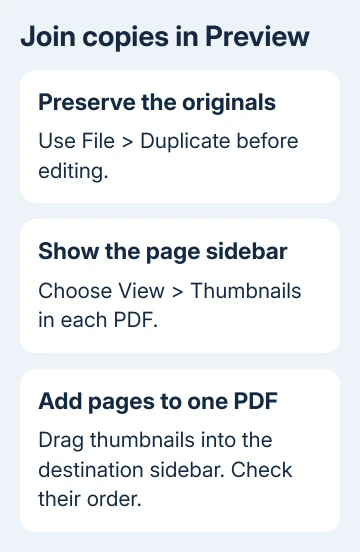
Drop the pages at their intended position among the destination's pages. Drag within that sidebar to correct the order. To choose pages that aren't adjacent, hold Command while selecting their thumbnails.
Apple's Preview merging instructions also allow dragging an entire PDF from Finder into an open PDF's thumbnail sidebar. This adds its pages to the destination document.
Check the combined PDF's page count each time you add pages. Joining two five-page exports should leave ten pages when all pages were included, rather than two separate documents sharing one window.
Save the assembled document with a clear report name. Close the window, then reopen only the assembled PDF for inspection. This catches the mistake of checking a grouped window while sending only one of its original PDFs.
5. Check the report before changing Excel again
Read the combined PDF's first and last pages, then the transition between each worksheet. Check repeated headings, totals and landscape pages. Combining PDFs keeps whatever was exported, including any mistakes.
A graphic that enlarges in the PDF needs the export-scaling checks before you combine the sheets.
Compare the total page count with the separate exports and look for duplicated sheets. If a page is missing, return to the source sheet and export it again; changing Preview's window preference won't recreate missing worksheet content.
In current Excel, compare PDF export with printing. Select Save As from File; some editions call it Save a Copy. Set File Format to PDF. Select the workbook scope and inspect the output before replacing your assembled report.
If current Excel still splits a small workbook with matching settings, send Office Support your Excel and macOS versions and a sample with no private information. Ask why Excel exports the worksheets as separate PDFs.
The Short Version
Check sheet selection and compare print settings. Keep mixed layouts by combining exported copies in Preview's thumbnail sidebar. Reopen the finished PDF and inspect every page, including the last sheet.
Checked November 16, 2026.
 If you have any business, I can build it online






