

The OneDrive warning that a folder isn't your original folder appeared after older Windows upgrades. Owners restored syncing with Try again. Use that button before unlinking or resetting an otherwise working account.
Start with Try again if the warning appears just after an upgrade. A folder that moved, the wrong signed-in account, or a recurring warning needs another check. Don't move files just because the dialog suggests the original folder changed.
In this guide
1. Click Try again after the upgrade
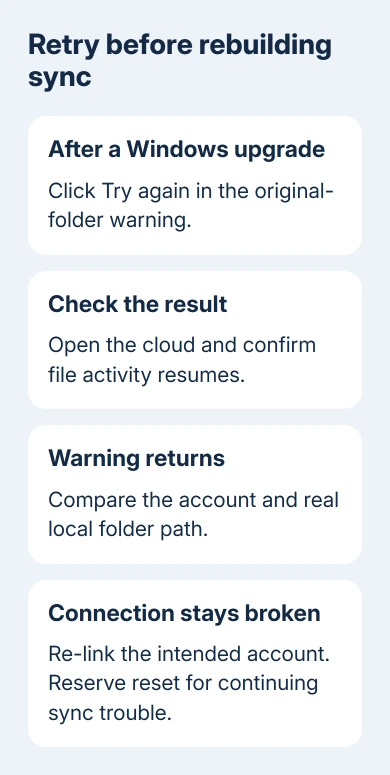
Use Try again in the warning once, then select OneDrive's cloud in the notification area. Check whether the message clears and file activity resumes. The useful result is a working sync connection, not simply a closed dialog.
The original report followed Windows 10 versions 1703 and 1709. Another owner later described the same behavior after 1803. Those are historical affected releases, not versions to install or return to today.
One owner said Try again solved it without unlinking or reset. Their problem was having to ask every employee to dismiss the warning after an upgrade; they could get syncing working again.
If the cloud reports a sign-in error instead, handle that error rather than repeatedly clicking the folder warning. If the message returns at the next sign-in, record that behavior and continue with the location check.
Don't drag your OneDrive folder somewhere else or delete what looks like a duplicate folder at this stage. The warning alone doesn't tell you which local files have uploaded or which location contains your latest work.
2. Match the local folder to its OneDrive account
Open the cloud for the affected account, then Help & Settings > Settings > Account. Check the account address. A personal Microsoft account and your work account can have different OneDrive folders on the same computer.
In File Explorer, compare the location named by the warning with the folder you normally use. Click Explorer's address field and read the complete location. The familiar OneDrive display name can hide which folder it represents.
A path such as C:\Users\yourname\OneDrive is an example personal location. Work folders often include the organization's name. Use the email address and folder shown for your own account, rather than copying the example username.
A warning just after an upgrade, with the intended folder still present, matches the old retry case. If storage moved or the account changed recently, check that change with IT before selecting a folder.
For an intentional move, follow the OneDrive location-change steps. Moving the folder through an ordinary Explorer drag isn't the same as setting up OneDrive to use a new sync location.
Check that your recent documents appear in the intended account's online storage as well as locally. If a local document contains changes missing online, save a separate copy outside the sync folder before changing the connection.
That copy keeps your unfinished edit safe while you reconnect OneDrive to the right account. Don't assume a folder full of familiar filenames is fully synced just because Explorer can display it.
3. Re-link only when retry doesn't restore the connection
For a persistent connection problem, Microsoft's unlink and re-link procedure reconnects the local folder to the cloud account. It's a supported sync repair, but you don't need it if Try again already cleared the warning.
Select the affected cloud, open Settings > Account, choose Unlink this PC, and confirm Unlink account. This temporarily disconnects syncing. Keep the account address and intended local location available for setup.
Press Windows+R and open:
%localappdata%\Microsoft\OneDrive\settingsDelete the specific PreSignInSettingsConfig.json file named in the current reconnect procedure. Leave the other contents alone. This removes the settings OneDrive saved before sign-in; it doesn't call for clearing out the whole folder.
If setup stays closed, launch OneDrive using Start search. Use the account you just disconnected. Choose Use this folder for the intended existing folder. Check the location when personal and business copies share the PC.
Allow OneDrive to compare and sync the account's contents. Files On-Demand can show files in Explorer without downloading their contents immediately. You'll still need internet access to open a cloud-only file.
Check the cloud status and a recent document after setup. If the same original-folder message returns, record the exact path and time. If OneDrive keeps rejecting that location, repeating the same reconnect won't tell you why.
4. Reset a connection that remains stuck
A later owner in the old discussion said a reset seemed to suppress the prompt. That owner hadn't confirmed a lasting fix across their organization's PCs.
Resetting OneDrive rebuilds its settings and performs a full sync. It disconnects personal, work, and school connections. I'd reserve it for syncing that stays broken after retry and reconnect.
For the Windows desktop sync app, press Windows+R and run:
%localappdata%\Microsoft\OneDrive\onedrive.exe /resetIf Windows reports it can't find the program, use the installed program location instead. The other supported locations are:
"C:\Program Files\Microsoft OneDrive\onedrive.exe" /reset
"C:\Program Files (x86)\Microsoft OneDrive\onedrive.exe" /reset
Try another location only after a program-not-found message. Then search Start for OneDrive and reopen it. Wait for the full sync, check the account, and choose your selectively synced folders again if needed.
If the desktop app won't reopen at all, use the OneDrive startup checks. An app that cannot launch needs a different repair from this folder warning.
Handle repeated warnings across work PCs with IT
The organization redirected Windows user folders, such as Documents, into OneDrive. The accepted reply proposed switching that redirection off before upgrading and back on afterward.
The owner said they planned to test that change, but didn't report back with a successful rollout. Don't treat it as a proven script or turn off folder policies on hundreds of computers from that suggestion alone.
Give IT the Windows builds, OneDrive versions, folder paths, and whether Try again keeps syncing working. Ask them to review folder-redirection policies and test upgrades on a small group covering the different PC setups they manage.
If the problem continues, have IT open a OneDrive business support case with that comparison. For a personal account, use OneDrive's Help route and provide the exact warning, account type, and whether the folder actually moved.
The Short Version
Try again cleared the post-upgrade warning for owners. Verify your account address and local location before making changes. Re-link or reset only if syncing stays broken. Repeated work-PC warnings need IT to review policies and upgrades.
Checked November 16, 2026.
 If you have any business, I can build it online






