

Office crashing when Draw opens was a Windows fault fixed in version 1707, build 8326.2096. Update Office first. If a newer copy still crashes, check add-ins and repair the installation instead of hunting for that old build.
Watch what happens when you click Draw to choose the right fix. If Word, Excel or PowerPoint closes, follow the crash fixes here. If it stays open but the tab or pen tool is wrong, check the drawing settings instead.
In this guide
1. Install the Office update for the Draw-tab crash
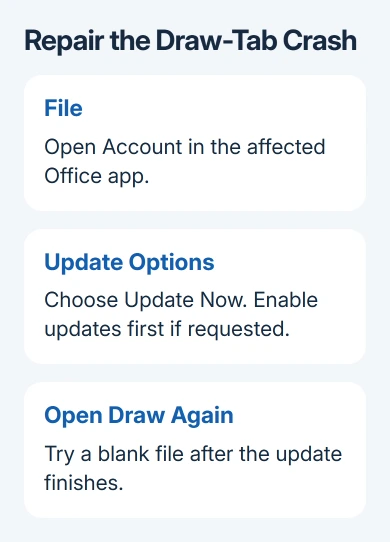
Save your open files. In Word or another working Office app, choose File > Account. Under Product Information, select Update Options > Update Now, then let Office finish checking and installing its updates.
If the menu offers Enable Updates, select it before Update Now. After installation, reopen the affected app, create a blank document and click Draw before returning to an important file.
Microsoft's 2017 Office release notes list the Draw-tab crash fix under version 1707, build 8326.2096. That is an Office version and build, not a Windows release number.
The original discussion started on Windows 10, but the update fixed Office itself. I'd update Office before considering a different Windows release.
That build identifies the historical repair. Use the update your installed product offers instead of downloading a 2017 installer. For a modern copy that still crashes, continue with the next checks.
If only About appears instead of Update Options, the copy may use volume licensing or managed updates. Ask IT to check its build and update method. The Office update guide explains the differences.
2. Check whether the crash follows one file or every app
Try Draw in a new blank Word document, a new Excel workbook and a new PowerPoint presentation, using whichever of those apps are installed. Keep a note of which ones close and which stay open.
Crashes before any drawing tool opens belong with the Word and Outlook startup comparison, especially when the Windows event names ucrtbase.dll.
Then try the file that first showed the problem. Tell support whether only that file crashes or all three blank files do. Don't overwrite the original while comparing them.
In the original thread, restarting and reinstalling hadn't helped. One owner said Word worked again while Excel and PowerPoint still failed. Checking only Word would have missed the remaining problem.
If Draw now works in every app you use, open a spare document, add a short pen stroke and save it. Open your saved test document and look for that mark. That checks whether you can draw and save your work, as well as open the tab.
When the program stays open but drawing controls are missing, follow the Word drawing controls instead. Showing a hidden tab won't repair an application that closes when the tab is clicked.
3. Use Office Safe Mode to check add-ins
Close the affected app. Press Windows + R to open Run. Enter the command for that app, with a space before /safe, then press Enter:
- Word:
winword /safe - Excel:
excel /safe - PowerPoint:
powerpnt /safe
Use Run on Windows 11, or the same dialog on Windows 10. This is Office Safe Mode, not a restart into Windows Safe Mode. The title bar should identify the app as running in Safe Mode.
Try opening the Draw tab in a blank file. If the crash stops, an add-in or another customization may be involved. One successful launch in Safe Mode is a reason to check add-ins, rather than assume the problem is fixed.
Open File > Options > Add-Ins. At Manage, choose the app's add-in type or COM Add-ins, then select Go. Clear one add-in's checkbox and choose OK, keeping a note of the one you changed.
Quit, then launch normally and try Draw. If it works, update the disabled add-in before enabling it again. If it crashes again, repeat the check with the next add-in. Keep unrelated programs as they are.
If the tab also crashes in Office Safe Mode, move to repair. Repeating the same test without changing anything won't get you closer to a repair.
4. Repair the Office installation
Save your documents, then quit every Office app. On Windows 11, open Settings > Apps > Installed apps. Find Microsoft 365 or Office, open its three-dot menu, and choose Modify when available.
On Windows 10, use Settings > Apps > Apps & features, select Office and choose Modify. Accept any Windows request for permission to modify Office. The repair applies to the Office installation, even if only one app is failing.
For Click-to-Run installations, try Quick Repair first. Start the repaired program and revisit Draw with your blank test file. If it still crashes, reopen Modify and select Online Repair, which needs an internet connection.
Some Windows Installer editions show a Repair option instead of the two Click-to-Run choices. Use the repair offered for your installation. A company-managed computer may require IT to run it.
When Draw still closes the app
Follow the remaining device-driver checks in the Office stopped-working instructions. Check Windows Update and the PC maker's supported drivers, especially the graphics driver.
If the fault remains, tell your Microsoft 365 support contact or IT team the Office build, Windows version and what happens when it crashes. Include the results for blank files, Office Safe Mode and repair, with the affected app names.
Office 2016 is unsupported. Plan a replacement if that's still installed; the historical fix doesn't mean new repairs are coming. For a supported version, ask support to examine the recurring Draw-tab crash.
The Short Version
Install available Office updates, then compare blank files in each affected app. A continuing crash needs an Office Safe Mode check and installation repair. Build 8326.2096 identifies the old Draw-tab fix, not a version to reinstall today.
Checked November 16, 2026.
 If you have any business, I can build it online






